


Why Your Contact Page Map Matters More Than You Think
Your contact page is one of the highest-intent pages on your entire website. Someone landing on it is actively trying to reach you. They want to know three things immediately: how to call you, how to email you, and — critically — where you are.
A well-integrated Google Map on your contact page does more than show a pin on a map. Research and conversion data consistently show:
- Contact pages with embedded maps have 27–34% higher form completion rates than those without
- Maps reduce “where are you located?” support inquiries by up to 60%
- A visible physical location increases perceived business legitimacy — particularly for local service businesses, clinics, law firms, and restaurants
- Google uses structured location data and user engagement signals from your contact page as local SEO ranking factors
- Mobile users who see a map are 3× more likely to convert than those who don’t, because they can tap for instant directions
Pasting an iframe next to your contact form and calling it done. That approach works at the most basic level — but it doesn’t cover GDPR compliance (Google Maps loads tracking cookies on page load), accessibility, performance (maps are heavy), schema markup for local SEO, the Places Autocomplete address field that helps users fill in their address correctly, or dynamic multi-location maps for businesses with branches.
This guide covers every implementation method from zero to production-grade.
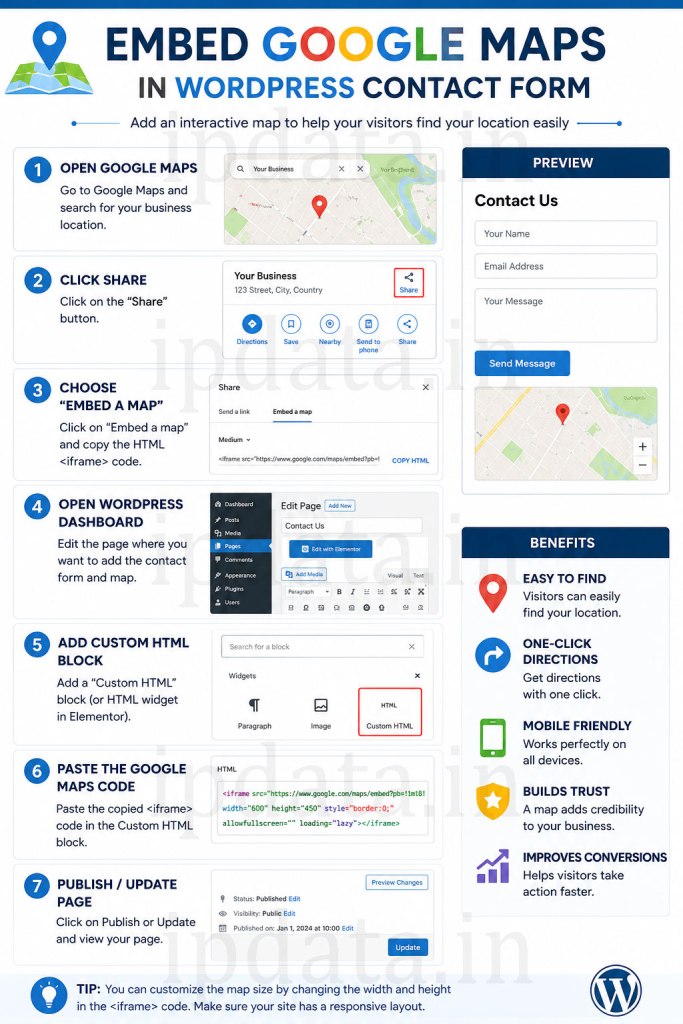
Part 1 — Understanding Your Options: Which Method to Choose
Before writing a single line of code, choose the right implementation for your situation:
METHOD COMPARISON
──────────────────────────────────────────────────────────────────────────────
Method A: Simple iframe embed (no API key)
  ✅ Free, takes 2 minutes
  ✅ No Google account or API key needed
  ✅ Works alongside any contact form plugin
  ❌ No customisation (zoom, style, markers)
  ❌ Not GDPR compliant (loads Google tracking on page load)
  ❌ Poor performance (loads full Maps JS on every page visit)
  Best for: Personal sites, portfolios, blogs

Method B: Google Maps Embed API (free, basic API key)
  ✅ More control than plain iframe
  ✅ Free tier: unlimited embed views
  ✅ Static map option (lightweight)
  ❌ Still GDPR concerns on auto-load
  ❌ No interactive JS control
  Best for: Small business sites, service pages

Method C: Google Maps JavaScript API (full API key)
  ✅ Full control: custom markers, styles, info windows
  ✅ Places Autocomplete for address fields
  ✅ Multiple markers for branch locations
  ✅ Custom map themes
  ❌ Requires billing setup (but free tier covers most sites)
  ❌ More complex implementation
  Best for: Multi-location businesses, real estate, delivery apps

Method D: GDPR-compliant click-to-load
  ✅ No tracking until user consents
  ✅ Passes legal requirements in EU/UK
  ✅ Fast page load (map not loaded until clicked)
  ✅ Works with any of the above methods
  Best for: Any site with EU visitors (practically everyone)

Method E: OpenStreetMap / Leaflet.js (no Google, no API)
  ✅ Completely free, no API key, no billing
  ✅ GDPR-safe (no Google tracking)
  ✅ Fully open source
  ❌ Less familiar UI than Google Maps
  ❌ Less routing accuracy in some regions
  Best for: Privacy-focused sites, EU businesses prioritising GDPR
──────────────────────────────────────────────────────────────────────────────
Part 2 — Method A: Simple iframe Embed (No API Key)
The quickest way to embed a map anywhere on your contact page — no API key, no plugin, free forever.
Step 1: Get Your Business’s Google Maps Embed Code
- Go to maps.google.com
- Search for your business name or address
- Click on the location pin or listing
- Click Share (the share icon)
- Click Embed a map tab
- Choose map size: Large (recommended for contact pages)
- Click Copy HTML
The code looks like:
<iframe
  src="https://www.google.com/maps/embed?pb=!1m18!1m12!1m3!1d3806.2...YOUR_PARAMETERS..."
  width="600"
  height="450"
  style="border:0;"
  allowfullscreen=""
  loading="lazy"
  referrerpolicy="no-referrer-when-downgrade">
</iframe>
Step 2: Make It Responsive
The default iframe uses fixed pixel dimensions. Make it fluid for all screen sizes:
<!-- Paste this on your WordPress contact page (use HTML block in Gutenberg) -->

<div class="map-container" style="
  position: relative;
  padding-bottom: 45%;  /* Controls height ratio — increase for taller map */
  height: 0;
  overflow: hidden;
  border-radius: 12px;
  box-shadow: 0 4px 20px rgba(0,0,0,0.12);
  margin-bottom: 32px;
">
  <iframe
    src="https://www.google.com/maps/embed?pb=!1m18!1m12!YOUR_EMBED_URL..."
    style="
      position: absolute;
      top: 0;
      left: 0;
      width: 100%;
      height: 100%;
      border: 0;
    "
    allowfullscreen=""
    loading="lazy"
    referrerpolicy="no-referrer-when-downgrade"
    title="Our office location on Google Maps"
    aria-label="Interactive map showing our business location"
  ></iframe>
</div>

<!-- Your contact form shortcode below the map -->
[contact-form-7 id="123" title="Contact Form"]
Step 3: Add to Your Contact Page in WordPress
Using the Classic Editor:
- Edit your Contact page
- Switch to Text tab (not Visual)
- Paste the iframe HTML above your
Error: Contact form not found.
shortcode - Update the page
Using Gutenberg Block Editor:
- Edit your Contact page
- Add a Custom HTML block (search “HTML” in block inserter)
- Paste the responsive iframe code
- Add a Shortcode block below it for your form
Using functions.php (site-wide, programmatic):
<?php
/**
 * Add Google Maps to contact page via WordPress hook.
 * This approach is cleaner than editing page content directly.
 */
add_action( 'wpcf7_before_send_mail', 'add_map_to_contact_page' ); // Wrong hook for this

// Better: Use a shortcode to wrap it all
add_shortcode( 'contact_with_map', 'render_contact_page_with_map' );

function render_contact_page_with_map( array $atts ): string {
    $atts = shortcode_atts([
        'form_id'  => '123',        // Your CF7 form ID
        'map_src'  => '',           // Google Maps embed URL
        'height'   => '400',        // Map height in pixels
        'position' => 'above',      // 'above' or 'below' the form
    ], $atts, 'contact_with_map' );

    $map_src = esc_url( $atts['map_src'] );
    $height  = absint( $atts['height'] );
    $form_id = absint( $atts['form_id'] );

    $map_html = '';
    if ( $map_src ) {
        $map_html = sprintf(
            '<div class="contact-map-wrapper">
                <iframe
                    src="%s"
                    width="100%%"
                    height="%d"
                    style="border:0;border-radius:10px;"
                    allowfullscreen=""
                    loading="lazy"
                    referrerpolicy="no-referrer-when-downgrade"
                    title="%s"
                ></iframe>
            </div>',
            $map_src,
            $height,
            esc_attr__( 'Our location on Google Maps', 'textdomain' )
        );
    }

    $form_shortcode = do_shortcode( '[contact-form-7 id="' . $form_id . '"]' );

    if ( $atts['position'] === 'above' ) {
        return $map_html . $form_shortcode;
    }

    return $form_shortcode . $map_html;
}
Usage in page content:
[contact_with_map form_id="123" map_src="https://www.google.com/maps/embed?pb=..." height="400" position="above"]
Part 3 — Method B: GDPR-Compliant Click-to-Load Map
This is the method every European-facing website should use. Google Maps embeds set cookies and load Google’s tracking scripts as soon as the page loads — which requires explicit user consent under GDPR (EU), PECR (UK), and similar laws.
The click-to-load pattern shows a static preview with an “Accept & Load Map” button. The actual Google Map only loads when the user actively clicks.
Complete GDPR-Compliant Map Component
<!--
GDPR-Compliant Click-to-Load Google Map
Drop this anywhere in your WordPress page using the Custom HTML block
Replace YOUR_MAPS_EMBED_URL with your actual Google Maps embed src
Replace YOUR_STATIC_IMAGE_URL with a screenshot of your map location
-->
<div class="gdpr-map-container" id="gdpr-map-wrapper">
<!-- Privacy Screen (shown until user consents) -->
<div class="gdpr-map-overlay" id="map-privacy-overlay">
<!-- Static map placeholder (screenshot of your location) -->
<div class="gdpr-map-placeholder" style="
background-image: url('YOUR_STATIC_IMAGE_URL');
background-size: cover;
background-position: center;
">
<!-- Blurred overlay for visual effect -->
<div class="gdpr-map-blur"></div>
</div>
<!-- Consent Request UI -->
<div class="gdpr-map-consent-box">
<div class="gdpr-map-icon">🗺️</div>
<h3 class="gdpr-map-title">Interactive Map</h3>
<p class="gdpr-map-description">
This map is provided by Google. Loading it will allow Google to set cookies
and collect your browsing data. See Google's
<a href="https://policies.google.com/privacy" target="_blank" rel="noopener noreferrer">
Privacy Policy
</a>.
</p>
<div class="gdpr-map-actions">
<button
type="button"
class="gdpr-map-btn gdpr-map-btn-primary"
id="load-map-btn"
onclick="loadGoogleMap()"
>
✓ Accept & Show Map
</button>
<a
href="https://maps.google.com/?q=YOUR+BUSINESS+ADDRESS"
target="_blank"
rel="noopener noreferrer"
class="gdpr-map-btn gdpr-map-btn-secondary"
>
Open in Google Maps ↗
</a>
</div>
</div>
</div>
<!-- The actual map iframe (hidden until consent) -->
<iframe
id="google-map-iframe"
data-src="https://www.google.com/maps/embed?pb=YOUR_EMBED_PARAMETERS"
width="100%"
height="100%"
style="border:0;display:none;"
allowfullscreen=""
referrerpolicy="no-referrer-when-downgrade"
title="Our business location on Google Maps"
></iframe>
</div>
<style>
/* ── GDPR Map Styles ──────────────────────────────────────────────────── */
.gdpr-map-container {
position: relative;
width: 100%;
height: 400px;
border-radius: 12px;
overflow: hidden;
background: #f1f5f9;
margin-bottom: 32px;
box-shadow: 0 4px 20px rgba(0,0,0,0.1);
}
.gdpr-map-overlay {
position: absolute;
inset: 0;
display: flex;
align-items: center;
justify-content: center;
z-index: 10;
}
.gdpr-map-placeholder {
position: absolute;
inset: 0;
}
.gdpr-map-blur {
position: absolute;
inset: 0;
background: rgba(15, 23, 42, 0.55);
backdrop-filter: blur(4px);
-webkit-backdrop-filter: blur(4px);
}
.gdpr-map-consent-box {
position: relative;
z-index: 20;
background: #fff;
border-radius: 14px;
padding: 28px 32px;
text-align: center;
max-width: 380px;
box-shadow: 0 8px 32px rgba(0,0,0,0.25);
margin: 16px;
}
.gdpr-map-icon {
font-size: 2.5rem;
margin-bottom: 10px;
}
.gdpr-map-title {
font-size: 1.1rem;
font-weight: 700;
color: #111827;
margin: 0 0 8px;
}
.gdpr-map-description {
font-size: 0.82rem;
color: #6b7280;
line-height: 1.55;
margin: 0 0 18px;
}
.gdpr-map-description a {
color: #4f46e5;
text-decoration: underline;
}
.gdpr-map-actions {
display: flex;
flex-direction: column;
gap: 10px;
}
.gdpr-map-btn {
display: inline-block;
padding: 11px 20px;
border-radius: 8px;
font-size: 0.875rem;
font-weight: 600;
cursor: pointer;
text-decoration: none;
border: none;
font-family: inherit;
transition: opacity 0.2s, transform 0.1s;
}
.gdpr-map-btn:hover { opacity: 0.9; transform: translateY(-1px); }
.gdpr-map-btn-primary {
background: #4f46e5;
color: #fff;
}
.gdpr-map-btn-secondary {
background: #f3f4f6;
color: #374151;
border: 1px solid #e5e7eb;
}
#google-map-iframe {
width: 100%;
height: 100%;
border: 0;
}
/* ── Responsive ───────────────────────────────────────────────────────── */
@media (max-width: 480px) {
.gdpr-map-container { height: 300px; }
.gdpr-map-consent-box { padding: 20px; }
}
</style>
<script>
/**
* Load the Google Maps iframe only after user consent.
* Also saves consent to localStorage so the map auto-loads on return visits.
*/
function loadGoogleMap() {
const overlay = document.getElementById('map-privacy-overlay');
const iframe = document.getElementById('google-map-iframe');
if (!iframe) return;
// Load the actual map (move data-src → src)
const mapSrc = iframe.getAttribute('data-src');
if (mapSrc) {
iframe.setAttribute('src', mapSrc);
iframe.style.display = 'block';
}
// Hide the consent overlay with animation
if (overlay) {
overlay.style.opacity = '0';
overlay.style.transition = 'opacity 0.4s ease';
setTimeout(() => { overlay.style.display = 'none'; }, 400);
}
// Remember consent for this session
// (For multi-page sites, use localStorage or a cookie consent library)
try {
sessionStorage.setItem('google_maps_consent', 'true');
} catch(e) {}
}
// Auto-load if user already gave consent in this session
document.addEventListener('DOMContentLoaded', function() {
try {
if (sessionStorage.getItem('google_maps_consent') === 'true') {
loadGoogleMap();
}
} catch(e) {}
});
</script>
Part 4 — Method C: Google Maps JavaScript API (Full Control)
For businesses that need custom markers, multiple locations, branded map styles, or Places Autocomplete on address fields in contact forms.
Step 1: Get a Google Maps API Key
- Go to console.cloud.google.com
- Create a new project (or select an existing one)
- Enable the following APIs:
- Maps JavaScript API (for interactive maps)
- Maps Embed API (for iframe embeds)
- Places API (for address autocomplete)
- Geocoding API (optional: for converting addresses to coordinates)
- Create credentials → API key
- Restrict the API key (critical for security):
- Application restrictions: HTTP referrers (web sites)
- Add: https://yourdomain.com/* and https://www.yourdomain.com/*
- API restrictions: Restrict to the specific APIs you enabled
Billing note: Google provides a $200/month free credit. For a typical business website, you will never exceed this. The Maps JavaScript API costs $7 per 1,000 loads — your contact page would need 28,000 visits/month before hitting the free limit.
Step 2: Custom Interactive Map with Styled Marker
<!--
  Google Maps JavaScript API — Custom Interactive Map
  For WordPress: Use a Custom HTML block or add via functions.php
-->

<div id="gmap-contact" style="
  width: 100%;
  height: 420px;
  border-radius: 12px;
  overflow: hidden;
  box-shadow: 0 4px 20px rgba(0,0,0,0.10);
  margin-bottom: 32px;
"></div>

<script>
/**
 * Initialize custom Google Map for contact page.
 * Called by the Maps JS API loader callback.
 */
function initContactMap() {

  // Your business coordinates
  // Get them from: maps.google.com → right-click your location → "What's here?"
  const businessLocation = {
    lat: 28.6139,   // Replace with your latitude
    lng: 77.2090    // Replace with your longitude
  };

  // Map options
  const mapOptions = {
    zoom:             16,              // 16 = street-level zoom
    center:           businessLocation,
    mapTypeId:        'roadmap',
    disableDefaultUI: false,
    zoomControl:      true,
    mapTypeControl:   false,           // Hide satellite/terrain toggle
    streetViewControl:true,
    fullscreenControl:true,
    gestureHandling:  'cooperative',   // Prevents accidental scroll-to-zoom

    // Custom map styles (optional — use mapstyle.withgoogle.com to generate)
    styles: [
      {
        featureType: 'poi',
        elementType: 'labels',
        stylers: [{ visibility: 'off' }]  // Hide point-of-interest labels
      },
      {
        featureType: 'transit',
        elementType: 'labels.icon',
        stylers: [{ visibility: 'off' }]
      }
    ]
  };

  const map = new google.maps.Map(
    document.getElementById('gmap-contact'),
    mapOptions
  );

  // Custom marker
  const marker = new google.maps.Marker({
    position:  businessLocation,
    map:       map,
    title:     'Our Office',           // Tooltip on hover
    animation: google.maps.Animation.DROP,

    // Optional: Custom icon
    // icon: {
    //   url: '/wp-content/themes/your-theme/images/map-marker.png',
    //   scaledSize: new google.maps.Size(40, 40),
    //   anchor: new google.maps.Point(20, 40)
    // }
  });

  // Info window popup when marker is clicked
  const infoWindowContent = `
    <div style="
      font-family: -apple-system, 'Segoe UI', sans-serif;
      padding: 4px 8px;
      max-width: 220px;
    ">
      <h3 style="
        margin: 0 0 6px;
        font-size: 0.95rem;
        font-weight: 700;
        color: #111827;
      ">Your Business Name</h3>
      <p style="margin: 0 0 4px; font-size: 0.82rem; color: #6b7280;">
        📍 123 Main Street, City, State 110001
      </p>
      <p style="margin: 0 0 4px; font-size: 0.82rem; color: #6b7280;">
        📞 +91 98765 43210
      </p>
      <p style="margin: 0 0 8px; font-size: 0.82rem; color: #6b7280;">
        ⏰ Mon–Sat: 9:00 AM – 6:00 PM
      </p>
      <a
        href="https://maps.google.com/?q=28.6139,77.2090"
        target="_blank"
        rel="noopener noreferrer"
        style="
          display: inline-block;
          background: #4f46e5;
          color: #fff;
          padding: 6px 14px;
          border-radius: 6px;
          text-decoration: none;
          font-size: 0.8rem;
          font-weight: 600;
        "
      >
        Get Directions ↗
      </a>
    </div>
  `;

  const infoWindow = new google.maps.InfoWindow({
    content:   infoWindowContent,
    maxWidth:  260,
  });

  // Open info window on marker click
  marker.addListener('click', () => {
    infoWindow.open(map, marker);
  });

  // Optional: Open info window immediately on page load
  infoWindow.open(map, marker);
}
</script>

<!--
  Load Google Maps JavaScript API
  Replace YOUR_API_KEY with your actual key
  The &callback=initContactMap tells it to run our function when loaded
-->
<script
  async
  defer
  src="https://maps.googleapis.com/maps/api/js?key=YOUR_API_KEY&callback=initContactMap&loading=async"
></script>
Step 3: Add via WordPress (Proper Enqueuing)
Instead of hardcoding the script tag in the page, enqueue it properly:
<?php
/**
 * Properly enqueue Google Maps on the contact page only.
 * Add to: functions.php or a custom plugin.
 *
 * This prevents Google Maps from loading on EVERY page
 * (which would hurt your PageSpeed score across the site).
 */

// Replace with your actual page ID or use is_page('contact')
define( 'CONTACT_PAGE_ID', 42 );

add_action( 'wp_enqueue_scripts', 'enqueue_contact_page_maps' );

function enqueue_contact_page_maps(): void {

    // Only load on the contact page
    if ( ! is_page( CONTACT_PAGE_ID ) && ! is_page( 'contact' ) ) {
        return;
    }

    // Get API key from WordPress options (stored securely, not hardcoded)
    $api_key = get_option( 'google_maps_api_key', '' );

    if ( empty( $api_key ) ) {
        return;
    }

    // Enqueue Google Maps JS
    wp_enqueue_script(
        'google-maps-api',
        'https://maps.googleapis.com/maps/api/js?key=' . esc_attr( $api_key ) . '&callback=initContactMap&loading=async',
        [],
        null,
        true  // Load in footer
    );

    // Enqueue your custom map initialization script
    wp_enqueue_script(
        'contact-map-init',
        get_template_directory_uri() . '/assets/js/contact-map.js',
        [ 'google-maps-api' ],
        wp_get_theme()->get( 'Version' ),
        true
    );

    // Pass PHP data to JavaScript (coordinates, business info, etc.)
    wp_localize_script( 'contact-map-init', 'contactMapData', [
        'lat'           => floatval( get_option( 'business_lat', '28.6139' ) ),
        'lng'           => floatval( get_option( 'business_lng', '77.2090' ) ),
        'businessName'  => esc_js( get_bloginfo( 'name' ) ),
        'address'       => esc_js( get_option( 'business_address', '' ) ),
        'phone'         => esc_js( get_option( 'business_phone', '' ) ),
        'hours'         => esc_js( get_option( 'business_hours', '' ) ),
        'directionsUrl' => esc_js( get_option( 'google_maps_url', '' ) ),
    ]);

    // Inline the container div CSS
    wp_add_inline_style(
        'wp-block-library', // Hook onto an existing stylesheet
        '
        #gmap-contact {
            width: 100%;
            height: 420px;
            border-radius: 12px;
            overflow: hidden;
            box-shadow: 0 4px 20px rgba(0,0,0,0.10);
            margin-bottom: 32px;
        }
        @media (max-width: 640px) {
            #gmap-contact { height: 280px; }
        }
        '
    );
}

/**
 * Settings page to store Google Maps API key safely.
 * Adds a field under Settings → General in wp-admin.
 */
add_action( 'admin_init', 'register_google_maps_settings' );

function register_google_maps_settings(): void {

    register_setting( 'general', 'google_maps_api_key', [
        'sanitize_callback' => 'sanitize_text_field',
        'default'           => '',
    ]);

    register_setting( 'general', 'business_lat',     [ 'sanitize_callback' => 'sanitize_text_field' ] );
    register_setting( 'general', 'business_lng',     [ 'sanitize_callback' => 'sanitize_text_field' ] );
    register_setting( 'general', 'business_address', [ 'sanitize_callback' => 'sanitize_text_field' ] );
    register_setting( 'general', 'business_phone',   [ 'sanitize_callback' => 'sanitize_text_field' ] );
    register_setting( 'general', 'business_hours',   [ 'sanitize_callback' => 'sanitize_text_field' ] );
    register_setting( 'general', 'google_maps_url',  [ 'sanitize_callback' => 'esc_url_raw' ] );

    add_settings_section(
        'google_maps_section',
        '📍 Google Maps Settings',
        fn() => echo '<p>Configure your business location for the contact page map.</p>',
        'general'
    );

    $fields = [
        'google_maps_api_key' => 'Google Maps API Key',
        'business_lat'        => 'Business Latitude',
        'business_lng'        => 'Business Longitude',
        'business_address'    => 'Business Address',
        'business_phone'      => 'Business Phone',
        'business_hours'      => 'Opening Hours',
        'google_maps_url'     => 'Google Maps URL (for directions link)',
    ];

    foreach ( $fields as $key => $label ) {
        add_settings_field(
            $key, $label,
            function() use ( $key ) {
                $value = esc_attr( get_option( $key, '' ) );
                $type  = str_contains( $key, 'key' ) ? 'password' : 'text';
                echo "<input type='{$type}' name='{$key}' value='{$value}' class='regular-text'>";
            },
            'general',
            'google_maps_section'
        );
    }
}
Part 5 — Method D: Places Autocomplete Address Field in Contact Forms
This is the most powerful use of the Google Maps API in a contact form. When visitors type their address into a form field, it auto-completes from Google’s Places database — reducing typos, speeding up form completion, and giving you structured, geocoded address data.
Implementation with Contact Form 7
<?php
/**
 * Add Google Places Autocomplete to a Contact Form 7 address field.
 *
 * In your CF7 form, add a text field:
 * [text* your-address placeholder "Start typing your address..."]
 *
 * This code connects it to Google Places Autocomplete.
 */
add_action( 'wp_footer', 'add_places_autocomplete_to_cf7' );

function add_places_autocomplete_to_cf7(): void {

    // Only run on pages with CF7
    if ( ! function_exists( 'wpcf7_get_current_contact_form' ) ) return;

    // Only on pages with a contact form
    global $post;
    if ( ! $post || ! has_shortcode( $post->post_content, 'contact-form-7' ) ) return;

    $api_key = get_option( 'google_maps_api_key', '' );
    if ( empty( $api_key ) ) return;

    ?>
    <script>
    /**
     * Initialize Google Places Autocomplete on CF7 address field.
     * Runs after the Maps API loads.
     */
    function initPlacesAutocomplete() {
        // Target the address input field (matches CF7 field name "your-address")
        const addressField = document.querySelector('.wpcf7 input[name="your-address"]');
        if (!addressField) return;

        const autocomplete = new google.maps.places.Autocomplete(addressField, {
            types:              ['address'],    // Only show street addresses
            componentRestrictions: {
                country: ['IN', 'US', 'GB'],   // Restrict to specific countries
            },
            fields: [
                'formatted_address',
                'geometry',
                'address_components',
                'place_id',
            ],
        });

        // Style the autocomplete dropdown to match your theme
        autocomplete.addListener('place_changed', function() {
            const place = autocomplete.getPlace();

            if (!place.geometry) {
                console.warn('No details available for the selected place.');
                return;
            }

            // Populate the main address field with formatted address
            addressField.value = place.formatted_address;

            // Optionally populate hidden fields with structured data
            // Useful for CRM or processing
            const cityField      = document.querySelector('input[name="your-city"]');
            const stateField     = document.querySelector('input[name="your-state"]');
            const pincodeField   = document.querySelector('input[name="your-pincode"]');
            const latField       = document.querySelector('input[name="your-lat"]');
            const lngField       = document.querySelector('input[name="your-lng"]');

            // Parse address components
            place.address_components?.forEach(component => {
                const types = component.types;

                if (types.includes('locality') && cityField) {
                    cityField.value = component.long_name;
                }
                if (types.includes('administrative_area_level_1') && stateField) {
                    stateField.value = component.long_name;
                }
                if (types.includes('postal_code') && pincodeField) {
                    pincodeField.value = component.long_name;
                }
            });

            // Store coordinates in hidden fields
            if (latField && place.geometry?.location) {
                latField.value = place.geometry.location.lat();
            }
            if (lngField && place.geometry?.location) {
                lngField.value = place.geometry.location.lng();
            }

            // Move focus to the next field in the form
            const phoneField = document.querySelector('input[name="your-phone"]');
            if (phoneField) phoneField.focus();
        });

        // Prevent form submission when pressing Enter in autocomplete
        addressField.addEventListener('keydown', function(e) {
            if (e.key === 'Enter' && document.querySelector('.pac-container:not([style*="display: none"])')) {
                e.preventDefault();
            }
        });
    }
    </script>

    <script
        async
        defer
        src="https://maps.googleapis.com/maps/api/js?key=<?php echo esc_attr( get_option('google_maps_api_key') ); ?>&libraries=places&callback=initPlacesAutocomplete"
    ></script>

    <style>
    /* Style the Places Autocomplete dropdown to match your site */
    .pac-container {
        border-radius: 8px;
        border: 1px solid #e5e7eb;
        box-shadow: 0 8px 24px rgba(0,0,0,0.12);
        font-family: -apple-system, 'Segoe UI', sans-serif;
        z-index: 99999;
    }
    .pac-item {
        padding: 10px 14px;
        cursor: pointer;
        font-size: 0.9rem;
    }
    .pac-item:hover { background: #f3f4f6; }
    .pac-item-selected { background: #eff6ff; }
    .pac-item-query { font-weight: 600; color: #111827; }
    </style>
    <?php
}
CF7 Form with Hidden Coordinate Fields
<!-- In your CF7 form editor: -->

<p>
  <label>Your Address</label>
  [text* your-address placeholder "Start typing your address..."]
</p>

<p>
  <label>City</label>
  [text your-city placeholder "City"]
</p>

<p>
  <label>PIN / Postcode</label>
  [text your-pincode placeholder "PIN Code"]
</p>

<!-- Hidden fields for coordinates (not visible to user) -->
[hidden your-lat]
[hidden your-lng]

<p>[submit "Send Enquiry"]</p>
Part 6 — Method E: Multi-Location Map (Multiple Branches)
For businesses with multiple offices, stores, or service areas.
<!-- Multi-location map container -->
<div id="multi-location-map" style="
  width: 100%;
  height: 480px;
  border-radius: 12px;
  overflow: hidden;
  margin-bottom: 32px;
  box-shadow: 0 4px 20px rgba(0,0,0,0.10);
"></div>

<!-- Location selector buttons -->
<div id="location-selector" style="
  display: flex;
  flex-wrap: wrap;
  gap: 10px;
  margin-bottom: 28px;
">
  <button onclick="focusLocation(0)" class="loc-btn active" id="loc-btn-0">
    📍 Head Office — Mumbai
  </button>
  <button onclick="focusLocation(1)" class="loc-btn" id="loc-btn-1">
    📍 Branch — Delhi
  </button>
  <button onclick="focusLocation(2)" class="loc-btn" id="loc-btn-2">
    📍 Branch — Bangalore
  </button>
</div>

<style>
.loc-btn {
  padding: 10px 18px;
  border-radius: 8px;
  border: 1.5px solid #e5e7eb;
  background: #fff;
  color: #374151;
  font-size: 0.875rem;
  font-weight: 600;
  cursor: pointer;
  transition: all 0.2s;
  font-family: inherit;
}
.loc-btn:hover { border-color: #4f46e5; color: #4f46e5; }
.loc-btn.active { background: #4f46e5; color: #fff; border-color: #4f46e5; }
</style>

<script>
// Business locations data
const LOCATIONS = [
  {
    name:    'Head Office — Mumbai',
    lat:     19.0760,
    lng:     72.8777,
    address: '101, Business Tower, Bandra Kurla Complex, Mumbai 400 051',
    phone:   '+91 22 1234 5678',
    hours:   'Mon–Sat: 9:00 AM – 6:00 PM',
    zoom:    17,
  },
  {
    name:    'Delhi Branch',
    lat:     28.6139,
    lng:     77.2090,
    address: '45, Connaught Place, New Delhi 110 001',
    phone:   '+91 11 2345 6789',
    hours:   'Mon–Fri: 9:00 AM – 6:00 PM',
    zoom:    16,
  },
  {
    name:    'Bangalore Branch',
    lat:     12.9716,
    lng:     77.5946,
    address: '22, MG Road, Bangalore 560 001',
    phone:   '+91 80 3456 7890',
    hours:   'Mon–Sat: 9:00 AM – 7:00 PM',
    zoom:    16,
  },
];

let map;
let markers = [];
let infoWindows = [];
let currentLocation = 0;

function initMultiLocationMap() {
  // Calculate bounds to show all locations initially
  const bounds = new google.maps.LatLngBounds();

  map = new google.maps.Map(document.getElementById('multi-location-map'), {
    zoom:             10,
    center:           { lat: LOCATIONS[0].lat, lng: LOCATIONS[0].lng },
    mapTypeControl:   false,
    streetViewControl:false,
    gestureHandling:  'cooperative',
    styles: [
      { featureType: 'poi', elementType: 'labels', stylers: [{ visibility: 'off' }] }
    ]
  });

  // Create markers and info windows for each location
  LOCATIONS.forEach((location, index) => {
    const position = { lat: location.lat, lng: location.lng };

    // Custom numbered marker
    const marker = new google.maps.Marker({
      position:  position,
      map:       map,
      title:     location.name,
      animation: google.maps.Animation.DROP,
      label: {
        text:      String(index + 1),
        color:     '#fff',
        fontWeight:'700',
        fontSize:  '13px',
      },
      icon: {
        path: google.maps.SymbolPath.CIRCLE,
        fillColor:   '#4f46e5',
        fillOpacity: 1,
        strokeColor: '#fff',
        strokeWeight:2,
        scale:       18,
        labelOrigin: new google.maps.Point(0, 0),
      }
    });

    const directionsUrl = `https://maps.google.com/?q=${location.lat},${location.lng}`;

    const infoWindow = new google.maps.InfoWindow({
      content: `
        <div style="font-family:-apple-system,'Segoe UI',sans-serif;padding:8px;max-width:240px;">
          <h3 style="margin:0 0 8px;font-size:.95rem;font-weight:700;color:#111827;">
            ${location.name}
          </h3>
          <p style="margin:0 0 4px;font-size:.82rem;color:#6b7280;">📍 ${location.address}</p>
          <p style="margin:0 0 4px;font-size:.82rem;color:#6b7280;">📞 ${location.phone}</p>
          <p style="margin:0 0 10px;font-size:.82rem;color:#6b7280;">⏰ ${location.hours}</p>
          <a href="${directionsUrl}" target="_blank" rel="noopener"
             style="background:#4f46e5;color:#fff;padding:6px 14px;border-radius:6px;
                    text-decoration:none;font-size:.8rem;font-weight:600;">
            Get Directions ↗
          </a>
        </div>
      `,
    });

    marker.addListener('click', () => {
      closeAllInfoWindows();
      infoWindow.open(map, marker);
      currentLocation = index;
      updateActiveButton(index);
    });

    markers.push(marker);
    infoWindows.push(infoWindow);

    bounds.extend(position);
  });

  // Fit map to show all markers
  map.fitBounds(bounds);

  // Open first location's info window after short delay
  setTimeout(() => {
    infoWindows[0].open(map, markers[0]);
    map.setZoom(LOCATIONS[0].zoom);
    map.setCenter({ lat: LOCATIONS[0].lat, lng: LOCATIONS[0].lng });
  }, 500);
}

function focusLocation(index) {
  if (!map || index >= LOCATIONS.length) return;

  const location = LOCATIONS[index];

  // Smooth pan to location
  map.panTo({ lat: location.lat, lng: location.lng });
  setTimeout(() => map.setZoom(location.zoom), 300);

  // Close all and open selected
  closeAllInfoWindows();
  setTimeout(() => infoWindows[index].open(map, markers[index]), 350);

  currentLocation = index;
  updateActiveButton(index);
}

function closeAllInfoWindows() {
  infoWindows.forEach(iw => iw.close());
}

function updateActiveButton(activeIndex) {
  document.querySelectorAll('.loc-btn').forEach((btn, i) => {
    btn.classList.toggle('active', i === activeIndex);
  });
}
</script>

<script
  async
  defer
  src="https://maps.googleapis.com/maps/api/js?key=YOUR_API_KEY&callback=initMultiLocationMap"
></script>
Part 7 — Method F: OpenStreetMap + Leaflet.js (Free, No API Key, GDPR-Safe)
For businesses that want no Google dependency, no API billing risks, and better GDPR compliance:
<!-- Leaflet.js CSS and JS from CDN -->
<link
  rel="stylesheet"
  href="https://cdnjs.cloudflare.com/ajax/libs/leaflet/1.9.4/leaflet.min.css"
  integrity="sha512-h9FcoyWjHcOcmEVkxOfTLnmZFWIH0iZhZT1H2TbOq55xssQGEJHEaIm+PgoUaZbRvQTNTLSeB68ARYJipY1SQ=="
  crossorigin="anonymous"
  referrerpolicy="no-referrer"
>

<!-- Map container -->
<div
  id="osm-map"
  style="
    width: 100%;
    height: 400px;
    border-radius: 12px;
    overflow: hidden;
    box-shadow: 0 4px 20px rgba(0,0,0,0.10);
    margin-bottom: 32px;
    z-index: 1;
  "
  aria-label="Map showing our business location"
></div>

<script
  src="https://cdnjs.cloudflare.com/ajax/libs/leaflet/1.9.4/leaflet.min.js"
  integrity="sha512-BwHfrr4c9kmRkLw6iXFdzcdWV/PGkVgiIyIWLLlTSXzWQzxuSg4DiQUCpauz/EWjgk5TYQqX/kvn9pG1NpYfqg=="
  crossorigin="anonymous"
  referrerpolicy="no-referrer"
></script>

<script>
document.addEventListener('DOMContentLoaded', function() {

    // Your business coordinates
    const LAT = 28.6139;
    const LNG = 77.2090;
    const ZOOM = 16;

    // Initialize Leaflet map
    const map = L.map('osm-map', {
        center:          [LAT, LNG],
        zoom:            ZOOM,
        zoomControl:     true,
        scrollWheelZoom: false,  // Prevent accidental zoom on page scroll
    });

    // OpenStreetMap tile layer (free, no API key)
    L.tileLayer('https://{s}.tile.openstreetmap.org/{z}/{x}/{y}.png', {
        attribution: '© <a href="https://www.openstreetmap.org/copyright" target="_blank">OpenStreetMap</a> contributors',
        maxZoom:     19,
    }).addTo(map);

    // Custom marker icon
    const customIcon = L.icon({
        iconUrl:       'https://cdnjs.cloudflare.com/ajax/libs/leaflet/1.9.4/images/marker-icon.png',
        iconRetinaUrl: 'https://cdnjs.cloudflare.com/ajax/libs/leaflet/1.9.4/images/marker-icon-2x.png',
        shadowUrl:     'https://cdnjs.cloudflare.com/ajax/libs/leaflet/1.9.4/images/marker-shadow.png',
        iconSize:      [25, 41],
        iconAnchor:    [12, 41],
        popupAnchor:   [1, -34],
        shadowSize:    [41, 41],
    });

    // Add marker with popup
    const marker = L.marker([LAT, LNG], { icon: customIcon }).addTo(map);

    marker.bindPopup(`
        <div style="font-family:-apple-system,'Segoe UI',sans-serif;min-width:180px;">
            <strong style="font-size:.95rem;">Your Business Name</strong><br>
            <span style="font-size:.82rem;color:#555;">
                123 Main Street, City, 110 001<br>
                📞 +91 98765 43210<br>
                ⏰ Mon–Sat 9 AM – 6 PM
            </span><br><br>
            <a href="https://www.openstreetmap.org/directions?from=&to=${LAT},${LNG}"
               target="_blank"
               style="color:#4f46e5;font-size:.82rem;font-weight:600;">
               Get Directions ↗
            </a>
        </div>
    `, { maxWidth: 240 }).openPopup();

    // Fix: Leaflet maps in hidden containers (tabs/accordions) may not render correctly
    // Call map.invalidateSize() when the container becomes visible
    window.addEventListener('resize', () => map.invalidateSize());
});
</script>
Part 8 — Integration with Form Plugins
Contact Form 7: Add Map to Same Page
<?php
/**
 * Render map before or after a specific CF7 form via filter.
 * No need to edit page content — works programmatically.
 */
add_filter( 'wpcf7_form_elements', 'inject_map_into_cf7_form', 10, 1 );

function inject_map_into_cf7_form( string $form_elements ): string {

    // Only inject into a specific form ID
    $contact_form = wpcf7_get_current_contact_form();
    if ( ! $contact_form || $contact_form->id() !== 123 ) { // Change 123 to your form ID
        return $form_elements;
    }

    $map_embed_url = esc_url( get_option( 'google_maps_embed_url', '' ) );

    if ( empty( $map_embed_url ) ) {
        return $form_elements;
    }

    $map_html = sprintf(
        '<div class="cf7-map-wrapper" style="margin-bottom:24px;">
            <iframe
                src="%s"
                width="100%%"
                height="300"
                style="border:0;border-radius:10px;width:100%%;"
                allowfullscreen=""
                loading="lazy"
                referrerpolicy="no-referrer-when-downgrade"
                title="%s"
            ></iframe>
        </div>',
        $map_embed_url,
        esc_attr__( 'Our location on Google Maps', 'textdomain' )
    );

    // Prepend map above the form
    return $map_html . $form_elements;
}
WPForms: Map in HTML Block
WPForms Pro allows HTML blocks inside the form builder. In the form editor:
- Drag an HTML field into your form
- Paste this into the HTML field content:
<div style="margin-bottom:20px;">
  <iframe
    src="https://www.google.com/maps/embed?pb=YOUR_EMBED_URL"
    width="100%"
    height="280"
    style="border:0;border-radius:8px;"
    allowfullscreen=""
    loading="lazy"
    referrerpolicy="no-referrer-when-downgrade"
    title="Find us on the map"
  ></iframe>
  <p style="font-size:0.8rem;color:#888;margin-top:6px;">
    📍 123 Main Street, City, State 110001
  </p>
</div>
Gravity Forms: Map Section
<?php
/**
 * Add Google Maps before a Gravity Forms form.
 * Hooks into gform_get_form_filter.
 */
add_filter( 'gform_get_form_filter_1', 'add_map_before_gravity_form' ); // '1' = form ID

function add_map_before_gravity_form( string $form_string ): string {

    $embed_url = esc_url( get_option( 'google_maps_embed_url', '' ) );

    if ( empty( $embed_url ) ) {
        return $form_string;
    }

    $map = '<div class="gf-map-container" style="margin-bottom:28px;">
        <iframe
            src="' . $embed_url . '"
            width="100%"
            height="320"
            style="border:0;border-radius:10px;"
            allowfullscreen=""
            loading="lazy"
            referrerpolicy="no-referrer-when-downgrade"
            title="Our office location"
        ></iframe>
    </div>';

    return $map . $form_string;
}
Part 9 — Local Business Schema Markup (Critical for Local SEO)
Adding Google Maps to your contact page is one piece of local SEO. The other critical piece is LocalBusiness schema markup — structured data that tells Google your name, address, phone number, and hours in a machine-readable format.
<?php
/**
 * Output LocalBusiness JSON-LD schema on the contact page.
 * This is what makes Google show your business information
 * in Knowledge Panels and local search results.
 */
add_action( 'wp_head', 'output_local_business_schema' );

function output_local_business_schema(): void {

    // Only output on contact page and homepage
    if ( ! is_page( 'contact' ) && ! is_front_page() ) return;

    $schema = [
        '@context'    => 'https://schema.org',
        '@type'       => 'LocalBusiness',   // Change to specific type: Restaurant, MedicalClinic, etc.

        // Business Identity
        'name'        => get_bloginfo( 'name' ),
        'description' => get_bloginfo( 'description' ),
        'url'         => home_url( '/' ),
        'logo'        => [
            '@type' => 'ImageObject',
            'url'   => get_site_icon_url( 512 ),
        ],

        // Contact
        'telephone'   => get_option( 'business_phone', '' ),
        'email'       => get_option( 'admin_email', '' ),

        // Address
        'address'     => [
            '@type'           => 'PostalAddress',
            'streetAddress'   => get_option( 'business_street', '' ),
            'addressLocality' => get_option( 'business_city', '' ),
            'addressRegion'   => get_option( 'business_state', '' ),
            'postalCode'      => get_option( 'business_pincode', '' ),
            'addressCountry'  => get_option( 'business_country', 'IN' ),
        ],

        // Coordinates
        'geo'         => [
            '@type'     => 'GeoCoordinates',
            'latitude'  => get_option( 'business_lat', '' ),
            'longitude' => get_option( 'business_lng', '' ),
        ],

        // Google Maps URL
        'hasMap'      => get_option( 'google_maps_url', '' ),

        // Opening Hours
        'openingHoursSpecification' => [
            [
                '@type'     => 'OpeningHoursSpecification',
                'dayOfWeek' => [ 'Monday', 'Tuesday', 'Wednesday', 'Thursday', 'Friday', 'Saturday' ],
                'opens'     => '09:00',
                'closes'    => '18:00',
            ],
        ],

        // Social Profiles
        'sameAs' => array_filter([
            get_option( 'business_facebook', '' ),
            get_option( 'business_instagram', '' ),
            get_option( 'business_linkedin', '' ),
            get_option( 'business_twitter', '' ),
        ]),

        // Price Range (optional but helpful)
        'priceRange' => get_option( 'business_price_range', '₹₹' ),
    ];

    // Remove empty values
    $schema = array_filter( $schema, fn( $v ) => ! empty( $v ) );

    printf(
        '<script type="application/ld+json">%s</script>' . "\n",
        wp_json_encode( $schema, JSON_UNESCAPED_UNICODE | JSON_UNESCAPED_SLASHES | JSON_PRETTY_PRINT )
    );
}
Part 10 — Performance Optimization
Google Maps is one of the heaviest third-party resources you can add to a page. Without optimization, it adds 400–800KB of JavaScript and significantly hurts your Core Web Vitals.
Strategy 1: Load Map Only on Contact Page
<?php
// Only load Maps resources on the contact page — not site-wide
// (Already covered in Part 4's enqueue function, but worth emphasising)

add_action( 'wp_enqueue_scripts', function() {
    // Don't load Google Maps on the homepage, blog, shop, etc.
    if ( is_page( 'contact' ) ) {
        // Load Maps JS here
    }
});
Strategy 2: Lazy Load the Map on Scroll
The map only loads when the user scrolls near it — dramatically improving initial page load:
/**
 * Intersection Observer-based lazy map loading.
 * The map only initialises when it enters the viewport.
 */
document.addEventListener('DOMContentLoaded', function() {

    const mapContainer = document.getElementById('gmap-contact');
    if (!mapContainer) return;

    let mapInitialised = false;

    const observer = new IntersectionObserver(function(entries) {
        entries.forEach(function(entry) {
            if (entry.isIntersecting && !mapInitialised) {
                mapInitialised = true;

                // Dynamically load the Maps JS API
                const script = document.createElement('script');
                script.src = 'https://maps.googleapis.com/maps/api/js?key=YOUR_API_KEY&callback=initContactMap';
                script.async = true;
                script.defer = true;
                document.head.appendChild(script);

                observer.unobserve(mapContainer);
            }
        });
    }, {
        rootMargin: '200px',  // Start loading 200px before map comes into view
        threshold: 0,
    });

    observer.observe(mapContainer);
});
Strategy 3: Use Static Map Image as Thumbnail
For pages where an interactive map isn’t critical (e.g., footer location widget), use a static map image — a simple PNG with no JavaScript overhead:
<?php
/**
 * Generate a Google Static Maps URL for lightweight thumbnails.
 * Documentation: https://developers.google.com/maps/documentation/maps-static/overview
 */
function get_static_map_url( float $lat, float $lng, array $options = [] ): string {

    $defaults = [
        'size'    => '600x300',   // Width x Height in pixels (max 640x640 free tier)
        'zoom'    => '16',
        'scale'   => '2',         // Retina/HiDPI
        'maptype' => 'roadmap',
        'format'  => 'png',
        'markers' => "color:0x4f46e5|{$lat},{$lng}",
        'style'   => [],          // Custom styles (complex)
    ];

    $params = array_merge( $defaults, $options );
    $params['center'] = "{$lat},{$lng}";
    $params['key']    = get_option( 'google_maps_api_key', '' );

    return 'https://maps.googleapis.com/maps/api/staticmap?' . http_build_query( $params );
}

// Usage — outputs a lightweight map thumbnail as a link
function render_static_map_widget(): void {
    $lat  = get_option( 'business_lat', '28.6139' );
    $lng  = get_option( 'business_lng', '77.2090' );
    $name = get_bloginfo( 'name' );

    $static_url   = get_static_map_url( (float)$lat, (float)$lng );
    $maps_url     = get_option( 'google_maps_url', "https://maps.google.com/?q={$lat},{$lng}" );
    ?>
    <a
        href="<?php echo esc_url( $maps_url ); ?>"
        target="_blank"
        rel="noopener noreferrer"
        title="<?php echo esc_attr( "Get directions to {$name}" ); ?>"
    >
        <img
            src="<?php echo esc_url( $static_url ); ?>"
            alt="<?php echo esc_attr( "Map showing the location of {$name}" ); ?>"
            width="600"
            height="300"
            loading="lazy"
            decoding="async"
            style="width:100%;height:auto;border-radius:10px;"
        >
    </a>
    <?php
}
Part 11 — Complete Contact Page Layout (All Elements Together)
Here is the complete, production-ready contact page structure combining everything:
<!--
  Complete Contact Page Layout
  Paste in a Custom HTML block or use do_shortcode() in a template
-->

<!-- ── Contact Page Wrapper ─────────────────────────────────────────── -->
<section class="contact-page-section">

  <!-- ── Page Header ─────────────────────────────────────────────────── -->
  <header class="contact-header">
    <h1>Contact Us</h1>
    <p>We'd love to hear from you. Reach out and we'll respond within 24 hours.</p>
  </header>

  <!-- ── Two-Column Layout: Map + Contact Info ────────────────────────── -->
  <div class="contact-grid">

    <!-- Left: Map + Location Info -->
    <div class="contact-map-column">

      <!-- GDPR-Compliant Map (or swap for the iframe version) -->
      <div class="gdpr-map-container" id="gdpr-map-wrapper">
        <!-- [Insert GDPR map HTML from Part 3] -->
      </div>

      <!-- Location Details Card -->
      <div class="location-card">
        <h2>Find Us</h2>
        <ul class="location-details">
          <li>
            <span class="loc-icon">📍</span>
            <div>
              <strong>Address</strong>
              <p>123 Main Street, City, State 110 001</p>
            </div>
          </li>
          <li>
            <span class="loc-icon">📞</span>
            <div>
              <strong>Phone</strong>
              <p><a href="tel:+919876543210">+91 98765 43210</a></p>
            </div>
          </li>
          <li>
            <span class="loc-icon">📧</span>
            <div>
              <strong>Email</strong>
              <p><a href="mailto:hello@yoursite.com">hello@yoursite.com</a></p>
            </div>
          </li>
          <li>
            <span class="loc-icon">⏰</span>
            <div>
              <strong>Hours</strong>
              <p>Monday – Saturday: 9:00 AM – 6:00 PM</p>
              <p>Sunday: Closed</p>
            </div>
          </li>
        </ul>

        <a
          href="https://maps.google.com/?q=28.6139,77.2090"
          target="_blank"
          rel="noopener noreferrer"
          class="directions-btn"
        >
          🧭 Get Directions
        </a>
      </div>
    </div>

    <!-- Right: Contact Form -->
    <div class="contact-form-column">
      <h2>Send a Message</h2>
      <!-- Your CF7 / WPForms / Gravity Forms shortcode -->
      [contact-form-7 id="123" title="Contact Form"]
    </div>

  </div>

</section>

<style>
/* ── Contact Page Layout ──────────────────────────────────────────────── */
.contact-page-section {
  max-width: 1100px;
  margin: 0 auto;
  padding: 48px 24px;
  font-family: -apple-system, 'Segoe UI', Roboto, sans-serif;
}

.contact-header {
  text-align: center;
  margin-bottom: 48px;
}

.contact-header h1 {
  font-size: 2rem;
  font-weight: 800;
  color: #111827;
  margin-bottom: 8px;
}

.contact-header p {
  color: #6b7280;
  font-size: 1.05rem;
}

/* ── Two-column grid ───────────────────────────────────────────────── */
.contact-grid {
  display: grid;
  grid-template-columns: 1fr 1fr;
  gap: 48px;
  align-items: start;
}

/* ── Location Card ─────────────────────────────────────────────────── */
.location-card {
  background: #f8fafc;
  border-radius: 14px;
  padding: 28px;
  border: 1px solid #e5e7eb;
  margin-top: 20px;
}

.location-card h2 {
  font-size: 1.1rem;
  font-weight: 700;
  color: #111827;
  margin: 0 0 20px;
}

.location-details {
  list-style: none;
  padding: 0;
  margin: 0 0 20px;
  display: flex;
  flex-direction: column;
  gap: 16px;
}

.location-details li {
  display: flex;
  gap: 14px;
  align-items: flex-start;
}

.loc-icon {
  font-size: 1.2rem;
  flex-shrink: 0;
  margin-top: 2px;
}

.location-details strong {
  display: block;
  font-size: 0.8rem;
  font-weight: 700;
  text-transform: uppercase;
  letter-spacing: 0.05em;
  color: #9ca3af;
  margin-bottom: 2px;
}

.location-details p {
  font-size: 0.9rem;
  color: #374151;
  margin: 0;
}

.location-details a {
  color: #4f46e5;
  text-decoration: none;
}

.directions-btn {
  display: inline-block;
  background: #4f46e5;
  color: #fff;
  padding: 11px 22px;
  border-radius: 8px;
  font-size: 0.875rem;
  font-weight: 600;
  text-decoration: none;
  transition: background 0.2s;
}

.directions-btn:hover { background: #4338ca; }

/* ── Form Column ─────────────────────────────────────────────────────── */
.contact-form-column h2 {
  font-size: 1.1rem;
  font-weight: 700;
  color: #111827;
  margin: 0 0 20px;
}

/* ── Responsive ───────────────────────────────────────────────────────── */
@media (max-width: 768px) {
  .contact-grid {
    grid-template-columns: 1fr;
    gap: 32px;
  }

  .contact-header h1 { font-size: 1.5rem; }
}
</style>
Part 12 — Troubleshooting Common Problems
Problem 1: Map Not Showing (Blank / Grey Box)
Cause A: API key not set or restricted incorrectly.
Check: Google Cloud Console → Credentials → Your API key
Verify: The key is not expired, is for "Maps JavaScript API",
        and HTTP referrer restrictions include your domain
Cause B: Container has no height.
<!-- WRONG: Container with no height -->
<div id="map"></div>

<!-- CORRECT: Set explicit height -->
<div id="map" style="height: 400px;"></div>
Cause C: Map initialises before the DOM is ready.
// WRONG: Runs before #map exists
initMap();

// CORRECT: Use callback parameter in API URL
// &callback=initMap  — Google calls your function when API is ready
Problem 2: “This page can’t load Google Maps correctly”
Cause: API key restriction is too strict or billing not enabled.
- Go to Google Cloud Console
- Enable billing (required even for free tier usage)
- Check API restrictions: ensure Maps JavaScript API, Embed API, and Places API are all enabled for your key
Problem 3: Map Works on Desktop, Broken on Mobile
Cause: Fixed pixel width on the iframe.
<!-- WRONG -->
<iframe width="600" height="300" ...></iframe>

<!-- CORRECT -->
<iframe width="100%" height="300" style="border:0;" ...></iframe>
Also add this CSS:
.map-wrapper { width: 100%; overflow: hidden; }
.map-wrapper iframe { display: block; width: 100%; }
Problem 4: Map Shows Wrong Location
Cause: The embed URL uses coordinates rather than a named place, and coordinates are wrong. Or the place name is ambiguous.
Fix: In Google Maps:
- Navigate to your exact location
- Right-click the precise spot → “What’s here?” → note the exact coordinates
- Use those coordinates in your embed URL: ?q=28.6139,77.2090
Problem 5: Places Autocomplete Not Working
Checklist:
□ Places API enabled in Google Cloud Console
□ API key includes Places API in API restrictions
□ No browser console errors (check DevTools → Console)
□ The input field exists in the DOM when initPlacesAutocomplete() runs
□ Check the input selector matches your actual input name/class
Problem 6: Map Freezes the Page or Causes Lag
Cause: Google Maps JavaScript is loading on every page, not just the contact page.
Fix: Use the conditional loading approach from Part 4. Also ensure you’re not loading the Maps API script multiple times (check for duplicates in page source).
Part 13 — Complete Checklist Before Going Live
FUNCTIONALITY
─────────────────────────────────────────────────────
□ Map shows the correct business location
□ Info window shows correct name, address, phone, hours
□ "Get Directions" link opens correct location in Google Maps
□ Map is responsive on mobile (test at 375px, 768px, 1200px)
□ Map loads without JavaScript errors (check DevTools console)

PERFORMANCE
─────────────────────────────────────────────────────
□ Google Maps only loads on the contact page (check other pages)
□ Map uses loading="lazy" on iframe if using embed method
□ Intersection Observer lazy loading if using JS API
□ Page speed tested: PageSpeed Insights score not degraded

GDPR / LEGAL
─────────────────────────────────────────────────────
□ GDPR consent overlay before Google Maps loads (if serving EU users)
□ Privacy policy mentions Google Maps and links to Google's privacy policy
□ Cookie banner updated to mention Google Maps third-party cookies
□ OpenStreetMap considered as GDPR-safe alternative

SEO
─────────────────────────────────────────────────────
□ LocalBusiness JSON-LD schema on contact/home page
□ Schema validated: https://search.google.com/test/rich-results
□ Map has descriptive title attribute: title="Our office location"
□ Map has aria-label for screen reader accessibility
□ Address text on page matches schema address exactly (NAP consistency)

SECURITY
─────────────────────────────────────────────────────
□ Google Maps API key restricted to specific domains
□ API key restricted to specific APIs only
□ API key stored in wp-options / environment variable (not hardcoded)
□ Billing alerts set in Google Cloud Console
□ API usage monitored in Google Cloud Console

ACCESSIBILITY
─────────────────────────────────────────────────────
□ Map iframe has descriptive title attribute
□ Map has aria-label
□ "Open in Google Maps" link available as keyboard/screen reader alternative
□ Sufficient colour contrast on map overlay consent UI
□ Focusable "Accept & Show Map" button (not a div)
Conclusion — A Map That Actually Works for Your Business
Paste an iframe next to your form — gives you a map. But it doesn’t give you:
- A GDPR-compliant map that won’t expose you to EU cookie violations
- A performant map that doesn’t tank your PageSpeed score
- An accessible map that screen reader users can navigate
- A schema-enhanced presence that powers your local SEO
- A Places Autocomplete that makes your form faster to fill
- A multi-location map for businesses with multiple offices
This guide covers all of it — from the simplest free iframe for a personal portfolio, through GDPR-compliant consent overlays for EU businesses, to the full Google Maps JavaScript API implementation with custom markers, Places Autocomplete, and LocalBusiness schema markup.
The right choice depends on your situation. For most small businesses: GDPR-compliant iframe embed (Part 3) + LocalBusiness schema (Part 9). For businesses with multiple locations or who need address autocomplete: Google Maps JavaScript API (Part 4 + Part 5). For anyone prioritising zero Google dependency: OpenStreetMap + Leaflet (Part 7).
Whichever method you choose, the result is a contact page that builds trust, helps users find you, and genuinely improves your conversion rate.