

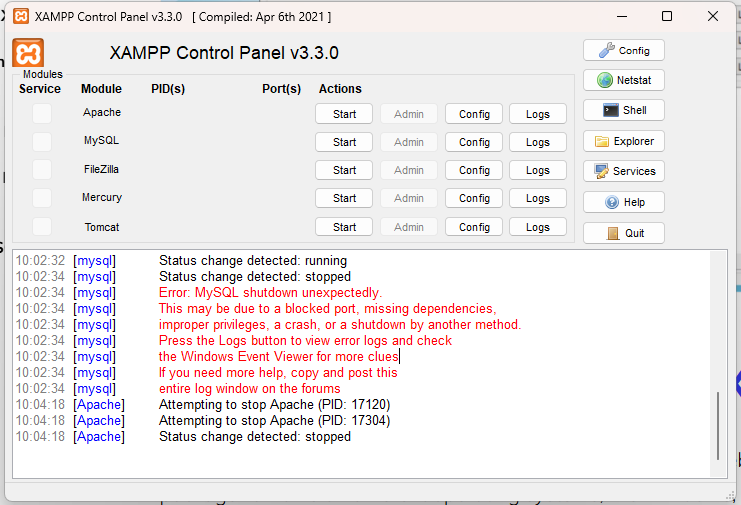
As the name of the error implies, this is the message you see if the MySQL software on your environment shuts down or ceases to function unexpectedly:
Just follow these steps and its done.
- Rename the folder
C:\xampp\mysql\datatoC:\xampp\mysql\data_old(you can use any name) - Create a new folder
C:\xampp\mysql\data - Copy the content that resides in
C:\xampp\mysql\backupto the newC:\xampp\mysql\datafolder - Copy all your database folders that are in
C:\xampp\mysql\data_oldtoC:\xampp\mysql\data(skip the mysql, performance_schema, and phpmyadmin folders fromC:\xampp\mysql\data_old) - Finally copy the ibdata1 file from
C:\xampp\mysql\data_oldand replace it insideC:\xampp\mysql\datafolder - Now Start MySQL from XAMPP control panel
And its all done, Enjoy..
Why This Error Stops Developers Cold
You open XAMPP Control Panel, click Start next to MySQL, watch it flash green for a split second — then it turns red. The log shows:
10:45:22 [mysql]    Attempting to start MySQL app...
10:45:22 [mysql]    Status change detected: running
10:45:23 [mysql]    Status change detected: stopped
10:45:23 [mysql]    Error: MySQL shutdown unexpectedly.
10:45:23 [mysql]    This may be due to a blocked port, missing dependencies,
10:45:23 [mysql]    improper privileges, a crash, or a shutdown by another method.
10:45:23 [mysql]    Press the Logs button to view error logs and check
10:45:23 [mysql]    the Windows Event Viewer for more clues.
10:45:23 [mysql]    If you need more help, copy and post this
10:45:23 [mysql]    entire log window on the forums.
Everything stops. Your WordPress site is down. Your PHP project can’t connect to the database. Your deadlines are looming.
This error has at least 8 completely different root causes — each requiring a different fix. The most common mistake developers make is jumping straight to the “rename the data folder” fix without diagnosing why MySQL crashed. If the wrong fix is applied, the error returns the next day, or worse, database files get corrupted.
This guide walks through every root cause in priority order, from the fastest fixes to the nuclear options — so you solve the actual problem, not just the symptom.
Part 1 — Read the Logs First (This Saves Hours)
Never guess. Always read the logs first. The MySQL error log contains the exact reason for the crash in plain English. Skipping this step is why developers waste hours trying fixes that don’t apply to their situation.
Where to Find the Log
Method 1: XAMPP Control Panel Click the Logs button next to MySQL in the Control Panel.
Method 2: Direct file path
C:\xampp\mysql\data\mysql_error.log
or
C:\xampp\mysql\data\[your-computer-name].err
Method 3: Via XAMPP shell
# Open XAMPP Shell from the Control Panel, then:
type C:\xampp\mysql\data\mysql_error.log
Reading the Log: What Each Error Message Means
Open the log and look at the last 20-30 lines before the crash. Here are the most common messages and what they mean:
"Fatal error: Can't open and lock privilege tables"
→ CAUSE: Data folder is corrupted or missing essential system tables
→ FIX: Part 3 (data folder restoration method)

"[ERROR] InnoDB: The innodb_system data file 'ibdata1' must be writable"
→ CAUSE: File permission issue or ibdata1 is read-only
→ FIX: Part 4 (permission fix)

"[ERROR] Do you already have another mysqld server running on port 3306?"
→ CAUSE: Port 3306 is already in use by another process
→ FIX: Part 2 (port conflict resolution)

"[ERROR] InnoDB: Unable to lock ./ibdata1 error: 11"
→ CAUSE: Another MySQL instance has ibdata1 locked
→ FIX: Kill the conflicting process (Part 2)

"[ERROR] Plugin 'InnoDB' init function returned error"
→ CAUSE: InnoDB files are corrupted (often after power failure)
→ FIX: Part 3 or Part 5 (InnoDB repair)

"[ERROR] InnoDB: Page log sequence number ... is in the future!"
→ CAUSE: Crashed mid-transaction, redo logs are inconsistent
→ FIX: Part 5 (redo log fix)

"Access is denied"
→ CAUSE: Windows permissions blocking XAMPP
→ FIX: Part 4 (run as administrator / permission fix)

"bind: No such file or directory — Can't start server"
→ CAUSE: Socket file issue (Linux/Mac only)
→ FIX: Part 8 (socket fix)

"mysqld.exe: Can't create/write to file"
→ CAUSE: Disk full or write permission denied
→ FIX: Check disk space, check permissions
Part 2 — Fix 1: Port 3306 Conflict (Most Common on Windows 10/11)
This is the #1 cause of MySQL not starting, especially on Windows 10 and Windows 11 where Skype, IIS, SQL Server, or a previous MySQL installation may already be using port 3306.
Step 1: Check What’s Using Port 3306
Open Command Prompt as Administrator (right-click → Run as Administrator):
netstat -ano | findstr :3306
If you see output like this:
TCP 0.0.0.0:3306 0.0.0.0:0 LISTENING 4712
The PID (4712 in this example) is the process holding port 3306.
Identify the process:
tasklist /FI "PID eq 4712"
You’ll see something like:
Image Name     PID   Session Name    Mem Usage
mysqld.exe    4712   Services        45,000 K
Step 2: Kill the Conflicting Process
Option A: Kill by PID (immediate)
taskkill /PID 4712 /F
Option B: Kill by name (if it’s a previous MySQL instance)
taskkill /IM mysqld.exe /F
Option C: Stop Windows MySQL service (if installed separately)
net stop MySQL
# OR
net stop MySQL80    # For MySQL 8.0 service name
net stop MySQL57    # For MySQL 5.7 service name
Option D: Through Windows Services
- Press Win + R → type services.msc → Enter
- Find any MySQL service
- Right-click → Stop
- Set Startup Type to Manual (prevents auto-start on boot)
Step 3: Check for Common Port 3306 Culprits
:: Check if it's Skype (older versions use 3306)
tasklist | findstr "Skype"

:: Check if it's SQL Server
tasklist | findstr "sqlservr"

:: Check if it's another XAMPP/WAMP/MAMP instance
tasklist | findstr "mysqld"
Step 4: Change MySQL Port in XAMPP (Alternative to Killing Processes)
If you cannot kill the conflicting process (e.g., it’s required by another application), change XAMPP’s MySQL port:
Edit C:\xampp\mysql\bin\my.ini:
[mysqld]
# Change this line:
port = 3306
# To:
port = 3307
Also update C:\xampp\phpMyAdmin\config.inc.php:
// Find this line and update the port:
$cfg['Servers'][$i]['port'] = '3307';
Update any PHP connection strings:
// In your PHP applications, add the port:
$pdo = new PDO('mysql:host=localhost;port=3307;dbname=mydb', 'root', '');

// Or in config files:
define('DB_PORT', '3307');
Now start MySQL from XAMPP — it will use port 3307 instead of 3306.
Part 3 — Fix 2: Corrupted Data Folder
This is correct for corrupted data situations. Here is the complete, safe procedure.
When This Fix Applies
This fix applies when the error log shows:
- Fatal error: Can’t open and lock privilege tables
- Table ‘mysql.host’ doesn’t exist
- Can’t find file: ‘./mysql/host.frm’
- mysqld.exe: unknown variable ‘table_cache=…’ (version mismatch after upgrade)
Before You Start: Take a Full Backup
Even a “corrupted” data folder may still contain your database files. Always back up first:
:: Create a dated backup (not just "data_old")
xcopy "C:\xampp\mysql\data" "C:\xampp\mysql\data_backup_%date:~-4,4%%date:~-7,2%%date:~-10,2%" /E /I /H /Y
The Complete Step-by-Step Procedure
Step 1: Stop MySQL from XAMPP Control Panel (if it’s in a running/stopping state, wait or kill the process first)
Step 2: Open File Explorer and navigate to C:\xampp\mysql\
Step 3: Rename the existing data folder
C:\xampp\mysql\data → C:\xampp\mysql\data_old
Right-click data folder → Rename → type data_old
Step 4: Create a new empty data folder
C:\xampp\mysql\data (new empty folder)
Step 5: Copy backup files to the new data folder
Navigate to C:\xampp\mysql\backup\ and copy ALL its contents into the new C:\xampp\mysql\data\ folder.
The backup folder typically contains:
mysql\        ← MySQL system database (critical)
performance_schema\   ← Performance data
ibdata1       ← InnoDB shared tablespace
ib_logfile0   ← InnoDB redo log
ib_logfile1   ← InnoDB redo log
Step 6: Copy YOUR database folders from data_old to data
Open C:\xampp\mysql\data_old\ and copy your custom database folders to C:\xampp\mysql\data\.
COPY THESE (your databases):
  ✅ mywordpressdb\
  ✅ my_project_db\
  ✅ shop_database\
  ✅ any folder you created

SKIP THESE (system folders — use backup versions):
  ❌ mysql\          (already copied from backup)
  ❌ performance_schema\  (already copied from backup)
  ❌ phpmyadmin\     (already copied from backup)
  ❌ test\           (not needed)
Step 7: Copy the ibdata1 file
This step is critical and often missed. The ibdata1 file contains InnoDB table data shared across all databases. Without the correct version, your InnoDB tables will be inaccessible.
Copy: C:\xampp\mysql\data_old\ibdata1
  To: C:\xampp\mysql\data\ibdata1
When prompted to replace, click Yes (replace the backup’s ibdata1 with your old one).
Why ibdata1 matters: InnoDB tables store data in two places — .frm files in the database folder AND ibdata1. If your database uses InnoDB (most modern databases do), the table structure and data won’t match without the correct ibdata1.
Step 8: Start MySQL from XAMPP Control Panel
If MySQL starts successfully: ✅ You’re done.
If it still fails: Continue to Fix 3 or check the logs for a new error message.
What to Do If Databases Are Missing After the Fix
If MySQL starts but your databases don’t appear in phpMyAdmin:
-- Open phpMyAdmin → SQL tab → run:
SHOW DATABASES;

-- If your database appears but tables are empty:
-- The ibdata1 mismatch — you need the exact ibdata1 from data_old
<>Alternative: Repair individual tables
-- For each missing/corrupted table:
CHECK TABLE your_database.your_table;
REPAIR TABLE your_database.your_table;

-- For all tables in a database:
mysqlcheck --all-databases --auto-repair -u root
Part 4 — Fix 3: Windows Permission Issues
MySQL needs write access to its data directory. After Windows updates, antivirus scans, or XAMPP reinstallations, permissions can get reset.
Check If Permissions Are the Problem
The error log will show:
[ERROR] InnoDB: The innodb_system data file 'ibdata1' must be writable
[ERROR] Access is denied.
[ERROR] Can't create/write to file 'C:\xampp\mysql\data\...'
Fix Method 1: Run XAMPP as Administrator
Immediate fix:
- Close XAMPP completely (right-click the taskbar icon → Exit)
- Find C:\xampp\xampp-control.exe
- Right-click → Run as administrator
- Start MySQL
Make it permanent:
- Right-click xampp-control.exe → Properties
- Compatibility tab → Check “Run this program as an administrator”
- Click Apply → OK
Fix Method 2: Grant Full Permissions to XAMPP Folder
Open Command Prompt as Administrator:
:: Grant full control to the XAMPP data folder
icacls "C:\xampp\mysql\data" /grant Everyone:(OI)(CI)F /T

:: Grant full control to the entire XAMPP directory
icacls "C:\xampp" /grant Everyone:(OI)(CI)F /T

:: Alternative: Take ownership first
takeown /f "C:\xampp\mysql\data" /r /d y
icacls "C:\xampp\mysql\data" /grant Administrators:(OI)(CI)F /T
Fix Method 3: Through Windows File Explorer
- Navigate to C:\xampp\mysql\data
- Right-click the data folder → Properties
- Click Security tab
- Click Edit → Add
- Type Everyone → Click Check Names → OK
- Check Full Control in the Allow column
- Click Apply → OK
Fix Method 4: Antivirus Exclusion
Antivirus software (especially Windows Defender, Avast, Bitdefender) frequently quarantines or locks MySQL data files, mistaking them for suspicious activity.
Windows Defender:
- Windows Security → Virus & threat protection
- Manage settings → Add or remove exclusions
- Add folder exclusion: C:\xampp\
For third-party antivirus: Add these exclusions:
C:\xampp\mysql\
C:\xampp\mysql\data\
C:\xampp\apache\
C:\xampp\xampp-control.exe
C:\xampp\mysql\bin\mysqld.exe
Part 5 — Fix 4: Corrupted InnoDB Redo Logs
After a power failure, Windows crash (BSOD), or force-killing XAMPP, MySQL may fail to start because the InnoDB redo logs (ib_logfile0, ib_logfile1) are inconsistent.
Error log signature:
[ERROR] InnoDB: Log file ./ib_logfile0 is of different size
[ERROR] InnoDB: Page log sequence number ... is in the future
[ERROR] Plugin 'InnoDB' init function returned error
[ERROR] Plugin 'InnoDB' registration as a STORAGE ENGINE failed
Safe Fix: Delete and Regenerate Redo Logs
MySQL regenerates these files automatically on startup if they’re missing. Deleting them is safe — they contain temporary transaction data, not your actual database records.
Step 1: Stop MySQL from XAMPP Control Panel
Step 2: Navigate to C:\xampp\mysql\data\
Step 3: Delete (or rename as backup) these files:
ib_logfile0    → rename to ib_logfile0.bak
ib_logfile1    → rename to ib_logfile1.bak
Do NOT delete:
ibdata1        ← Keep this! Contains your InnoDB data
*.frm files    ← Keep! Table structure definitions
*.ibd files    ← Keep! Per-table InnoDB data
Step 4: Start MySQL from XAMPP
MySQL will automatically create new ib_logfile0 and ib_logfile1 files. If it starts successfully, the old .bak files can be deleted.
If That Doesn’t Work: InnoDB Recovery Mode
For severely corrupted InnoDB data, use MySQL’s built-in recovery mode:
Edit C:\xampp\mysql\bin\my.ini, find the [mysqld] section and add:
[mysqld]
# Add this line temporarily:
innodb_force_recovery = 1
Recovery levels (try in order from 1 to 6):
| Level | What It Does | Use When |
|---|---|---|
| 1 | Skip corrupt pages, log errors | First thing to try |
| 2 | Prevent background threads from running | If level 1 doesn’t work |
| 3 | Do not roll back transactions | Moderate corruption |
| 4 | Disable insert buffer merges | Serious corruption |
| 5 | Do not look at undo logs | Severe corruption |
| 6 | Do not roll forward from redo log | Last resort before reinstall |
Try each level:
- Add innodb_force_recovery = 1 to my.ini
- Start MySQL
- If it starts, immediately backup all databases:
:: Open XAMPP Shell:
C:\xampp\mysql\bin\mysqldump --all-databases -u root > C:\backup_all_databases.sql
- If level 1 doesn’t work, try level 2, then 3, etc.
- After successful backup, remove innodb_force_recovery from my.ini and restart MySQL normally
Warning: With levels 3-6, some data may be lost or inconsistent. Always export your data immediately when MySQL starts in recovery mode. Never use a database in recovery mode for production work.
Part 6 — Fix 5: XAMPP Version / MySQL Version Conflict
This happens most often when:
- You upgraded XAMPP but didn’t upgrade the data folder format
- You copied a data folder from a newer MySQL to an older XAMPP installation
- MySQL was upgraded in place without running mysql_upgrade
Error log signature:
[ERROR] InnoDB: Unsupported redo log format
[ERROR] The system tablespace must be writable
[Note] InnoDB: Upgrading redo log
[ERROR] InnoDB: Cannot upgrade redo log format
Identify Version Mismatch
:: Check current MySQL version in XAMPP
C:\xampp\mysql\bin\mysql --version

:: Check what version created the data directory
type C:\xampp\mysql\data\mysql_upgrade_info
If the version in mysql_upgrade_info is different from your current MySQL version, you have a mismatch.
Fix Method 1: Run mysql_upgrade
:: From XAMPP Shell (with MySQL running in recovery mode if needed):
C:\xampp\mysql\bin\mysql_upgrade -u root --force
Fix Method 2: Fresh Data Folder + Data Restore
This is the cleanest fix for severe version mismatches:
- Backup all databases (if MySQL can start in recovery mode):
C:\xampp\mysql\bin\mysqldump --all-databases -u root > C:\full_backup.sql
- Perform the data folder restoration (Fix 2 / Part 3 steps above)
- Import your backed-up data:
C:\xampp\mysql\bin\mysql -u root < C:\full_backup.sql
Part 7 — Fix 6: Skype or Other Software Stealing Port 3306
This is a Windows-specific issue where Skype (classic versions), IIS (Internet Information Services), or SQL Server automatically grabs port 3306 on boot before XAMPP starts.
Check Which Process Uses 3306 at Boot
:: Show all TCP listeners with process names
netstat -b -a | findstr "3306"

:: More detailed view with process names
for /f "tokens=5" %a in ('netstat -aon ^| findstr :3306') do @tasklist /fi "pid eq %a"
Common Culprits and Their Fixes
Skype (older versions): Skype used to use port 80 and 3306 as backup ports. Solution: In Skype → Tools → Options → Advanced → Connection → Uncheck “Use port 80 and 443 as alternatives”
MySQL Windows Service (separate installation):
:: List all MySQL-related services
sc query type= all | findstr -i "mysql"

:: Disable MySQL service from auto-starting
sc config MySQL start= demand

:: Or disable it entirely
sc config MySQL start= disabled
SQL Server Express:
:: Check SQL Server services
sc query SQLBrowser
sc query MSSQLSERVER
sc query "MSSQL$SQLEXPRESS"

:: Disable SQL Browser (uses port 3306 sometimes)
sc config SQLBrowser start= disabled
IIS (Internet Information Services): IIS doesn’t use port 3306 by default, but if you have an IIS-installed MySQL connector, it might. Check via:
netsh http show urlacl
Permanently Prevent Port Conflicts
Option A: Set XAMPP MySQL to start before conflicting software
Create a Windows Task Scheduler task to start XAMPP MySQL at login before other software.
Option B: Configure Windows Firewall to reserve port 3306 for XAMPP:
netsh interface ipv4 add excludedportrange protocol=tcp startport=3306 numberofports=1
Part 8 — Fix 7: Disk Space Full or Data Drive Issues
MySQL requires free disk space for temporary files, binary logs, and InnoDB operations. If your C: drive is nearly full, MySQL silently fails.
Error log signature:
[ERROR] mysqld: Can't create/write to file 'C:\Windows\Temp\...'
[ERROR] Got error 28 from storage engine
[ERROR] InnoDB: Write to file failed at offset
Check Disk Space
:: Check free space on all drives
wmic logicaldisk get size,freespace,caption

:: XAMPP needs at least:
:: - 500MB free for basic operation
:: - 2GB+ recommended for development databases
Fix: Free Up Disk Space
:: Clear Windows temp files
cleanmgr /d C:

:: Clear XAMPP's MySQL temp files
del /q "C:\xampp\mysql\data\*.err"
del /q "C:\xampp\tmp\*.*"

:: Clear binary logs if enabled (major space users)
:: Via MySQL (if it starts):
PURGE BINARY LOGS BEFORE DATE_SUB(NOW(), INTERVAL 7 DAY);
Disable binary logging (not needed for development):
Edit C:\xampp\mysql\bin\my.ini:
[mysqld]
# Comment out or remove this line if present:
# log_bin = mysql-bin

# Or explicitly disable:
skip-log-bin
Part 9 — Fix 8: MySQL Error After Windows Update
Windows updates frequently change security policies, service configurations, and system file permissions — breaking XAMPP MySQL in the process.
Reset MySQL Service Registration
:: Run Command Prompt as Administrator

:: Remove old MySQL service
C:\xampp\mysql\bin\mysqld --remove mysql

:: Re-register MySQL service
C:\xampp\mysql\bin\mysqld --install mysql --defaults-file="C:\xampp\mysql\bin\my.ini"

:: Start the service
net start mysql
Fix: Verify my.ini After Windows Update
Windows updates sometimes reset or corrupt configuration files. Verify your my.ini is intact:
:: Check for corrupted characters
type C:\xampp\mysql\bin\my.ini | more
A healthy minimal my.ini looks like:
[mysqld]
port= 3306
datadir="C:/xampp/mysql/data"
default_storage_engine=InnoDB
socket="mysql"
key_buffer_size=16M
max_allowed_packet=1M
sort_buffer_size=512K
net_buffer_length=8K
read_buffer_size=256K
read_rnd_buffer_size=512K
myisam_sort_buffer_size=8M
log_error="mysql_error.log"
If yours looks garbled, replace it with a fresh copy from C:\xampp\mysql\bin\my-default.ini (rename and edit).
Part 10 — Fix 9: For Mac and Linux Users
Here’s the equivalent guidance for macOS and Linux.
macOS (XAMPP for Mac)
Find the error log:
/Applications/XAMPP/xamppfiles/var/mysql/[hostname].err
# OR:
cat /Applications/XAMPP/xamppfiles/var/mysql/*.err | tail -50
Check port conflict:
sudo lsof -i :3306
# Kill conflicting process:
sudo kill -9 [PID]
Fix socket file issue (most common Mac problem):
# MySQL often fails because the socket file from a previous crash still exists
sudo rm /Applications/XAMPP/xamppfiles/var/mysql/mysql.sock
sudo rm /tmp/mysql.sock

# Start XAMPP MySQL:
sudo /Applications/XAMPP/xamppfiles/bin/mysql.server start
Data folder restore (Mac equivalent):
# Stop MySQL
sudo /Applications/XAMPP/xamppfiles/bin/mysql.server stop

# Backup data folder
sudo mv /Applications/XAMPP/xamppfiles/var/mysql /Applications/XAMPP/xamppfiles/var/mysql_old

# Create new data folder
sudo mkdir /Applications/XAMPP/xamppfiles/var/mysql

# Copy from backup
sudo cp -R /Applications/XAMPP/xamppfiles/var/mysql.bak/* /Applications/XAMPP/xamppfiles/var/mysql/

# Copy your databases
# (copy custom database folders from mysql_old, skip mysql/, performance_schema/)
sudo cp -R /Applications/XAMPP/xamppfiles/var/mysql_old/your_database /Applications/XAMPP/xamppfiles/var/mysql/

# Copy ibdata1
sudo cp /Applications/XAMPP/xamppfiles/var/mysql_old/ibdata1 /Applications/XAMPP/xamppfiles/var/mysql/

# Fix permissions
sudo chown -R daemon:daemon /Applications/XAMPP/xamppfiles/var/mysql
sudo chmod -R 755 /Applications/XAMPP/xamppfiles/var/mysql

# Start MySQL
sudo /Applications/XAMPP/xamppfiles/bin/mysql.server start
Linux (Ubuntu/Debian LAMPP)
# XAMPP Linux is installed at /opt/lampp/

# Error log location:
cat /opt/lampp/var/mysql/*.err | tail -50

# Check port conflict:
sudo ss -tlnp | grep 3306
sudo lsof -i :3306

# Kill conflicting MySQL service:
sudo systemctl stop mysql
sudo systemctl disable mysql  # Prevent auto-start

# Start LAMPP:
sudo /opt/lampp/lampp startmysql

# Fix permissions:
sudo chown -R daemon:daemon /opt/lampp/var/mysql
sudo chmod -R 755 /opt/lampp/var/mysql

# Socket fix:
sudo rm -f /opt/lampp/var/mysql/mysql.sock
sudo rm -f /tmp/mysql.sock
sudo /opt/lampp/lampp startmysql
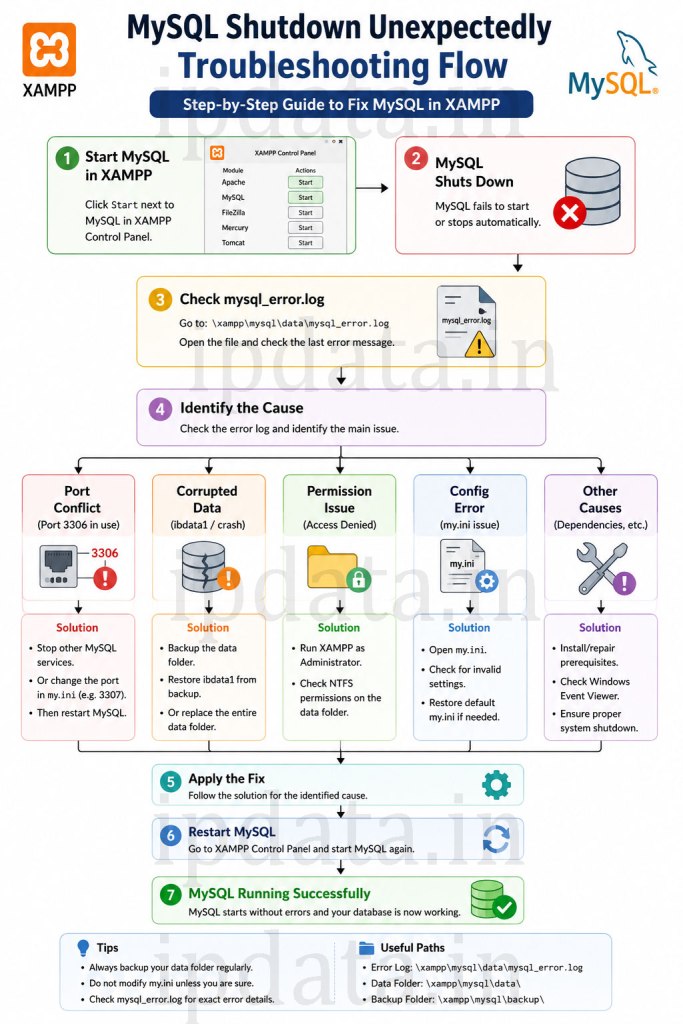
Part 11 — The Diagnostic Decision Tree
Use this flowchart to find your fix without guessing:
MySQL Shutdown Unexpectedly
          │
          ▼
    READ THE ERROR LOG
    (C:\xampp\mysql\data\mysql_error.log)
          │
          ├── "port 3306" or "already have another mysqld" ──► FIX 1: Part 2
          │
          ├── "Can't open and lock privilege tables"        ──► FIX 2: Part 3
          │   "Table doesn't exist" / "Can't find file"
          │
          ├── "Access is denied" / "must be writable"       ──► FIX 3: Part 4
          │
          ├── "innodb_force" / "redo log format"            ──► FIX 4: Part 5
          │   "Page log sequence number is in the future"
          │
          ├── "Unsupported redo log format"                 ──► FIX 5: Part 6
          │   "Cannot upgrade redo log format"
          │
          ├── Can't write to file / error 28               ──► FIX 7: Part 8
          │
          ├── No obvious error / just stopped               ──► Start with Fix 1
          │                                                      then Fix 2
          │
          └── Log is empty or unreadable                   ──► Fix 3 (permissions)
                                                                then Fix 2
Part 12 — Prevention: Stop This From Happening Again
Once MySQL is running, prevent this error from recurring.
Prevention 1: Set Up Automatic MySQL Backups
Never lose data when MySQL crashes. Use mysqldump on a schedule:
Windows Task Scheduler backup script (mysql_backup.bat):
@echo off
:: MySQL Auto-Backup Script for XAMPP
:: Schedule this to run daily via Task Scheduler

SET BACKUP_DIR=C:\mysql_backups
SET MYSQL_BIN=C:\xampp\mysql\bin
SET DATE_STAMP=%date:~-4,4%-%date:~-7,2%-%date:~-10,2%
SET BACKUP_FILE=%BACKUP_DIR%\backup_%DATE_STAMP%.sql

:: Create backup directory if it doesn't exist
if not exist "%BACKUP_DIR%" mkdir "%BACKUP_DIR%"

:: Dump all databases
"%MYSQL_BIN%\mysqldump" --all-databases -u root --result-file="%BACKUP_FILE%"

:: Compress the backup (optional - requires 7-Zip)
:: "C:\Program Files\7-Zip\7z.exe" a "%BACKUP_FILE%.7z" "%BACKUP_FILE%"
:: del "%BACKUP_FILE%"

:: Delete backups older than 7 days
forfiles /p "%BACKUP_DIR%" /s /m *.sql /d -7 /c "cmd /c del @file"

echo Backup completed: %BACKUP_FILE%
Schedule it:
- Task Scheduler → Create Basic Task
- Trigger: Daily at 11:00 PM
- Action: Start program → point to mysql_backup.bat
- Run whether user is logged in or not
Prevention 2: Proper XAMPP Shutdown Procedure
The #1 cause of data corruption is force-killing XAMPP or shutting down Windows without stopping MySQL first.
Always do this before:
- Shutting down Windows
- Restarting your computer
- Putting computer to sleep (for extended periods)
1. Open XAMPP Control Panel
2. Click Stop next to MySQL → wait for the green indicator to go red
3. Click Stop next to Apache → wait
4. Click Quit on XAMPP Control Panel
5. THEN shut down Windows
Or use this batch file (stop_xampp.bat) as a scheduled shutdown task:
@echo off
echo Stopping XAMPP services...
net stop apache2.4    :: Stop Apache service
net stop mysql        :: Stop MySQL service
echo XAMPP services stopped.
shutdown /s /t 60     :: Shutdown Windows in 60 seconds
Prevention 3: Configure MySQL for Crash Recovery
Add these settings to C:\xampp\mysql\bin\my.ini for better crash resilience:
[mysqld]
# Data Safety Settings
innodb_flush_log_at_trx_commit = 1    # Flush to disk on every commit (safest)
sync_binlog = 1                        # Sync binary log on every write
innodb_doublewrite = 1                 # Enable doublewrite buffer (crash protection)

# Auto-repair on startup
myisam-recover-options = BACKUP,FORCE  # Auto-recover MyISAM tables

# Crash recovery
innodb_force_recovery = 0              # Normal operation (not in recovery mode)

# Error logging
log_error = "mysql_error.log"         # Enable error logging
log_error_verbosity = 3               # Verbose error output (1=errors, 2=+warnings, 3=+notes)

# Optional: Limit binary log size (prevents disk filling up)
expire_logs_days = 7
max_binlog_size = 100M
Prevention 4: Move XAMPP Out of Program Files
Installing XAMPP in C:\Program Files\xampp\ causes constant permission issues due to UAC (User Account Control). Always install in:
C:\xampp\          ← Correct (no spaces, no UAC interference)
D:\xampp\          ← Also fine
C:\dev\xampp\      ← Fine

C:\Program Files\xampp\     ← Problematic
C:\Program Files (x86)\xampp\ ← Problematic
Desktop or Downloads\xampp\ ← Problematic
If you currently have XAMPP in Program Files:
- Back up all your databases (mysqldump)
- Uninstall XAMPP
- Reinstall to C:\xampp\
- Restore your databases
Prevention 5: Exclude XAMPP from Windows Sleep/Hibernate
Windows sleep/hibernate can corrupt MySQL’s in-memory transaction state:
Power Plan Settings:
- Control Panel → Power Options → Change plan settings
- Change advanced power settings
- Hard disk → Turn off hard disk after: Never
- Sleep → Sleep after: Never (for development machines)
Or use this command:
:: Disable sleep entirely for development use
powercfg /change standby-timeout-ac 0
powercfg /change hibernate-timeout-ac 0
Part 13 — phpMyAdmin Errors After Fixing MySQL
Once MySQL starts, you may encounter phpMyAdmin errors. Here’s how to fix the most common ones:
Error: “#1045 – Access denied for user ‘root’@’localhost'”
The root password was reset during the data folder restoration:
-- Connect via command line first:
-- Open XAMPP Shell:
C:\xampp\mysql\bin\mysql -u root

-- If that doesn't work, start MySQL with skip-grant-tables:
-- Add to my.ini temporarily:
-- skip-grant-tables

-- Then reset root password:
ALTER USER 'root'@'localhost' IDENTIFIED BY '';
-- (Empty password for local development)

-- Or set a password:
ALTER USER 'root'@'localhost' IDENTIFIED BY 'your_password';
FLUSH PRIVILEGES;
Then update phpMyAdmin config:
Edit C:\xampp\phpMyAdmin\config.inc.php:
$cfg['Servers'][$i]['password'] = '';  // Empty for no password
// OR:
$cfg['Servers'][$i]['password'] = 'your_password';
Error: “The phpMyAdmin configuration storage is not completely configured”
-- Run this in phpMyAdmin's SQL tab or MySQL shell:
-- Import phpMyAdmin's control tables:
source C:\xampp\phpMyAdmin\sql\create_tables.sql;
Error: “Cannot connect: invalid settings” in phpMyAdmin
// In C:\xampp\phpMyAdmin\config.inc.php, verify:
$cfg['Servers'][$i]['host']     = 'localhost';
$cfg['Servers'][$i]['port']     = '';  // Or '3306'
$cfg['Servers'][$i]['socket']   = '';
$cfg['Servers'][$i]['connect_type'] = 'tcp';
$cfg['Servers'][$i]['compress'] = false;
$cfg['Servers'][$i]['auth_type'] = 'config';
$cfg['Servers'][$i]['user']     = 'root';
$cfg['Servers'][$i]['password'] = '';  // Match your MySQL root password
Part 14 — Complete Quick-Fix Checklist
Run through this list in order before doing anything more complex:
□ STEP 1: Read the error log
  → C:\xampp\mysql\data\mysql_error.log
  → Look at the last 20 lines

□ STEP 2: Check port conflict
  → Run: netstat -ano | findstr :3306
  → If something is using 3306: taskkill /PID [pid] /F
  → Try starting MySQL again

□ STEP 3: Try running XAMPP as Administrator
  → Right-click xampp-control.exe → Run as administrator
  → Try starting MySQL again

□ STEP 4: Delete InnoDB redo logs
  → Stop MySQL
  → Rename C:\xampp\mysql\data\ib_logfile0 → ib_logfile0.bak
  → Rename C:\xampp\mysql\data\ib_logfile1 → ib_logfile1.bak
  → Start MySQL again

□ STEP 5: Data folder restoration
  → Only if log says "privilege tables" error
  → Follow Part 3 steps exactly
  → Don't skip the ibdata1 copy step

□ STEP 6: Check antivirus
  → Temporarily disable antivirus
  → Try starting MySQL
  → If it works, add XAMPP exclusion

□ STEP 7: Check disk space
  → Run: wmic logicaldisk get size,freespace,caption
  → Free up space if C: drive is < 2GB free

□ STEP 8: InnoDB recovery mode
  → Add innodb_force_recovery=1 to my.ini
  → Increase number if MySQL still won't start

□ STEP 9: Fresh XAMPP installation
  → Backup databases first
  → Uninstall XAMPP
  → Reinstall to C:\xampp\
  → Restore databases
Part 15 — Frequently Asked Questions
Q: Will the data folder fix delete my databases? A: No — if you follow Part 3 correctly and copy your database folders from data_old to the new data folder, your databases are preserved. The most important step is copying ibdata1 from data_old to data.
Q: What’s the difference between data_old and backup folder? A: The backup folder contains XAMPP’s original system tables as they were when XAMPP was installed. The data_old folder is your renamed data folder containing your actual working databases. Never use backup as your only source — you’ll lose all your custom databases.
Q: MySQL starts but my databases are empty after the fix — what happened? A: You probably replaced ibdata1 with the backup’s version instead of your data_old version. The ibdata1 file must be the one from data_old. Redo the process and make sure you copy ibdata1 from data_old, not from backup.
Q: How do I know if my tables are InnoDB or MyISAM?
SELECT TABLE_NAME, ENGINE
FROM information_schema.TABLES
WHERE TABLE_SCHEMA = 'your_database_name';
InnoDB tables need ibdata1. MyISAM tables store everything in the .frm and .MYD files in the database folder.
Q: MySQL works but stops again next day — what’s the problem? A: This is almost always a port conflict with a service that starts on Windows boot. Use Task Manager or netstat -ano | findstr :3306 after a fresh boot to identify what’s grabbing port 3306 before XAMPP.
Q: Can I use MariaDB instead of MySQL with XAMPP? A: XAMPP 8.x actually ships with MariaDB by default (though it calls it MySQL in the UI). Most fixes in this guide apply to both. The main difference: MariaDB’s my.ini may have different default settings, and some InnoDB recovery options behave slightly differently.
Q: Should I install XAMPP or use Docker/Laragon instead? A: For modern development, Docker (using MySQL or MariaDB containers) or Laragon are more stable alternatives. Docker containers can be stopped and deleted without any risk to your host system. However, XAMPP remains the simplest choice for beginners and anyone not familiar with containers.
Diagnose, Fix, and Prevent
6-step fix works for the specific scenario where MySQL’s system tables are corrupted. But it’s one solution for one of eight different root causes — which is why so many developers try it and find it doesn’t work, or find the problem comes back.
The complete picture:
Most common causes (in order of frequency):
- Port 3306 conflict with another process or MySQL service
- Corrupted data folder (system tables missing)
- Permission issues (Windows UAC or antivirus)
- Corrupted InnoDB redo logs (after crash/power failure)
- Version mismatch (after XAMPP upgrade)
- Disk space full
- Windows update changed security policies
- Socket file conflict (Mac/Linux)
The golden rule: Always read C:\xampp\mysql\data\mysql_error.log before trying any fix. The log tells you exactly which category your problem falls into — saving you from trying fixes that don’t apply to your situation.
After fixing: Set up daily mysqldump backups, always shut down MySQL properly before shutting down Windows, and exclude the XAMPP directory from your antivirus. These three habits will prevent 90% of future MySQL startup failures.