


Why Generate PDFs Inside WordPress?
PDF generation is one of those features that sounds optional — until your client absolutely needs it. Whether you`re building:
- Invoice generators for WooCommerce stores
- Certificate makers for LMS/course platforms
- Downloadable reports from custom post types or ACF fields
- Appointment summaries from booking plugins
- Custom proposal PDFs tied to form submissions
you will eventually need to produce PDFs directly from WordPress without relying on expensive plugins or third-party services.
The good news: you don`t need a $200/year plugin to do this. PHP has battle-tested, free PDF libraries — and FPDF is the most lightweight and WordPress-friendly of them all.
This guide covers everything from zero to a fully working, downloadable PDF system inside WordPress — including plugin structure, shortcodes, dynamic data from the database, full-width table rows, Unicode support, and a polished download button.
What is FPDF – and Why Choose It Over the Alternatives?
FPDF (Free PDF) is a pure-PHP class that lets you generate PDF files without any external dependencies. It`s been around since 1999, is actively maintained, and works on virtually every PHP hosting environment.
Here is how it compares to the other popular PHP PDF libraries:
| Feature | FPDF | TCPDF | mPDF | Dompdf |
|---|---|---|---|---|
| HTML → PDF | ❌ No | ✅ Partial | ✅ Yes | ✅ Yes |
| Pure PHP (no extensions) | ✅ Yes | ✅ Yes | ✅ Yes | ✅ Yes |
| File size | 🟢 Tiny (~150KB) | 🔴 Large (~20MB) | 🟡 Medium (~30MB) | 🟡 Medium |
| Learning curve | 🟢 Easy | 🟡 Moderate | 🟡 Moderate | 🟢 Easy |
| Custom layouts/tables | ✅ Excellent | ✅ Excellent | ✅ Good | ⚠️ Limited |
| WordPress-friendly | ✅ Best fit | ✅ Works | ✅ Works | ✅ Works |
| Unicode support | ⚠️ Needs FPDF-MB | ✅ Built-in | ✅ Built-in | ✅ Built-in |
FPDF is the right choice when:
- You need lightweight, fast PDF output
- You`re building structured documents (invoices, tables, reports)
- You want full layout control without the overhead of HTML parsing
- Your hosting is shared/budget (no composer, limited disk space)
If your primary need is converting styled HTML pages into PDF, consider mPDF or Dompdf instead.
Project Overview — What We are Building
By the end of this guide, you`ll have:
- A custom WordPress plugin that loads FPDF cleanly
- A reusable PDF generation function that pulls dynamic data from WordPress
- A shortcode [generate_pdf] you can drop anywhere
- A styled download button that triggers the PDF
- A multi-section PDF with headers, tables, full-width rows, and footers
- Proper WordPress buffer handling to avoid “headers already sent” errors
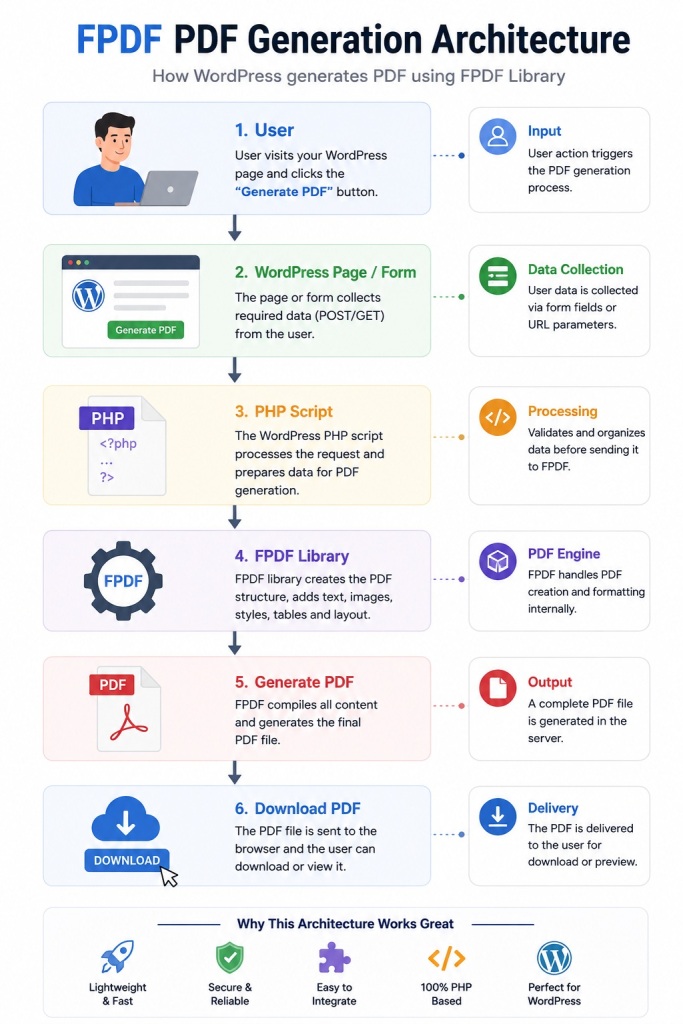
Step 1: Install FPDF – Three Methods
Method A: Via Composer (Recommended for Developers)
If your host supports SSH access:
cd /var/www/html/your-wordpress-site/
composer require setasign/fpdf
Then in your plugin:
require_once __DIR__ . '/vendor/autoload.php';
use FPDF\FPDF;
Method B: Manual Download (Most Common on Shared Hosting)
- Go to https://www.fpdf.org/en/download.php
- Download the latest release (currently 1.86)
- Extract and place fpdf.php inside your plugin or theme
/wp-content/plugins/custom-pdf-generator/
├── custom-pdf-generator.php   ← Plugin entry file
├── fpdf/
│   └── fpdf.php               ← FPDF library
├── includes/
│   └── generate-pdf.php       ← PDF logic
└── assets/
    └── style.css              ← Button styles (optional)
Method C: Load from a Theme (Quick & Dirty for Testing)
// In functions.php — fine for testing, use a plugin for production
require_once get_template_directory() . '/lib/fpdf/fpdf.php';
Best Practice: Always use a plugin, not your theme, for PDF generation logic. Theme changes will wipe your code.
Step 2: Create the Plugin Scaffold
Create the main plugin file. This is what WordPress reads when you activate the plugin.
/wp-content/plugins/custom-pdf-generator/custom-pdf-generator.php
<?php
/**
 * Plugin Name:  Custom PDF Generator
 * Plugin URI:   https://yoursite.com
 * Description:  Generate downloadable PDFs from WordPress using FPDF.
 * Version:      1.2.0
 * Author:       Your Name
 * License:      GPL2
 */

if ( ! defined( 'ABSPATH' ) ) {
    exit; // Prevent direct access
}

// Define plugin constants
define( 'CPG_PLUGIN_DIR', plugin_dir_path( __FILE__ ) );
define( 'CPG_PLUGIN_URL', plugin_dir_url( __FILE__ ) );

// Load FPDF
require_once CPG_PLUGIN_DIR . 'fpdf/fpdf.php';

// Load PDF generator logic
require_once CPG_PLUGIN_DIR . 'includes/generate-pdf.php';

// Load shortcode
require_once CPG_PLUGIN_DIR . 'includes/shortcode.php';

// Enqueue button styles
add_action( 'wp_enqueue_scripts', function() {
    wp_enqueue_style(
        'cpg-styles',
        CPG_PLUGIN_URL . 'assets/style.css',
        [],
        '1.2.0'
    );
});
Step 3: Build the Core PDF Generator
This is the heart of the plugin. We`ll build a reusable function that creates a well-structured, multi-section PDF document.
/wp-content/plugins/custom-pdf-generator/includes/generate-pdf.php
<?php
if ( ! defined( 'ABSPATH' ) ) exit;

/**
 * Extends FPDF to add a custom header and footer on every page.
 */
class CustomPDF extends FPDF {

    private string $documentTitle;

    public function __construct( string $title = 'Document' ) {
        parent::__construct();
        $this->documentTitle = $title;
    }

    // Automatic header on every page
    public function Header() {
        // Logo (optional — comment out if you don't have one)
        // $this->Image( CPG_PLUGIN_DIR . 'assets/logo.png', 10, 6, 30 );

        // Brand color header bar
        $this->SetFillColor( 30, 64, 175 ); // Blue-700
        $this->Rect( 0, 0, 210, 18, 'F' );

        // Title text
        $this->SetFont( 'Arial', 'B', 13 );
        $this->SetTextColor( 255, 255, 255 );
        $this->SetY( 4 );
        $this->Cell( 0, 10, $this->documentTitle, 0, 0, 'C' );

        // Reset text color and add spacing
        $this->SetTextColor( 30, 30, 30 );
        $this->Ln( 16 );
    }

    // Automatic footer on every page
    public function Footer() {
        $this->SetY( -15 );
        $this->SetFont( 'Arial', 'I', 8 );
        $this->SetTextColor( 120, 120, 120 );
        $this->Cell( 0, 10, 'Page ' . $this->PageNo() . ' | Generated on ' . date('d M Y'), 0, 0, 'C' );
    }
}

/**
 * Main PDF generation function.
 * Call this when the user clicks the download button.
 *
 * @param array $data  Optional dynamic data to render in the PDF.
 */
function cpg_generate_pdf( array $data = [] ): void {

    // Discard any HTML already sent to the browser
    // (critical in WordPress to prevent "headers already sent" errors)
    while ( ob_get_level() ) {
        ob_end_clean();
    }

    $pdf = new CustomPDF( 'Session Summary Report' );
    $pdf->SetMargins( 15, 10, 15 );
    $pdf->SetAutoPageBreak( true, 20 );
    $pdf->AddPage();

    // ─── Section 1: Document Meta ─────────────────────────────────────────────
    $pdf->SetFont( 'Arial', '', 9 );
    $pdf->SetTextColor( 100, 100, 100 );
    $pdf->Cell( 0, 6, 'Generated by: ' . get_bloginfo('name') . ' | Date: ' . date('d F Y, H:i'), 0, 1, 'R' );
    $pdf->Ln( 2 );

    // ─── Section 2: Section Heading ───────────────────────────────────────────
    cpg_section_heading( $pdf, 'Brief Summary of Session' );

    // Sample data — replace this with data from $wpdb, get_post_meta(), ACF, etc.
    $session_points = $data['session_points'] ?? [
        [ 'title' => 'Opening Remarks & Goals for the Quarter' ],
        [ 'title' => 'Review of Previous Action Items and Outcomes' ],
        [ 'title' => 'Key Metrics and Performance Overview' ],
        [ 'title' => 'Blockers, Risks, and Escalations Discussed' ],
        [ 'title' => 'Next Steps and Owner Assignments' ],
    ];

    cpg_render_full_width_list( $pdf, $session_points );
    $pdf->Ln( 4 );

    // ─── Section 3: Data Table ────────────────────────────────────────────────
    cpg_section_heading( $pdf, 'Action Items' );
    cpg_render_table(
        $pdf,
        [ 'Task', 'Owner', 'Due Date', 'Status' ],
        [
            [ 'Finalize Q3 budget report', 'Alice M.', '25 Jul 2025', 'In Progress' ],
            [ 'Update website homepage copy', 'Bob K.',   '30 Jul 2025', 'Pending'     ],
            [ 'Send client onboarding email', 'Carol S.', '22 Jul 2025', 'Completed'   ],
            [ 'Fix login page bug on mobile', 'Dev Team', '28 Jul 2025', 'In Progress' ],
        ]
    );
    $pdf->Ln( 4 );

    // ─── Section 4: Notes / Free Text ────────────────────────────────────────
    cpg_section_heading( $pdf, 'Additional Notes' );
    $notes = $data['notes'] ?? 'Next session is scheduled for the first Monday of next month. All team members are expected to submit their individual progress reports 48 hours in advance.';
    $full_width = $pdf->GetPageWidth() - $pdf->lMargin - $pdf->rMargin;
    $pdf->SetFont( 'Arial', '', 10 );
    $pdf->SetTextColor( 50, 50, 50 );
    $pdf->MultiCell( $full_width, 6, utf8_decode( $notes ), 1, 'L' );

    // ─── Output ───────────────────────────────────────────────────────────────
    // 'D' = force download | 'I' = show in browser | 'F' = save to server
    $pdf->Output( 'D', 'session-summary-' . date('Ymd') . '.pdf' );
    exit;
}

/**
 * Renders a styled section heading.
 */
function cpg_section_heading( FPDF $pdf, string $title ): void {
    $full_width = $pdf->GetPageWidth() - $pdf->lMargin - $pdf->rMargin;
    $pdf->SetFont( 'Arial', 'B', 11 );
    $pdf->SetFillColor( 239, 246, 255 );  // Light blue background
    $pdf->SetTextColor( 30, 64, 175 );    // Blue text
    $pdf->SetDrawColor( 147, 197, 253 );  // Blue border
    $pdf->Cell( $full_width, 8, utf8_decode( $title ), 1, 1, 'L', true );
    $pdf->SetTextColor( 30, 30, 30 );
    $pdf->SetDrawColor( 0, 0, 0 );
    $pdf->Ln( 2 );
}

/**
 * Renders a full-width bulleted list of items.
 *
 * @param FPDF  $pdf
 * @param array $items  Each item: ['title' => 'Some text']
 */
function cpg_render_full_width_list( FPDF $pdf, array $items ): void {
    $full_width = $pdf->GetPageWidth() - $pdf->lMargin - $pdf->rMargin;
    $pdf->SetFont( 'Arial', '', 10 );
    $pdf->SetFillColor( 255, 255, 255 );
    $pdf->SetTextColor( 50, 50, 50 );

    foreach ( $items as $index => $item ) {
        $fill = ( $index % 2 === 0 ); // Alternating row shading
        if ( $fill ) {
            $pdf->SetFillColor( 248, 250, 252 );
        } else {
            $pdf->SetFillColor( 255, 255, 255 );
        }

        $text = '  • ' . utf8_decode( $item['title'] );
        $pdf->MultiCell( $full_width, 7, $text, 'LRB', 'L', true );
    }
}

/**
 * Renders a formatted multi-column table.
 *
 * @param FPDF     $pdf
 * @param string[] $headers   Column header labels
 * @param array[]  $rows      2D array of row data
 */
function cpg_render_table( FPDF $pdf, array $headers, array $rows ): void {
    $full_width  = $pdf->GetPageWidth() - $pdf->lMargin - $pdf->rMargin;
    $col_count   = count( $headers );
    $col_width   = $full_width / $col_count;

    // Header row
    $pdf->SetFont( 'Arial', 'B', 10 );
    $pdf->SetFillColor( 30, 64, 175 );
    $pdf->SetTextColor( 255, 255, 255 );
    foreach ( $headers as $header ) {
        $pdf->Cell( $col_width, 8, $header, 1, 0, 'C', true );
    }
    $pdf->Ln();

    // Data rows
    $pdf->SetFont( 'Arial', '', 9 );
    $pdf->SetTextColor( 40, 40, 40 );
    foreach ( $rows as $i => $row ) {
        // Zebra striping
        $pdf->SetFillColor( $i % 2 === 0 ? 248 : 255, $i % 2 === 0 ? 250 : 255, $i % 2 === 0 ? 252 : 255 );

        // Status coloring
        foreach ( $row as $j => $cell ) {
            if ( $j === 3 ) { // Status column
                if ( $cell === 'Completed' ) {
                    $pdf->SetTextColor( 22, 101, 52 ); // Green
                } elseif ( $cell === 'In Progress' ) {
                    $pdf->SetTextColor( 120, 53, 15 ); // Amber
                } else {
                    $pdf->SetTextColor( 30, 30, 30 );
                }
            } else {
                $pdf->SetTextColor( 40, 40, 40 );
            }
            $pdf->Cell( $col_width, 7, utf8_decode( $cell ), 1, 0, 'L', true );
        }
        $pdf->Ln();
    }

    $pdf->SetTextColor( 30, 30, 30 );
}
Step 4: Register the Shortcode
/wp-content/plugins/custom-pdf-generator/includes/shortcode.php
<?php
if ( ! defined( 'ABSPATH' ) ) exit;

add_shortcode( 'generate_pdf', 'cpg_pdf_shortcode' );

function cpg_pdf_shortcode( $atts ): string {

    // Merge shortcode attributes with defaults
    $atts = shortcode_atts([
        'label'    => 'Download PDF Report',
        'post_id'  => get_the_ID(),
        'filename' => 'report',
    ], $atts, 'generate_pdf' );

    // Handle PDF generation request
    if ( isset( $_GET['cpg_download'] ) && $_GET['cpg_download'] === '1' ) {

        // Security: verify nonce
        if ( ! isset( $_GET['cpg_nonce'] ) || ! wp_verify_nonce( $_GET['cpg_nonce'], 'cpg_download_pdf' ) ) {
            wp_die( 'Security check failed. Please try again.' );
        }

        // Pull dynamic data from WordPress (example: custom fields)
        $post_id = absint( $_GET['post_id'] ?? get_the_ID() );

        $data = [
            'session_points' => [
                [ 'title' => get_post_meta( $post_id, 'session_point_1', true ) ?: 'Opening Discussion' ],
                [ 'title' => get_post_meta( $post_id, 'session_point_2', true ) ?: 'Key Decisions Made' ],
                [ 'title' => get_post_meta( $post_id, 'session_point_3', true ) ?: 'Action Items Assigned' ],
                [ 'title' => get_post_meta( $post_id, 'session_point_4', true ) ?: 'Next Meeting Agenda' ],
            ],
            'notes' => get_post_meta( $post_id, 'session_notes', true ) ?: 'No additional notes.',
        ];

        cpg_generate_pdf( $data );
        // cpg_generate_pdf() calls exit(), so nothing below runs on PDF requests
    }

    // Build the download URL with a nonce
    $download_url = add_query_arg([
        'cpg_download' => '1',
        'post_id'      => get_the_ID(),
        'cpg_nonce'    => wp_create_nonce( 'cpg_download_pdf' ),
    ]);

    // Return the download button HTML
    ob_start();
    ?>
    <div class="cpg-download-wrapper">
        <a href="<?php echo esc_url( $download_url ); ?>"
           class="cpg-download-btn"
           title="<?php echo esc_attr( $atts['label'] ); ?>">
            <svg xmlns="http://www.w3.org/2000/svg" width="16" height="16" fill="currentColor" viewBox="0 0 16 16" style="margin-right:6px;vertical-align:middle;">
                <path d="M.5 9.9a.5.5 0 0 1 .5.5v2.5a1 1 0 0 0 1 1h12a1 1 0 0 0 1-1v-2.5a.5.5 0 0 1 1 0v2.5a2 2 0 0 1-2 2H2a2 2 0 0 1-2-2v-2.5a.5.5 0 0 1 .5-.5z"/>
                <path d="M7.646 11.854a.5.5 0 0 0 .708 0l3-3a.5.5 0 0 0-.708-.708L8.5 10.293V1.5a.5.5 0 0 0-1 0v8.793L5.354 8.146a.5.5 0 1 0-.708.708l3 3z"/>
            </svg>
            <?php echo esc_html( $atts['label'] ); ?>
        </a>
        <p class="cpg-note">PDF is generated in real-time from live data.</p>
    </div>
    <?php
    return ob_get_clean();
}
Step 5: Style the Download Button
/wp-content/plugins/custom-pdf-generator/assets/style.css
.cpg-download-wrapper {
    margin: 24px 0;
    text-align: left;
}

.cpg-download-btn {
    display: inline-flex;
    align-items: center;
    background: #1e40af;
    color: #ffffff !important;
    padding: 12px 24px;
    border-radius: 8px;
    text-decoration: none !important;
    font-weight: 600;
    font-size: 0.95rem;
    transition: background 0.2s ease, transform 0.1s ease;
    box-shadow: 0 4px 12px rgba(30, 64, 175, 0.3);
}

.cpg-download-btn:hover {
    background: #1d4ed8;
    transform: translateY(-1px);
    box-shadow: 0 6px 16px rgba(30, 64, 175, 0.4);
}

.cpg-download-btn:active {
    transform: translateY(0);
}

.cpg-note {
    margin-top: 8px;
    font-size: 0.8rem;
    color: #6b7280;
}
Step 6: Use It in WordPress
Place the shortcode in any page or post:
[generate_pdf]
Or customize the label:
[generate_pdf label="Download Session Report"]
For a WooCommerce order PDF, you can pass the order ID:
[generate_pdf label="Download Invoice" post_id="1234"]
Solving the “Headers Already Sent” Problem in WordPress
This is the most common error developers hit when generating PDFs inside WordPress. It happens because WordPress (themes, plugins, hooks) outputs HTML before your $pdf->Output() call — and PDF output requires a clean HTTP response.
The fix:
// Always do this BEFORE calling $pdf->Output()
while ( ob_get_level() ) {
    ob_end_clean();
}

$pdf->Output( 'D', 'file.pdf' );
exit;
WordPress uses output buffering (ob_start()) throughout its render pipeline. The while loop cleanly empties and closes all active buffer levels, giving your PDF a clean output channel.
If you still get errors, check for:
- BOM characters at the start of PHP files (open in a hex editor and look for EF BB BF)
- echo or print_r calls before Output() in your debug code
- Plugin conflicts that echo output on init or template_redirect
Pulling Dynamic Data from WordPress
The real power of this setup is connecting the PDF to live WordPress data. Here are practical patterns:
From Custom Post Meta (ACF or native)
$title   = get_post_meta( $post_id, 'report_title', true );
$items   = get_post_meta( $post_id, 'report_items', true ); // ACF repeater returns array
$summary = get_post_meta( $post_id, 'report_summary', true );
From a Custom Database Table
global $wpdb;

$rows = $wpdb->get_results(
    $wpdb->prepare(
        "SELECT task, owner, due_date, status FROM {$wpdb->prefix}action_items WHERE session_id = %d",
        $session_id
    ),
    ARRAY_A
);
From WooCommerce Order Data
$order    = wc_get_order( $order_id );
$items    = $order->get_items();
$total    = $order->get_total();
$customer = $order->get_billing_first_name() . ' ' . $order->get_billing_last_name();
Unicode & Special Characters — The utf8_decode() Trick
FPDF`s built-in fonts (Helvetica, Arial, Times) only support Latin-1 characters. If your content includes accented characters (é, ñ, ü) or special symbols, you must decode from UTF-8:
$pdf->Cell( $width, 8, utf8_decode( $your_string ) );
$pdf->MultiCell( $width, 6, utf8_decode( $your_string ), 1 );
For full Unicode support (Hindi, Arabic, Chinese, etc.)
Use the FPDF-UTF8 extension or switch to TCPDF/mPDF which have native multibyte support built in. For Indian language support specifically (Hindi, Tamil, Telugu), mPDF with appropriate fonts is the best choice.
Advanced: Save PDFs to the Server (Not Just Download)
Sometimes you want to save the generated PDF as a file — for archiving, emailing, or later retrieval:
$upload_dir = wp_upload_dir();
$pdf_path   = $upload_dir['path'] . '/report-' . $post_id . '-' . date('Ymd') . '.pdf';

$pdf->Output( 'F', $pdf_path ); // F = save to file path
// Don't exit — continue with saving the file path to post meta

update_post_meta( $post_id, '_generated_pdf_path', $pdf_path );
update_post_meta( $post_id, '_generated_pdf_url', $upload_dir['url'] . '/' . basename($pdf_path) );
Then retrieve and link to it later:
$pdf_url = get_post_meta( $post_id, '_generated_pdf_url', true );
if ( $pdf_url ) {
    echo '<a href="' . esc_url( $pdf_url ) . '" target="_blank">View Saved PDF</a>';
}
Security Best Practices
PDF endpoints are a common attack surface. Here’s how to lock yours down:
1. Always Use Nonces
// Create nonce when generating the link
wp_create_nonce( 'cpg_download_pdf' )

// Verify it before generating the PDF
wp_verify_nonce( $_GET['cpg_nonce'], 'cpg_download_pdf' )
2. Sanitize All Input
$post_id = absint( $_GET['post_id'] ?? 0 );       // Integer IDs
$name    = sanitize_text_field( $_GET['name'] );   // Text strings
3. Restrict Access When Needed
// For logged-in users only:
if ( ! is_user_logged_in() ) {
    wp_die( 'You must be logged in to download this PDF.' );
}

// For specific capability:
if ( ! current_user_can( 'edit_posts' ) ) {
    wp_die( 'Access denied.' );
}
4. Rate Limiting (Simple)
$transient_key = 'pdf_requests_' . get_current_user_id();
$count         = (int) get_transient( $transient_key );

if ( $count > 10 ) {
    wp_die( 'Too many PDF requests. Please wait a minute.' );
}

set_transient( $transient_key, $count + 1, 60 ); // 10 per 60 seconds
Common Errors and Fixes
| Error | Cause | Fix |
|---|---|---|
| Cannot modify header information — headers already sent | HTML output before Output() | Use ob_end_clean() loop before Output() |
| Cannot access protected property PDF_Table::$lMargin | Accessing margin from outside class | Use $pdf->GetPageWidth() – $pdf->lMargin inside the class only |
| PDF opens blank in browser | Buffer not cleared properly | Ensure all ob_* levels are cleared |
| Characters showing as ? or boxes | UTF-8 encoding mismatch | Use utf8_decode() for Latin, or switch to mPDF for Unicode |
| PDF not downloading (just opening) | Wrong Output mode | Use Output(‘D’, ‘name.pdf’) to force download |
| FPDF class not found | Autoload path wrong | Double-check require_once path using CPG_PLUGIN_DIR constant |
| PDF generates locally but not on server | File permissions | Ensure /wp-content/uploads/ is writable (chmod 755) |
Complete Plugin File Tree
/wp-content/plugins/custom-pdf-generator/
├── custom-pdf-generator.php     ← Main plugin file
├── fpdf/
│   └── fpdf.php                 ← FPDF library
├── includes/
│   ├── generate-pdf.php         ← CustomPDF class + rendering functions
│   └── shortcode.php            ← [generate_pdf] shortcode registration
├── assets/
│   └── style.css                ← Download button styles
└── readme.txt                   ← WordPress plugin readme (optional)
Extending the Plugin — Ideas to Build On
Once your base plugin is working, here are high-value features to add next:
1. WooCommerce Invoice PDFs — Hook into woocommerce_order_status_completed to auto-generate and email a PDF invoice every time an order is placed.
2. User-Specific PDF Downloads — Let each logged-in user download their own profile summary, purchase history, or certificate.
3. Certificate Generator — Use FPDF’s Image() method to overlay text on a certificate background image. Perfect for LMS plugins like LearnDash or LifterLMS.
4. Scheduled PDF Reports — Use WordPress Cron (wp_schedule_event) to auto-generate weekly or monthly summary PDFs and email them to admins.
5. AJAX-Based PDF Preview — Generate a PDF server-side and stream it into an <iframe> using AJAX for a live preview before download.
6. Bulk PDF Generation — Add a WP-Admin bulk action to generate PDFs for multiple posts/orders at once.
Second Methods: Project Option
Option 1: Install FPDF via Composer (Recommended)
-
Check if your WordPress hosting allows Composer.
SSH into your server and go to your WP root (wherewp-config.phpis).cd /var/www/html/your-wordpress-site/
-
Require FPDF with Composer:
composer require setasign/fpdf
This will add it inside vendor/.
-
Include FPDF in your theme/plugin PHP file:
require_once __DIR__ . '/vendor/autoload.php';

use FPDF\FPDF;

$pdf = new FPDF();
$pdf->AddPage();
$pdf->SetFont('Arial','B',16);
$pdf->Cell(40,10,'Hello WordPress + FPDF!');
$pdf->Output();
Option 2: Manually Add FPDF
If you don’t have Composer access:
-
Download FPDF library
👉 https://www.fpdf.org/en/download.php -
Extract and place the
fpdf.phpfile in your theme or plugin folder.
Example:/wp-content/themes/your-theme/lib/fpdf/ -
Include it in your code:
require get_template_directory() . '/lib/fpdf/fpdf.php';

$pdf = new FPDF();
$pdf->AddPage();
$pdf->SetFont('Arial','B',16);
$pdf->Cell(40,10,'FPDF in WordPress!');
$pdf->Output();
Option 3: Create a Small Plugin
If you want to keep things neat:
-
-
Create a folder
/wp-content/plugins/wp-fpdf/. -
Inside it, create
wp-fpdf.php:<?php /* Plugin Name: WP FPDF Description: Generate PDFs using FPDF inside WordPress. Version: 1.0 */ require_once plugin_dir_path(__FILE__) . 'fpdf/fpdf.php';
-
Put the fpdf.php file in /wp-content/plugins/wp-fpdf/fpdf/.
-
-
Activate the plugin in WP Admin → Plugins.
Since WordPress runs PHP the same way, the PDF generation code (using FPDF / TCPDF / mPDF) can be integrated. The “Cannot access protected property PDF_Table::$lMargin” issue is not WordPress-specific — it comes from how the library is written.
Here’s how you can integrate properly in WordPress:
4. Load the PDF library
-
Put
fpdf.php(or your extendedPDF_Table.php) inside your theme or a custom plugin folder.
/wp-content/plugins/custom-pdf/
fpdf.php
pdf-table.php
custom-pdf.php
In custom-pdf.php (your plugin main file):
/**
* Plugin Name: Custom PDF Generator
*/
require_once plugin_dir_path(__FILE__) . 'fpdf.php';
require_once plugin_dir_path(__FILE__) . 'pdf-table.php';
5. Create a shortcode for generating PDFs
You can make a shortcode so you can add [generate_pdf] anywhere in posts/pages:
add_shortcode('generate_pdf', function() {
if (isset($_GET['download_pdf'])) {
// Include PDF class
$pdf = new PDF_Table();
$pdf->AddPage();

// Title
$pdf->SetFont('Arial','B',12);
$pdf->Cell(0,10,utf8_decode("Brief Summary of Session"),0,1,'L',true);

// Sample JSON (replace with dynamic data from DB or WP fields)
$point6f = '[{"PointA_title":"k1 Brief of Session"},{"PointA_title":"k2 Brief of Session"}]';
$datapoint6f = json_decode($point6f, true);

$pdf->SetFont('Arial','',10);
$fullWidth = $pdf->GetPageWidth() - $pdf->lMargin - $pdf->rMargin; // works inside class methods!

foreach ($datapoint6f as $item) {
$title = htmlspecialchars($item['PointA_title']);
$pdf->MultiCell($fullWidth, 6, utf8_decode($title), 1, 'L');
$pdf->Ln(2);
}

$pdf->Output('D', 'session-summary.pdf'); // Force download
exit;
}

// Button to trigger PDF
return '<a class="button" href="?download_pdf=1">Download PDF</a>';
});
6. Use in WordPress
-
Place
[generate_pdf]inside a page. -
It will show a button → clicking it generates and downloads the PDF with full-width rows.
FPDF vs TCPDF vs mPDF — Full Decision Guide
Use this table to pick the right library for your next project:
| Use Case | Best Library |
|---|---|
| Simple tables, invoices, reports | FPDF |
| Complex HTML-to-PDF with CSS | mPDF |
| Very large documents (100+ pages) | TCPDF |
| RTL languages (Arabic, Hebrew) | mPDF |
| Indian/Asian language scripts | mPDF |
| Barcode / QR code in PDF | TCPDF |
| Shared hosting (no Composer) | FPDF |
| WordPress + WooCommerce invoices | FPDF or mPDF |
FPDF is one of those quiet, powerful tools that WordPress developers often overlook in favour of bloated plugins. But once you understand the ob_end_clean() trick for WordPress compatibility, the utf8_decode() requirement for text, and the plugin structure for clean code organization — you have a custom PDF engine that is:
- Free — no licensing, no monthly fees
- Private — data never leaves your server
- Fast — no external API calls
- Flexible — full pixel-level layout control
Whether you are generating invoices, session reports, certificates, or client proposals — this approach scales from a single shortcode to a full PDF microservice inside WordPress.
Use the plugin structure from this guide as your foundation, swap in your own data sources, and you’ll ship your first custom PDF feature in under an hour.
Frequently Asked Questions
1. What is FPDF in PHP?
2. Can FPDF be used in WordPress?
3. Is FPDF free to use?
4. How do I install FPDF in WordPress?
5. What types of PDFs can be generated using FPDF?
FPDF can generate:
- Invoices
- Certificates
- Student Reports
- Event Tickets
- Payment Receipts
- Course Completion Certificates
- Employee Documents
- Business Reports
6. Can I add images and logos to FPDF documents?
7. Does FPDF support custom fonts?
8. Can I generate PDFs from WordPress form submissions?
9. What is the difference between FPDF and TCPDF?
10. Can FPDF generate invoices in WordPress?
11. Is FPDF suitable for large PDF documents?
12. Can I save generated PDFs on the server?
13. How can I secure PDF generation in WordPress?
Best practices include:
- Validating user input
- Restricting unauthorized access
- Using HTTPS
- Sanitizing form data
- Protecting sensitive documents with authentication