


Why Build a WordPress Chatbot Plugin Instead of Installing One?
There are dozens of AI chatbot plugins in the WordPress repository. Most of them share the same problems:
- Monthly subscription fees ranging from $29 to $299/month
- Third-party data storage — your visitors’ conversations go to someone else’s servers
- Limited customisation — you can change the colour, not the behaviour
- Breakage risk — when the plugin author abandons it, your chatbot dies
- Bloat — they load 12 JavaScript files and 3 stylesheets for a chat widget
Building your own WordPress plugin solves all of this. You get a chatbot that:
- Costs zero per month beyond Google’s generous Gemini free tier (60 requests/min)
- Stores nothing externally — all conversation data stays on your server
- Has a custom personality defined by you via a system prompt
- Works exactly as configured, forever, because you own the code
- Can be embedded anywhere with a single shortcode or as a floating widget
This guide gives you a complete, installable WordPress plugin with:
- A professional plugin architecture following WordPress coding standards
- A full Settings page in wp-admin with API key storage, model selection, and chatbot persona
- A shortcode [gemini_chatbot] with configurable attributes
- A floating chat widget that appears site-wide
- Session-based conversation memory with per-user history
- Rate limiting per IP/user to prevent API abuse
- Nonce security on every AJAX request
- Markdown rendering in the chat UI
- Responsive dark/light UI with theme options
- WordPress Options API for all settings (no hardcoded API keys)
- A debug mode for development
- Uninstall cleanup that removes all plugin data on deletion
Plugin Architecture — The WordPress Way
Before writing a single line, understand how a properly structured WordPress plugin is organised.
/wp-content/plugins/gemini-ai-chatbot/
│
├── gemini-ai-chatbot.php          ← Main plugin file (headers + bootstrap)
│
├── includes/
│   ├── class-gemini-chatbot.php   ← Core plugin class (singleton)
│   ├── class-gemini-api.php       ← Gemini API communication layer
│   ├── class-gemini-ajax.php      ← AJAX request handlers
│   └── class-gemini-settings.php  ← Admin settings page (Settings API)
│
├── assets/
│   ├── css/
│   │   ├── chatbot-frontend.css   ← Frontend widget styles
│   │   └── chatbot-admin.css      ← Admin settings page styles
│   └── js/
│       ├── chatbot-frontend.js    ← Frontend chat logic
│       └── chatbot-admin.js       ← Admin page interactivity
│
├── templates/
│   ├── chatbot-widget.php         ← Shortcode/widget HTML template
│   └── floating-widget.php        ← Floating bubble widget template
│
├── languages/
│   └── gemini-ai-chatbot.pot      ← Translation template (i18n ready)
│
├── uninstall.php                  ← Cleanup on plugin deletion
└── readme.txt                     ← WordPress plugin repository readme
This structure separates concerns cleanly: API logic never touches the UI, settings are never hardcoded, and every class has one responsibility.
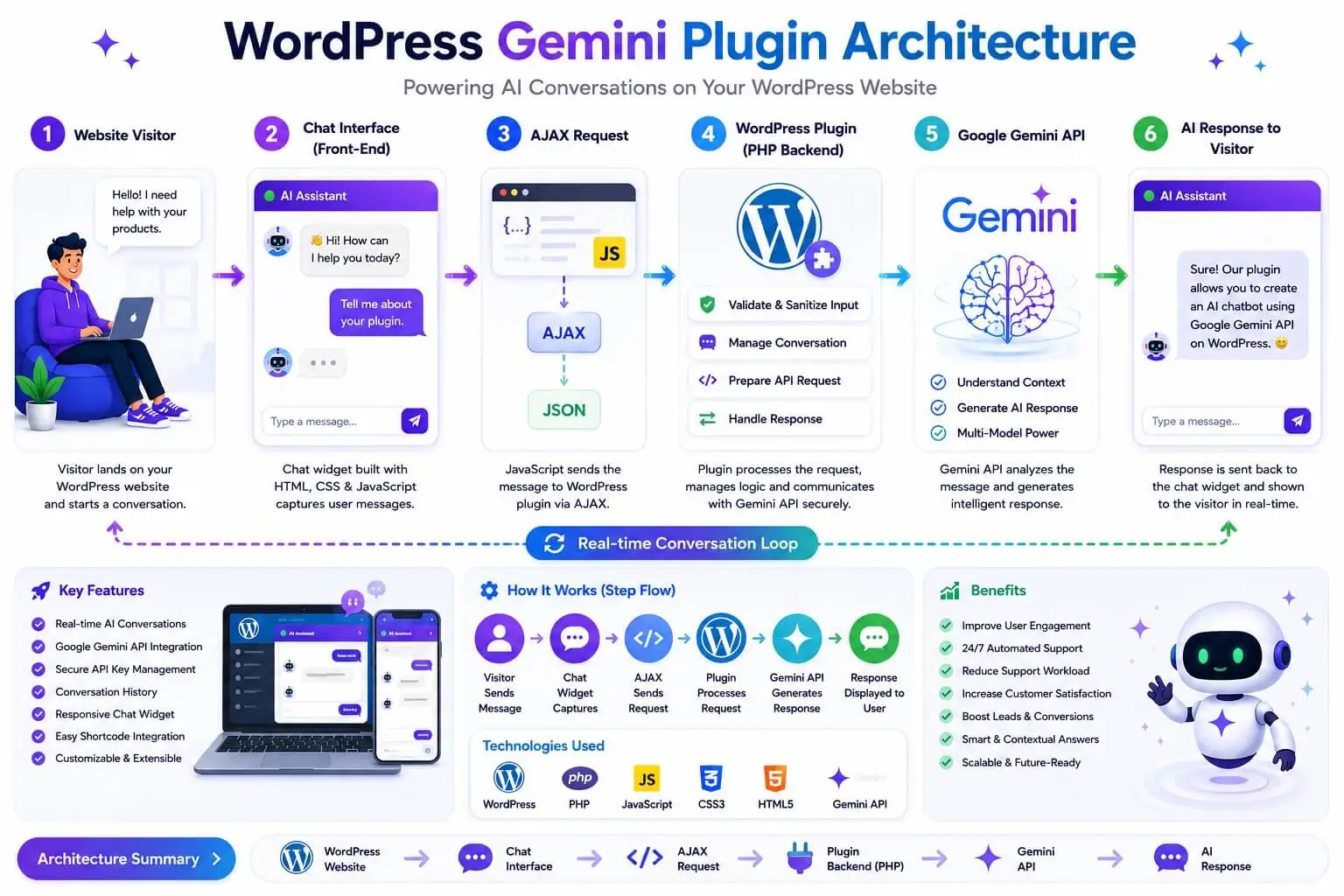
Step 1: The Main Plugin File
gemini-ai-chatbot.php
<?php
/**
 * Plugin Name:       Gemini AI Chatbot
 * Plugin URI:        https://ipdata.in/gemini-chatbot
 * Description:       Embed a fully-featured Google Gemini AI chatbot anywhere on your WordPress site via shortcode or floating widget. Zero subscriptions, full control.
 * Version:           2.0.0
 * Requires at least: 5.8
 * Requires PHP:      7.4
 * Author:            Tabir Ahmad
 * Author URI:        https://ipdata.in
 * License:           GPL v2 or later
 * License URI:       https://www.gnu.org/licenses/gpl-2.0.html
 * Text Domain:       gemini-ai-chatbot
 * Domain Path:       /languages
 */

// ── Security: Prevent direct file access ─────────────────────────────────────
if ( ! defined( 'ABSPATH' ) ) {
    exit;
}

// ── Plugin Constants ──────────────────────────────────────────────────────────
define( 'GAICB_VERSION',     '2.0.0' );
define( 'GAICB_PLUGIN_FILE', __FILE__ );
define( 'GAICB_PLUGIN_DIR',  plugin_dir_path( __FILE__ ) );
define( 'GAICB_PLUGIN_URL',  plugin_dir_url( __FILE__ ) );
define( 'GAICB_PLUGIN_BASE', plugin_basename( __FILE__ ) );
define( 'GAICB_OPTIONS_KEY', 'gaicb_settings' );

// ── Autoloader ────────────────────────────────────────────────────────────────
spl_autoload_register( function( string $class_name ): void {
    // Only autoload our own classes
    if ( strpos( $class_name, 'Gemini_' ) !== 0 ) return;

    $file = GAICB_PLUGIN_DIR . 'includes/class-' .
            strtolower( str_replace( '_', '-', $class_name ) ) . '.php';

    if ( file_exists( $file ) ) {
        require_once $file;
    }
});

// ── Bootstrap ─────────────────────────────────────────────────────────────────
function gaicb_init(): void {
    // Load text domain for translations
    load_plugin_textdomain(
        'gemini-ai-chatbot',
        false,
        dirname( GAICB_PLUGIN_BASE ) . '/languages'
    );

    // Boot the plugin
    Gemini_Chatbot::get_instance();
}
add_action( 'plugins_loaded', 'gaicb_init' );

// ── Activation Hook ───────────────────────────────────────────────────────────
register_activation_hook( __FILE__, function(): void {
    // Set default options on first activation
    if ( ! get_option( GAICB_OPTIONS_KEY ) ) {
        add_option( GAICB_OPTIONS_KEY, [
            'api_key'          => '',
            'model'            => 'gemini-1.5-flash',
            'system_prompt'    => 'You are a helpful AI assistant for this website. Be friendly, concise, and accurate.',
            'chatbot_name'     => 'AI Assistant',
            'welcome_message'  => 'Hello! How can I help you today?',
            'theme'            => 'dark',
            'accent_color'     => '#6366f1',
            'enable_widget'    => '1',
            'widget_position'  => 'bottom-right',
            'max_history'      => '20',
            'rate_limit'       => '20',
            'enable_shortcode' => '1',
            'debug_mode'       => '0',
            'max_tokens'       => '1024',
            'temperature'      => '0.7',
        ]);
    }

    // Flush rewrite rules
    flush_rewrite_rules();
});

// ── Deactivation Hook ─────────────────────────────────────────────────────────
register_deactivation_hook( __FILE__, function(): void {
    flush_rewrite_rules();
});
Step 2: Core Plugin Class (Singleton Pattern)
includes/class-gemini-chatbot.php
<?php
if ( ! defined( 'ABSPATH' ) ) exit;

/**
 * Main plugin class — Singleton.
 * Coordinates all plugin components: settings, AJAX, shortcodes, widgets.
 */
class Gemini_Chatbot {

    private static ?Gemini_Chatbot $instance = null;
    private array $options = [];

    // Prevent direct instantiation
    private function __construct() {
        $this->options = get_option( GAICB_OPTIONS_KEY, [] );
        $this->init_hooks();
    }

    // Prevent cloning
    private function __clone() {}

    /**
     * Get singleton instance.
     */
    public static function get_instance(): self {
        if ( self::$instance === null ) {
            self::$instance = new self();
        }
        return self::$instance;
    }

    /**
     * Register all WordPress hooks.
     */
    private function init_hooks(): void {
        // Frontend assets
        add_action( 'wp_enqueue_scripts', [ $this, 'enqueue_frontend_assets' ] );

        // Admin assets + settings
        add_action( 'admin_enqueue_scripts', [ $this, 'enqueue_admin_assets' ] );
        add_action( 'admin_menu',            [ $this, 'register_admin_menu' ] );
        add_action( 'admin_init',            [ $this, 'register_settings' ] );

        // Plugin action links (Settings link on Plugins page)
        add_filter(
            'plugin_action_links_' . GAICB_PLUGIN_BASE,
            [ $this, 'add_settings_link' ]
        );

        // Shortcode
        if ( ! empty( $this->options['enable_shortcode'] ) ) {
            add_shortcode( 'gemini_chatbot', [ $this, 'render_shortcode' ] );
        }

        // Floating widget (injected into footer)
        if ( ! empty( $this->options['enable_widget'] ) ) {
            add_action( 'wp_footer', [ $this, 'render_floating_widget' ] );
        }

        // AJAX handlers
        $ajax = new Gemini_Ajax( $this->options );
        add_action( 'wp_ajax_gaicb_chat',          [ $ajax, 'handle_chat'  ] );
        add_action( 'wp_ajax_nopriv_gaicb_chat',   [ $ajax, 'handle_chat'  ] );
        add_action( 'wp_ajax_gaicb_reset',         [ $ajax, 'handle_reset' ] );
        add_action( 'wp_ajax_nopriv_gaicb_reset',  [ $ajax, 'handle_reset' ] );
    }

    /**
     * Enqueue frontend CSS + JS.
     */
    public function enqueue_frontend_assets(): void {
        // Only enqueue if shortcode is on this page OR floating widget is enabled
        $has_shortcode   = is_a( get_post(), 'WP_Post' ) &&
                           has_shortcode( get_post()->post_content, 'gemini_chatbot' );
        $widget_enabled  = ! empty( $this->options['enable_widget'] );

        if ( ! $has_shortcode && ! $widget_enabled ) return;

        wp_enqueue_style(
            'gaicb-frontend',
            GAICB_PLUGIN_URL . 'assets/css/chatbot-frontend.css',
            [],
            GAICB_VERSION
        );

        wp_enqueue_script(
            'gaicb-frontend',
            GAICB_PLUGIN_URL . 'assets/js/chatbot-frontend.js',
            [], // No jQuery dependency — pure vanilla JS
            GAICB_VERSION,
            true // Load in footer
        );

        // Pass PHP variables to JavaScript
        wp_localize_script( 'gaicb-frontend', 'gaicbVars', [
            'ajaxurl'        => admin_url( 'admin-ajax.php' ),
            'nonce'          => wp_create_nonce( 'gaicb_chat_nonce' ),
            'resetNonce'     => wp_create_nonce( 'gaicb_reset_nonce' ),
            'chatbotName'    => esc_js( $this->options['chatbot_name']    ?? 'AI Assistant' ),
            'welcomeMsg'     => esc_js( $this->options['welcome_message'] ?? 'Hello! How can I help you today?' ),
            'theme'          => esc_js( $this->options['theme']           ?? 'dark' ),
            'accentColor'    => esc_js( $this->options['accent_color']    ?? '#6366f1' ),
            'widgetPosition' => esc_js( $this->options['widget_position'] ?? 'bottom-right' ),
            'i18n'           => [
                'placeholder'  => __( 'Type a message…', 'gemini-ai-chatbot' ),
                'send'         => __( 'Send', 'gemini-ai-chatbot' ),
                'reset'        => __( 'New chat', 'gemini-ai-chatbot' ),
                'error'        => __( 'Something went wrong. Please try again.', 'gemini-ai-chatbot' ),
                'rateLimited'  => __( 'Too many messages. Please wait a moment.', 'gemini-ai-chatbot' ),
                'resetConfirm' => __( 'Start a new conversation? This will clear the current chat.', 'gemini-ai-chatbot' ),
            ],
        ]);
    }

    /**
     * Enqueue admin-only assets.
     */
    public function enqueue_admin_assets( string $hook ): void {
        if ( $hook !== 'settings_page_gemini-ai-chatbot' ) return;

        wp_enqueue_style(
            'gaicb-admin',
            GAICB_PLUGIN_URL . 'assets/css/chatbot-admin.css',
            [],
            GAICB_VERSION
        );

        wp_enqueue_script(
            'gaicb-admin',
            GAICB_PLUGIN_URL . 'assets/js/chatbot-admin.js',
            [ 'wp-color-picker' ],
            GAICB_VERSION,
            true
        );

        wp_enqueue_style( 'wp-color-picker' );
    }

    /**
     * Register admin menu under Settings.
     */
    public function register_admin_menu(): void {
        add_options_page(
            __( 'Gemini AI Chatbot Settings', 'gemini-ai-chatbot' ),
            __( 'Gemini Chatbot', 'gemini-ai-chatbot' ),
            'manage_options',
            'gemini-ai-chatbot',
            [ $this, 'render_settings_page' ]
        );
    }

    /**
     * Register Settings API sections + fields.
     */
    public function register_settings(): void {
        register_setting(
            'gaicb_settings_group',
            GAICB_OPTIONS_KEY,
            [ $this, 'sanitize_settings' ]
        );

        // ── Section: API Configuration ─────────────────────────────────────
        add_settings_section(
            'gaicb_section_api',
            __( '🔑 API Configuration', 'gemini-ai-chatbot' ),
            fn() => echo '<p>' . esc_html__( 'Connect your Google Gemini API key to power the chatbot.', 'gemini-ai-chatbot' ) . '</p>',
            'gemini-ai-chatbot'
        );

        add_settings_field( 'api_key', __( 'Gemini API Key', 'gemini-ai-chatbot' ),
            [ $this, 'field_api_key' ], 'gemini-ai-chatbot', 'gaicb_section_api' );

        add_settings_field( 'model', __( 'Gemini Model', 'gemini-ai-chatbot' ),
            [ $this, 'field_model' ], 'gemini-ai-chatbot', 'gaicb_section_api' );

        add_settings_field( 'temperature', __( 'Temperature (Creativity)', 'gemini-ai-chatbot' ),
            [ $this, 'field_temperature' ], 'gemini-ai-chatbot', 'gaicb_section_api' );

        add_settings_field( 'max_tokens', __( 'Max Response Tokens', 'gemini-ai-chatbot' ),
            [ $this, 'field_max_tokens' ], 'gemini-ai-chatbot', 'gaicb_section_api' );

        // ── Section: Chatbot Personality ───────────────────────────────────
        add_settings_section(
            'gaicb_section_personality',
            __( '🤖 Chatbot Personality', 'gemini-ai-chatbot' ),
            fn() => echo '<p>' . esc_html__( 'Define your chatbot\'s name, tone, and behaviour.', 'gemini-ai-chatbot' ) . '</p>',
            'gemini-ai-chatbot'
        );

        add_settings_field( 'chatbot_name',   __( 'Chatbot Name', 'gemini-ai-chatbot' ),
            [ $this, 'field_chatbot_name' ], 'gemini-ai-chatbot', 'gaicb_section_personality' );

        add_settings_field( 'welcome_message', __( 'Welcome Message', 'gemini-ai-chatbot' ),
            [ $this, 'field_welcome_message' ], 'gemini-ai-chatbot', 'gaicb_section_personality' );

        add_settings_field( 'system_prompt', __( 'System Prompt (Persona)', 'gemini-ai-chatbot' ),
            [ $this, 'field_system_prompt' ], 'gemini-ai-chatbot', 'gaicb_section_personality' );

        // ── Section: Display Options ────────────────────────────────────────
        add_settings_section(
            'gaicb_section_display',
            __( '🎨 Display & Widget Options', 'gemini-ai-chatbot' ),
            fn() => echo '<p>' . esc_html__( 'Control how and where the chatbot appears on your site.', 'gemini-ai-chatbot' ) . '</p>',
            'gemini-ai-chatbot'
        );

        add_settings_field( 'theme',           __( 'Chat Theme', 'gemini-ai-chatbot' ),
            [ $this, 'field_theme' ], 'gemini-ai-chatbot', 'gaicb_section_display' );

        add_settings_field( 'accent_color',    __( 'Accent Colour', 'gemini-ai-chatbot' ),
            [ $this, 'field_accent_color' ], 'gemini-ai-chatbot', 'gaicb_section_display' );

        add_settings_field( 'enable_shortcode', __( 'Enable Shortcode', 'gemini-ai-chatbot' ),
            [ $this, 'field_enable_shortcode' ], 'gemini-ai-chatbot', 'gaicb_section_display' );

        add_settings_field( 'enable_widget',   __( 'Floating Chat Widget', 'gemini-ai-chatbot' ),
            [ $this, 'field_enable_widget' ], 'gemini-ai-chatbot', 'gaicb_section_display' );

        add_settings_field( 'widget_position', __( 'Widget Position', 'gemini-ai-chatbot' ),
            [ $this, 'field_widget_position' ], 'gemini-ai-chatbot', 'gaicb_section_display' );

        // ── Section: Performance & Security ────────────────────────────────
        add_settings_section(
            'gaicb_section_advanced',
            __( '⚙️ Performance & Security', 'gemini-ai-chatbot' ),
            fn() => echo '<p>' . esc_html__( 'Rate limiting and conversation memory controls.', 'gemini-ai-chatbot' ) . '</p>',
            'gemini-ai-chatbot'
        );

        add_settings_field( 'max_history',  __( 'Max History Turns', 'gemini-ai-chatbot' ),
            [ $this, 'field_max_history' ], 'gemini-ai-chatbot', 'gaicb_section_advanced' );

        add_settings_field( 'rate_limit',   __( 'Rate Limit (per minute)', 'gemini-ai-chatbot' ),
            [ $this, 'field_rate_limit' ], 'gemini-ai-chatbot', 'gaicb_section_advanced' );

        add_settings_field( 'debug_mode',   __( 'Debug Mode', 'gemini-ai-chatbot' ),
            [ $this, 'field_debug_mode' ], 'gemini-ai-chatbot', 'gaicb_section_advanced' );
    }

    /**
     * Sanitize all settings before saving.
     */
    public function sanitize_settings( array $input ): array {
        $clean = [];

        // API Key — strip whitespace, store as-is (not escaped — contains special chars)
        $clean['api_key'] = sanitize_text_field( trim( $input['api_key'] ?? '' ) );

        // Model — whitelist
        $allowed_models = [ 'gemini-1.5-flash', 'gemini-1.5-pro', 'gemini-1.5-flash-8b' ];
        $clean['model'] = in_array( $input['model'] ?? '', $allowed_models, true )
            ? $input['model']
            : 'gemini-1.5-flash';

        // System prompt — allow some HTML via wp_kses
        $clean['system_prompt'] = wp_strip_all_tags( $input['system_prompt'] ?? '' );

        // Text fields
        $clean['chatbot_name']    = sanitize_text_field( $input['chatbot_name']    ?? 'AI Assistant' );
        $clean['welcome_message'] = sanitize_text_field( $input['welcome_message'] ?? 'Hello! How can I help?' );

        // Colour — validate hex
        $clean['accent_color'] = sanitize_hex_color( $input['accent_color'] ?? '#6366f1' ) ?? '#6366f1';

        // Theme — whitelist
        $clean['theme'] = in_array( $input['theme'] ?? '', [ 'dark', 'light', 'auto' ], true )
            ? $input['theme']
            : 'dark';

        // Widget position — whitelist
        $positions = [ 'bottom-right', 'bottom-left', 'top-right', 'top-left' ];
        $clean['widget_position'] = in_array( $input['widget_position'] ?? '', $positions, true )
            ? $input['widget_position']
            : 'bottom-right';

        // Numeric values with ranges
        $clean['max_history'] = max( 5, min( 50, (int)( $input['max_history'] ?? 20 ) ) );
        $clean['rate_limit']  = max( 5, min( 60, (int)( $input['rate_limit']  ?? 20 ) ) );
        $clean['max_tokens']  = max( 256, min( 8192, (int)( $input['max_tokens'] ?? 1024 ) ) );

        // Float with range
        $temp = (float)( $input['temperature'] ?? 0.7 );
        $clean['temperature'] = max( 0.0, min( 1.0, $temp ) );

        // Checkboxes
        $clean['enable_widget']    = ! empty( $input['enable_widget'] )    ? '1' : '0';
        $clean['enable_shortcode'] = ! empty( $input['enable_shortcode'] ) ? '1' : '0';
        $clean['debug_mode']       = ! empty( $input['debug_mode'] )       ? '1' : '0';

        return $clean;
    }

    // ── Settings Field Renderers ──────────────────────────────────────────────

    public function field_api_key(): void {
        $val = esc_attr( $this->options['api_key'] ?? '' );
        $masked = $val ? str_repeat('•', max(0, strlen($val) - 8)) . substr($val, -8) : '';
        echo '<input type="password" name="' . GAICB_OPTIONS_KEY . '[api_key]"
              value="' . $val . '" class="regular-text" autocomplete="new-password">';
        if ( $masked ) {
            echo '<p class="description">Current key: <code>' . esc_html($masked) . '</code></p>';
        }
        echo '<p class="description">Get your free key from <a href="https://makersuite.google.com/app" target="_blank">Google AI Studio</a>.</p>';
    }

    public function field_model(): void {
        $val = $this->options['model'] ?? 'gemini-1.5-flash';
        $models = [
            'gemini-1.5-flash'    => 'Gemini 1.5 Flash — Fast & free (Recommended)',
            'gemini-1.5-flash-8b' => 'Gemini 1.5 Flash 8B — Smallest, fastest',
            'gemini-1.5-pro'      => 'Gemini 1.5 Pro — Most capable (higher latency)',
        ];
        echo '<select name="' . GAICB_OPTIONS_KEY . '[model]">';
        foreach ( $models as $key => $label ) {
            printf( '<option value="%s" %s>%s</option>',
                esc_attr($key), selected($val, $key, false), esc_html($label) );
        }
        echo '</select>';
        echo '<p class="description">Flash is recommended for real-time chat. Pro is better for complex reasoning tasks.</p>';
    }

    public function field_temperature(): void {
        $val = esc_attr( $this->options['temperature'] ?? '0.7' );
        echo '<input type="range" name="' . GAICB_OPTIONS_KEY . '[temperature]"
              value="' . $val . '" min="0" max="1" step="0.1"
              oninput="this.nextElementSibling.value=this.value">
              <output>' . $val . '</output>';
        echo '<p class="description">0 = Deterministic/precise. 1 = Creative/varied. Default: 0.7</p>';
    }

    public function field_max_tokens(): void {
        $val = esc_attr( $this->options['max_tokens'] ?? '1024' );
        echo '<input type="number" name="' . GAICB_OPTIONS_KEY . '[max_tokens]"
              value="' . $val . '" min="256" max="8192" step="256" class="small-text">';
        echo '<p class="description">Maximum length of AI responses. 1024 ≈ ~750 words. Higher = slower + more tokens used.</p>';
    }

    public function field_chatbot_name(): void {
        $val = esc_attr( $this->options['chatbot_name'] ?? 'AI Assistant' );
        echo '<input type="text" name="' . GAICB_OPTIONS_KEY . '[chatbot_name]"
              value="' . $val . '" class="regular-text" placeholder="AI Assistant">';
        echo '<p class="description">Displayed in the chat header. Example: "Support Bot", "Aria", "HelpDesk AI"</p>';
    }

    public function field_welcome_message(): void {
        $val = esc_attr( $this->options['welcome_message'] ?? 'Hello! How can I help you today?' );
        echo '<input type="text" name="' . GAICB_OPTIONS_KEY . '[welcome_message]"
              value="' . $val . '" class="large-text">';
        echo '<p class="description">First message the bot sends when a new conversation starts.</p>';
    }

    public function field_system_prompt(): void {
        $val = esc_textarea( $this->options['system_prompt'] ?? '' );
        echo '<textarea name="' . GAICB_OPTIONS_KEY . '[system_prompt]"
              rows="6" class="large-text">' . $val . '</textarea>';
        echo '<p class="description">Defines your chatbot\'s persona, knowledge scope, and behaviour rules. This is never visible to users.</p>';
        echo '<details style="margin-top:8px"><summary><strong>Example system prompts (click to expand)</strong></summary>
        <pre style="background:#f1f5f9;padding:12px;border-radius:6px;font-size:12px;margin-top:8px">
<strong>Customer Support:</strong>
You are a support agent for AcmeCorp. Help users with orders,
returns (30-day policy), and product questions. Never promise
discounts not on the website. For complaints, collect their
order number and escalate to support@acmecorp.com.

<strong>Tech Docs Bot:</strong>
You are a technical assistant for developers using our REST API.
Always show code in the correct language. Prefer v3 endpoints.
If unsure, say so — never guess API behaviour.

<strong>Lead Generation:</strong>
You are a friendly sales assistant. Help visitors understand our
services. If they express interest, collect their name, email,
and project details. Always end by offering a free consultation.
        </pre></details>';
    }

    public function field_theme(): void {
        $val = $this->options['theme'] ?? 'dark';
        $themes = [ 'dark' => 'Dark', 'light' => 'Light', 'auto' => 'Auto (follows system)' ];
        echo '<select name="' . GAICB_OPTIONS_KEY . '[theme]">';
        foreach ( $themes as $key => $label ) {
            printf( '<option value="%s" %s>%s</option>',
                esc_attr($key), selected($val, $key, false), esc_html($label) );
        }
        echo '</select>';
    }

    public function field_accent_color(): void {
        $val = esc_attr( $this->options['accent_color'] ?? '#6366f1' );
        echo '<input type="text" name="' . GAICB_OPTIONS_KEY . '[accent_color]"
              value="' . $val . '" class="gaicb-color-picker" data-default-color="#6366f1">';
        echo '<p class="description">Used for the chat header, send button, and user message bubbles.</p>';
    }

    public function field_enable_shortcode(): void {
        $val = ! empty( $this->options['enable_shortcode'] );
        echo '<label><input type="checkbox" name="' . GAICB_OPTIONS_KEY . '[enable_shortcode]"
              value="1" ' . checked($val, true, false) . '>
              Enable <code>[gemini_chatbot]</code> shortcode</label>';
        echo '<p class="description">Place <code>[gemini_chatbot]</code> in any post, page, or widget area.</p>';
        echo '<p class="description">Shortcode options: <code>[gemini_chatbot title="Ask Us" theme="light" height="450"]</code></p>';
    }

    public function field_enable_widget(): void {
        $val = ! empty( $this->options['enable_widget'] );
        echo '<label><input type="checkbox" name="' . GAICB_OPTIONS_KEY . '[enable_widget]"
              value="1" ' . checked($val, true, false) . '>
              Show floating chat bubble on all pages</label>';
        echo '<p class="description">Adds a persistent chat button in the corner of every page. Can be overridden per-page.</p>';
    }

    public function field_widget_position(): void {
        $val = $this->options['widget_position'] ?? 'bottom-right';
        $positions = [
            'bottom-right' => 'Bottom Right',
            'bottom-left'  => 'Bottom Left',
            'top-right'    => 'Top Right',
            'top-left'     => 'Top Left',
        ];
        echo '<select name="' . GAICB_OPTIONS_KEY . '[widget_position]">';
        foreach ( $positions as $key => $label ) {
            printf( '<option value="%s" %s>%s</option>',
                esc_attr($key), selected($val, $key, false), esc_html($label) );
        }
        echo '</select>';
    }

    public function field_max_history(): void {
        $val = esc_attr( $this->options['max_history'] ?? '20' );
        echo '<input type="number" name="' . GAICB_OPTIONS_KEY . '[max_history]"
              value="' . $val . '" min="5" max="50" step="1" class="small-text">';
        echo '<p class="description">Number of message pairs (user + bot) to keep in memory per session. More = better context, more tokens used.</p>';
    }

    public function field_rate_limit(): void {
        $val = esc_attr( $this->options['rate_limit'] ?? '20' );
        echo '<input type="number" name="' . GAICB_OPTIONS_KEY . '[rate_limit]"
              value="' . $val . '" min="5" max="60" step="1" class="small-text">';
        echo '<p class="description">Maximum messages per visitor per minute. Prevents API abuse. Recommended: 15–25.</p>';
    }

    public function field_debug_mode(): void {
        $val = ! empty( $this->options['debug_mode'] );
        echo '<label><input type="checkbox" name="' . GAICB_OPTIONS_KEY . '[debug_mode]"
              value="1" ' . checked($val, true, false) . '>
              Enable debug logging to WordPress error log</label>';
        echo '<p class="description"><strong>Disable on production.</strong> Logs API calls and errors to wp-content/debug.log.</p>';
    }

    /**
     * Render the admin settings page.
     */
    public function render_settings_page(): void {
        if ( ! current_user_can( 'manage_options' ) ) return;

        // Show success/error notices after save
        if ( isset( $_GET['settings-updated'] ) ) {
            add_settings_error(
                'gaicb_messages', 'gaicb_saved',
                __( 'Settings saved successfully.', 'gemini-ai-chatbot' ),
                'updated'
            );
        }

        settings_errors( 'gaicb_messages' );

        $api_key_set = ! empty( $this->options['api_key'] );
        ?>
        <div class="wrap gaicb-settings-wrap">
            <h1>
                <span style="font-size:1.4em;margin-right:8px;">🤖</span>
                <?php esc_html_e( 'Gemini AI Chatbot Settings', 'gemini-ai-chatbot' ); ?>
            </h1>

            <?php if ( ! $api_key_set ) : ?>
            <div class="notice notice-warning">
                <p><strong><?php esc_html_e( 'Action required:', 'gemini-ai-chatbot' ); ?></strong>
                <?php esc_html_e( 'Add your Gemini API key below to activate the chatbot.', 'gemini-ai-chatbot' ); ?>
                <a href="https://makersuite.google.com/app" target="_blank">
                    <?php esc_html_e( 'Get a free key →', 'gemini-ai-chatbot' ); ?>
                </a></p>
            </div>
            <?php endif; ?>

            <!-- Quick Start Info -->
            <div class="gaicb-info-boxes">
                <div class="gaicb-info-box">
                    <strong>📋 Shortcode Usage</strong>
                    <code>[gemini_chatbot]</code>
                    <code>[gemini_chatbot title="Support" theme="light"]</code>
                    <code>[gemini_chatbot height="500" show_reset="true"]</code>
                </div>
                <div class="gaicb-info-box">
                    <strong>📊 Free Tier Limits</strong>
                    <span>Gemini 1.5 Flash: <strong>60 requests/min</strong></span>
                    <span>Gemini 1.5 Pro: <strong>2 requests/min</strong></span>
                    <span>No monthly caps on free tier</span>
                </div>
                <div class="gaicb-info-box">
                    <strong>🔒 Security</strong>
                    <span>API key stored in WordPress options (encrypted at rest if your host supports it)</span>
                    <span>All requests use nonce verification</span>
                </div>
            </div>

            <form method="post" action="options.php">
                <?php
                settings_fields( 'gaicb_settings_group' );
                do_settings_sections( 'gemini-ai-chatbot' );
                submit_button( __( 'Save Settings', 'gemini-ai-chatbot' ) );
                ?>
            </form>
        </div>
        <?php
    }

    /**
     * Render [gemini_chatbot] shortcode.
     */
    public function render_shortcode( array $atts ): string {
        $atts = shortcode_atts([
            'title'      => $this->options['chatbot_name']    ?? 'AI Assistant',
            'theme'      => $this->options['theme']           ?? 'dark',
            'height'     => '420',
            'show_reset' => 'true',
            'placeholder'=> 'Type a message…',
        ], $atts, 'gemini_chatbot' );

        ob_start();
        include GAICB_PLUGIN_DIR . 'templates/chatbot-widget.php';
        return ob_get_clean();
    }

    /**
     * Render floating widget into footer.
     */
    public function render_floating_widget(): void {
        include GAICB_PLUGIN_DIR . 'templates/floating-widget.php';
    }

    /**
     * Add Settings link to Plugins page.
     */
    public function add_settings_link( array $links ): array {
        $settings_link = '<a href="' . admin_url( 'options-general.php?page=gemini-ai-chatbot' ) . '">'
            . __( 'Settings', 'gemini-ai-chatbot' ) . '</a>';
        array_unshift( $links, $settings_link );
        return $links;
    }
}
Step 3: Gemini API Communication Layer
includes/class-gemini-api.php
<?php
if ( ! defined( 'ABSPATH' ) ) exit;

/**
 * Handles all communication with the Google Gemini API.
 * Isolated from WordPress so it can be tested independently.
 */
class Gemini_Api {

    private const API_BASE = 'https://generativelanguage.googleapis.com/v1beta/models/';

    private string $api_key;
    private string $model;
    private array  $options;

    public function __construct( array $options ) {
        $this->options = $options;
        $this->api_key = $options['api_key']  ?? '';
        $this->model   = $options['model']    ?? 'gemini-1.5-flash';
    }

    /**
     * Send a conversation to Gemini and return the response.
     *
     * @param  array       $history  Full conversation history (user+model turns)
     * @return array|WP_Error        ['reply' => string, 'tokens' => int] or WP_Error
     */
    public function generate_content( array $history ): array|\WP_Error {

        if ( empty( $this->api_key ) ) {
            return new \WP_Error( 'no_api_key', 'Gemini API key is not configured.' );
        }

        $endpoint = self::API_BASE . $this->model . ':generateContent?key=' . $this->api_key;

        $payload = [
            'system_instruction' => [
                'parts' => [[
                    'text' => $this->options['system_prompt'] ?? 'You are a helpful assistant.'
                ]]
            ],
            'contents'         => $history,
            'generationConfig' => [
                'temperature'     => (float)( $this->options['temperature'] ?? 0.7 ),
                'maxOutputTokens' => (int)(   $this->options['max_tokens']  ?? 1024 ),
                'topP'            => 0.9,
                'topK'            => 40,
            ],
            'safetySettings'   => [
                [ 'category' => 'HARM_CATEGORY_HARASSMENT',        'threshold' => 'BLOCK_MEDIUM_AND_ABOVE' ],
                [ 'category' => 'HARM_CATEGORY_HATE_SPEECH',       'threshold' => 'BLOCK_MEDIUM_AND_ABOVE' ],
                [ 'category' => 'HARM_CATEGORY_SEXUALLY_EXPLICIT', 'threshold' => 'BLOCK_MEDIUM_AND_ABOVE' ],
                [ 'category' => 'HARM_CATEGORY_DANGEROUS_CONTENT', 'threshold' => 'BLOCK_MEDIUM_AND_ABOVE' ],
            ],
        ];

        // Use WordPress's wp_remote_post() instead of raw cURL
        // This respects WP HTTP API filters, SSL settings, and proxy configs
        $response = wp_remote_post( $endpoint, [
            'method'    => 'POST',
            'timeout'   => 30,
            'headers'   => [ 'Content-Type' => 'application/json' ],
            'body'      => wp_json_encode( $payload ),
            'sslverify' => true,
        ]);

        // Handle WP HTTP API errors (network, SSL, timeout)
        if ( is_wp_error( $response ) ) {
            $this->log( 'WP HTTP error: ' . $response->get_error_message() );
            return new \WP_Error(
                'http_error',
                $this->friendly_http_error( $response->get_error_code() )
            );
        }

        $http_code = wp_remote_retrieve_response_code( $response );
        $body      = wp_remote_retrieve_body( $response );
        $data      = json_decode( $body, true );

        // Handle API-level errors (401, 429, 500 etc.)
        if ( $http_code !== 200 ) {
            $api_msg    = $data['error']['message'] ?? 'Unknown Gemini API error';
            $api_status = $data['error']['status']  ?? 'UNKNOWN';

            $this->log( "API error {$http_code}: [{$api_status}] {$api_msg}" );

            return new \WP_Error(
                'api_error',
                $this->friendly_api_error( $api_status, $http_code ),
                [ 'status' => $http_code ]
            );
        }

        // Check finish reason
        $finish_reason = $data['candidates'][0]['finishReason'] ?? 'UNKNOWN';
        if ( in_array( $finish_reason, [ 'SAFETY', 'RECITATION', 'PROHIBITED_CONTENT' ], true ) ) {
            return new \WP_Error(
                'blocked',
                "I'm unable to respond to that. Please try rephrasing your message."
            );
        }

        // Extract reply text
        $reply = $data['candidates'][0]['content']['parts'][0]['text'] ?? null;

        if ( $reply === null || $reply === '' ) {
            $this->log( 'Empty reply from Gemini. Response: ' . wp_json_encode( $data ) );
            return new \WP_Error( 'empty_reply', 'The AI returned an empty response. Please try again.' );
        }

        return [
            'reply'         => $reply,
            'finish_reason' => $finish_reason,
            'tokens'        => $data['usageMetadata']['totalTokenCount'] ?? 0,
        ];
    }

    /**
     * Test the API key and connection.
     * Returns true on success, WP_Error on failure.
     */
    public function test_connection(): bool|\WP_Error {
        $result = $this->generate_content([
            [ 'role' => 'user', 'parts' => [[ 'text' => 'Reply with exactly: "OK"' ]] ]
        ]);

        if ( is_wp_error( $result ) ) return $result;
        return true;
    }

    private function friendly_http_error( string $code ): string {
        return match ( $code ) {
            'http_request_timeout' => 'The AI took too long to respond. Please try again.',
            'http_request_failed'  => 'Could not connect to the AI service. Check your server\'s internet access.',
            default                => 'A network error occurred. Please try again.',
        };
    }

    private function friendly_api_error( string $status, int $code ): string {
        return match ( $status ) {
            'INVALID_ARGUMENT'   => 'Invalid request. Please refresh and try again.',
            'RESOURCE_EXHAUSTED' => 'API quota exceeded. Please wait a moment.',
            'UNAUTHENTICATED'    => 'Invalid API key. Please check your settings.',
            'PERMISSION_DENIED'  => 'API key lacks permission for this model.',
            default              => "AI service error ({$code}). Please try again.",
        };
    }

    private function log( string $message ): void {
        if ( ! empty( $this->options['debug_mode'] ) ) {
            error_log( '[Gemini AI Chatbot] ' . $message );
        }
    }
}
Step 4: AJAX Request Handler
includes/class-gemini-ajax.php
<?php
if ( ! defined( 'ABSPATH' ) ) exit;

/**
 * Handles all AJAX requests for the chatbot.
 * Registered in Gemini_Chatbot::init_hooks().
 */
class Gemini_Ajax {

    private array $options;

    public function __construct( array $options ) {
        $this->options = $options;
    }

    /**
     * Handle chat message request.
     * Action: wp_ajax_gaicb_chat / wp_ajax_nopriv_gaicb_chat
     */
    public function handle_chat(): void {
        // ── Security: verify nonce ────────────────────────────────────────
        if ( ! check_ajax_referer( 'gaicb_chat_nonce', 'nonce', false ) ) {
            wp_send_json_error([
                'message' => __( 'Security check failed. Please refresh the page.', 'gemini-ai-chatbot' )
            ], 403 );
        }

        // ── Start session for conversation history ────────────────────────
        if ( session_status() === PHP_SESSION_NONE ) {
            session_start();
        }

        // ── Input validation ──────────────────────────────────────────────
        $message = sanitize_text_field( wp_unslash( $_POST['message'] ?? '' ) );

        if ( empty( $message ) ) {
            wp_send_json_error([ 'message' => 'Message cannot be empty.' ], 400 );
        }

        $max_length = 2000;
        if ( mb_strlen( $message ) > $max_length ) {
            wp_send_json_error([
                'message' => sprintf( 'Message too long. Maximum %d characters.', $max_length )
            ], 400 );
        }

        // ── Rate limiting ─────────────────────────────────────────────────
        $rate_check = $this->check_rate_limit();
        if ( is_wp_error( $rate_check ) ) {
            wp_send_json_error([
                'message'     => $rate_check->get_error_message(),
                'retry_after' => $rate_check->get_error_data()['retry_after'] ?? 60,
            ], 429 );
        }

        // ── Build conversation history ────────────────────────────────────
        $session_key = 'gaicb_history_' . md5( session_id() );

        if ( ! isset( $_SESSION[ $session_key ] ) ) {
            $_SESSION[ $session_key ] = [];
        }

        // Add user message
        $_SESSION[ $session_key ][] = [
            'role'  => 'user',
            'parts' => [[ 'text' => $message ]],
        ];

        // Trim to max history
        $max_turns   = (int)( $this->options['max_history'] ?? 20 );
        $max_entries = $max_turns * 2; // × 2 for user + model pairs

        if ( count( $_SESSION[ $session_key ] ) > $max_entries ) {
            $_SESSION[ $session_key ] = array_slice( $_SESSION[ $session_key ], -$max_entries );
        }

        // ── Call Gemini API ───────────────────────────────────────────────
        $api    = new Gemini_Api( $this->options );
        $result = $api->generate_content( $_SESSION[ $session_key ] );

        if ( is_wp_error( $result ) ) {
            // Remove the failed user message from history
            array_pop( $_SESSION[ $session_key ] );

            wp_send_json_error([
                'message' => $result->get_error_message(),
            ], 200 ); // 200 so JS treats as a "bot error message", not a network failure
        }

        // ── Save bot reply to history ─────────────────────────────────────
        $_SESSION[ $session_key ][] = [
            'role'  => 'model',
            'parts' => [[ 'text' => $result['reply'] ]],
        ];

        // ── Return response ───────────────────────────────────────────────
        wp_send_json_success([
            'reply'        => $result['reply'],
            'tokens'       => $result['tokens'],
            'history_size' => count( $_SESSION[ $session_key ] ),
        ]);
    }

    /**
     * Handle conversation reset request.
     * Action: wp_ajax_gaicb_reset / wp_ajax_nopriv_gaicb_reset
     */
    public function handle_reset(): void {
        if ( ! check_ajax_referer( 'gaicb_reset_nonce', 'nonce', false ) ) {
            wp_send_json_error([ 'message' => 'Security check failed.' ], 403 );
        }

        if ( session_status() === PHP_SESSION_NONE ) {
            session_start();
        }

        $session_key = 'gaicb_history_' . md5( session_id() );
        $_SESSION[ $session_key ] = [];

        wp_send_json_success([ 'message' => 'Conversation reset.' ]);
    }

    /**
     * Check per-IP rate limit using WordPress transients.
     *
     * @return true|\WP_Error
     */
    private function check_rate_limit(): bool|\WP_Error {
        $limit  = (int)( $this->options['rate_limit'] ?? 20 );
        $window = 60; // seconds

        // Hash the IP for privacy
        $ip     = $_SERVER['HTTP_X_FORWARDED_FOR'] ?? $_SERVER['REMOTE_ADDR'] ?? 'unknown';
        $ip_key = 'gaicb_rl_' . md5( $ip );

        $requests = get_transient( $ip_key );

        if ( $requests === false ) {
            // First request in window
            set_transient( $ip_key, 1, $window );
            return true;
        }

        if ( (int)$requests >= $limit ) {
            $ttl = (int)( get_option( '_transient_timeout_' . $ip_key ) ?? time() ) - time();
            return new \WP_Error(
                'rate_limited',
                __( 'Too many messages. Please wait a moment before sending more.', 'gemini-ai-chatbot' ),
                [ 'retry_after' => max( 0, $ttl ) ]
            );
        }

        set_transient( $ip_key, $requests + 1, $window );
        return true;
    }
}
Step 5: Chat Widget Template
templates/chatbot-widget.php
<?php if ( ! defined( 'ABSPATH' ) ) exit; ?>

<?php
// $atts is passed from render_shortcode()
$widget_id    = 'gaicb-' . wp_unique_id();
$chat_height  = absint( $atts['height']     ?? 420 );
$chat_title   = esc_html( $atts['title']    ?? 'AI Assistant' );
$show_reset   = $atts['show_reset'] !== 'false';
$chat_theme   = esc_attr( $atts['theme']    ?? 'dark' );
$placeholder  = esc_attr( $atts['placeholder'] ?? 'Type a message…' );
$accent       = esc_attr( get_option( GAICB_OPTIONS_KEY )['accent_color'] ?? '#6366f1' );
$welcome_msg  = esc_js( get_option( GAICB_OPTIONS_KEY )['welcome_message'] ?? 'Hello! How can I help?' );
?>

<div id="<?php echo esc_attr( $widget_id ); ?>"
     class="gaicb-widget gaicb-theme-<?php echo $chat_theme; ?>"
     style="--gaicb-accent: <?php echo $accent; ?>;"
     data-widget-id="<?php echo esc_attr( $widget_id ); ?>">

    <!-- Header -->
    <div class="gaicb-header">
        <div class="gaicb-header-left">
            <div class="gaicb-avatar">🤖</div>
            <div>
                <div class="gaicb-name"><?php echo $chat_title; ?></div>
                <div class="gaicb-status">
                    <span class="gaicb-dot"></span>
                    <?php esc_html_e( 'Online', 'gemini-ai-chatbot' ); ?>
                </div>
            </div>
        </div>
        <?php if ( $show_reset ) : ?>
        <button class="gaicb-reset-btn"
                data-widget="<?php echo esc_attr( $widget_id ); ?>"
                title="<?php esc_attr_e( 'New conversation', 'gemini-ai-chatbot' ); ?>">
            <?php esc_html_e( 'New chat', 'gemini-ai-chatbot' ); ?>
        </button>
        <?php endif; ?>
    </div>

    <!-- Messages -->
    <div class="gaicb-messages"
         id="<?php echo esc_attr( $widget_id ); ?>-messages"
         style="height: <?php echo $chat_height; ?>px;"
         data-welcome="<?php echo $welcome_msg; ?>">
    </div>

    <!-- Typing Indicator -->
    <div class="gaicb-typing" id="<?php echo esc_attr( $widget_id ); ?>-typing" aria-live="polite">
        <div class="gaicb-typing-bubble">
            <span></span><span></span><span></span>
        </div>
    </div>

    <!-- Input Area -->
    <div class="gaicb-input-area">
        <textarea
            id="<?php echo esc_attr( $widget_id ); ?>-input"
            class="gaicb-input"
            placeholder="<?php echo $placeholder; ?>"
            rows="1"
            maxlength="2000"
            aria-label="<?php esc_attr_e( 'Chat message', 'gemini-ai-chatbot' ); ?>"
        ></textarea>
        <button class="gaicb-send-btn"
                id="<?php echo esc_attr( $widget_id ); ?>-send"
                data-widget="<?php echo esc_attr( $widget_id ); ?>"
                aria-label="<?php esc_attr_e( 'Send message', 'gemini-ai-chatbot' ); ?>">
            <svg viewBox="0 0 24 24" fill="currentColor" width="18" height="18">
                <path d="M2.01 21L23 12 2.01 3 2 10l15 2-15 2z"/>
            </svg>
        </button>
    </div>

    <!-- Character Count -->
    <div class="gaicb-footer">
        <span class="gaicb-char-count" id="<?php echo esc_attr( $widget_id ); ?>-chars">0 / 2000</span>
        <span class="gaicb-powered">Powered by Gemini AI</span>
    </div>

</div>
templates/floating-widget.php
<?php if ( ! defined( 'ABSPATH' ) ) exit; ?>

<?php
$options  = get_option( GAICB_OPTIONS_KEY, [] );
$position = esc_attr( $options['widget_position'] ?? 'bottom-right' );
$accent   = esc_attr( $options['accent_color']    ?? '#6366f1' );
$name     = esc_html( $options['chatbot_name']    ?? 'AI Assistant' );
?>

<div id="gaicb-floating"
     class="gaicb-floating gaicb-pos-<?php echo $position; ?>"
     style="--gaicb-accent: <?php echo $accent; ?>;">

    <!-- Trigger Button -->
    <button class="gaicb-bubble-btn"
            id="gaicb-bubble-trigger"
            aria-label="<?php printf( esc_attr__( 'Open %s', 'gemini-ai-chatbot' ), $name ); ?>"
            aria-expanded="false"
            aria-controls="gaicb-floating-panel">
        <span class="gaicb-bubble-icon gaicb-open-icon">💬</span>
        <span class="gaicb-bubble-icon gaicb-close-icon" style="display:none;">✕</span>
        <span class="gaicb-bubble-badge" id="gaicb-badge" style="display:none;">1</span>
    </button>

    <!-- Chat Panel -->
    <div class="gaicb-floating-panel"
         id="gaicb-floating-panel"
         role="dialog"
         aria-label="<?php echo $name; ?>"
         aria-hidden="true"
         style="display:none;">

        <?php
        // Render the full chatbot widget inside the floating panel
        $atts = [
            'title'      => $name,
            'theme'      => $options['theme'] ?? 'dark',
            'height'     => '360',
            'show_reset' => 'true',
            'placeholder'=> 'Type a message…',
        ];
        include __DIR__ . '/chatbot-widget.php';
        ?>
    </div>
</div>
Step 6: Frontend JavaScript
assets/js/chatbot-frontend.js
/**
* Gemini AI Chatbot — Frontend JavaScript
* Pure vanilla JS — no jQuery dependency.
*/
( function() {
'use strict';
// ── State manager for multiple chatbot instances ───────────────────────────
const instances = {};
/**
* Initialize a single chatbot widget instance.
* @param {string} widgetId — The unique widget element ID
*/
function initWidget( widgetId ) {
const root = document.getElementById( widgetId );
if ( ! root || instances[ widgetId ] ) return;
const messagesEl = document.getElementById( widgetId + '-messages' );
const inputEl = document.getElementById( widgetId + '-input' );
const sendBtn = document.getElementById( widgetId + '-send' );
const typingEl = document.getElementById( widgetId + '-typing' );
const charsEl = document.getElementById( widgetId + '-chars' );
// Per-instance state
const state = {
isWaiting: false,
initialized: false,
};
instances[ widgetId ] = state;
// Show welcome message on first view
function showWelcome() {
if ( state.initialized ) return;
state.initialized = true;
const welcomeMsg = messagesEl.dataset.welcome || gaicbVars.welcomeMsg;
if ( welcomeMsg ) appendMessage( 'bot', welcomeMsg );
}
// ── Message display ───────────────────────────────────────────────────
function appendMessage( role, text ) {
const row = document.createElement( 'div' );
row.className = 'gaicb-msg-row gaicb-msg-' + role;
const avatar = document.createElement( 'div' );
avatar.className = 'gaicb-msg-avatar';
avatar.textContent = role === 'user' ? '🧑' : '🤖';
const bubble = document.createElement( 'div' );
bubble.className = 'gaicb-msg-bubble';
if ( role === 'bot' || role === 'error' ) {
bubble.innerHTML = renderMarkdown( text );
} else {
bubble.textContent = text;
}
if ( role === 'error' ) bubble.classList.add( 'gaicb-msg-error' );
const time = document.createElement( 'div' );
time.className = 'gaicb-msg-time';
time.textContent = new Date().toLocaleTimeString( [], {
hour: '2-digit', minute: '2-digit'
});
const inner = document.createElement( 'div' );
inner.appendChild( bubble );
inner.appendChild( time );
if ( role === 'user' ) {
row.appendChild( inner );
row.appendChild( avatar );
} else {
row.appendChild( avatar );
row.appendChild( inner );
}
// Insert before typing indicator
messagesEl.insertBefore( row, typingEl );
scrollBottom();
}
function scrollBottom() {
setTimeout( () => { messagesEl.scrollTop = messagesEl.scrollHeight; }, 30 );
}
// ── Send message ──────────────────────────────────────────────────────
async function sendMessage() {
const message = inputEl.value.trim();
if ( ! message || state.isWaiting ) return;
setWaiting( true );
appendMessage( 'user', message );
inputEl.value = '';
resizeTextarea();
updateCharCount();
try {
const body = new URLSearchParams({
action: 'gaicb_chat',
nonce: gaicbVars.nonce,
message: message,
});
const resp = await fetch( gaicbVars.ajaxurl, {
method: 'POST',
headers: { 'Content-Type': 'application/x-www-form-urlencoded' },
body: body.toString(),
});
if ( ! resp.ok ) throw new Error( 'HTTP ' + resp.status );
const data = await resp.json();
if ( data.success ) {
appendMessage( 'bot', data.data.reply );
} else {
const msg = data.data?.message || gaicbVars.i18n.error;
appendMessage( 'error', '⚠️ ' + msg );
// Show retry hint for rate limiting
if ( data.data?.retry_after ) {
const secs = data.data.retry_after;
appendMessage( 'bot', `Please wait ${secs} seconds before sending more messages.` );
}
}
} catch ( err ) {
appendMessage( 'error', '⚠️ ' + gaicbVars.i18n.error );
console.error( '[Gemini Chatbot]', err );
}
setWaiting( false );
inputEl.focus();
}
// ── Reset conversation ─────────────────────────────────────────────────
async function resetChat() {
if ( ! confirm( gaicbVars.i18n.resetConfirm ) ) return;
try {
await fetch( gaicbVars.ajaxurl, {
method: 'POST',
headers: { 'Content-Type': 'application/x-www-form-urlencoded' },
body: new URLSearchParams({
action: 'gaicb_reset',
nonce: gaicbVars.resetNonce,
}).toString(),
});
} catch ( _ ) { /* Silent — clear client side anyway */ }
// Clear messages (keep typing indicator)
messagesEl.querySelectorAll( '.gaicb-msg-row' ).forEach( el => el.remove() );
state.initialized = false;
showWelcome();
}
// ── Minimal markdown renderer ──────────────────────────────────────────
function renderMarkdown( text ) {
let html = escHtml( text );
// Code blocks
html = html.replace( /```(\w*)\n?([\s\S]*?)```/g, ( _, lang, code ) =>
`<pre><code class="lang-${ lang || 'text' }">${ code.trim() }</code></pre>`
);
// Inline code
html = html.replace( /`([^`\n]+)`/g, '<code>$1</code>' );
// Bold
html = html.replace( /\*\*(.+?)\*\*/g, '<strong>$1</strong>' );
// Italic
html = html.replace( /\*([^*\n]+)\*/g, '<em>$1</em>' );
// Headings
html = html.replace( /^### (.+)$/gm, '<h3>$1</h3>' );
html = html.replace( /^## (.+)$/gm, '<h2>$1</h2>' );
html = html.replace( /^# (.+)$/gm, '<h1>$1</h1>' );
// Unordered list
html = html.replace( /^[-*] (.+)$/gm, '<li>$1</li>' );
html = html.replace( /((<li>.*?<\/li>[\n]?)+)/g, '<ul>$1</ul>' );
// Links
html = html.replace(
/(?<!href=["'])(https?:\/\/[^\s<>"]+)/g,
'<a href="$1" target="_blank" rel="noopener noreferrer">$1</a>'
);
// Newlines → breaks
html = html.replace( /\n\n+/g, '</p><p>' );
html = html.replace( /([^>])\n([^<])/g, '$1<br>$2' );
return '<p>' + html + '</p>';
}
function escHtml( str ) {
return str
.replace( /&/g, '&' )
.replace( /</g, '<' )
.replace( />/g, '>' )
.replace( /"/g, '"' )
.replace( /'/g, ''' );
}
// ── UI helpers ─────────────────────────────────────────────────────────
function setWaiting( waiting ) {
state.isWaiting = waiting;
sendBtn.disabled = waiting;
inputEl.disabled = waiting;
typingEl.style.display = waiting ? 'flex' : 'none';
if ( waiting ) scrollBottom();
}
function resizeTextarea() {
inputEl.style.height = 'auto';
inputEl.style.height = Math.min( inputEl.scrollHeight, 120 ) + 'px';
}
function updateCharCount() {
const len = inputEl.value.length;
if ( charsEl ) {
charsEl.textContent = len + ' / 2000';
charsEl.className = 'gaicb-char-count' +
( len > 1800 ? ' warn' : '' ) +
( len >= 2000 ? ' limit' : '' );
}
}
// ── Event listeners ────────────────────────────────────────────────────
sendBtn.addEventListener( 'click', sendMessage );
inputEl.addEventListener( 'keydown', function( e ) {
if ( e.key === 'Enter' && ! e.shiftKey ) {
e.preventDefault();
sendMessage();
}
});
inputEl.addEventListener( 'input', function() {
resizeTextarea();
updateCharCount();
});
// Reset button (shortcode widget)
const resetBtn = root.querySelector( '.gaicb-reset-btn' );
if ( resetBtn ) resetBtn.addEventListener( 'click', resetChat );
// Show welcome on init
showWelcome();
}
// ── Floating Widget Toggle ─────────────────────────────────────────────────
function initFloatingWidget() {
const trigger = document.getElementById( 'gaicb-bubble-trigger' );
const panel = document.getElementById( 'gaicb-floating-panel' );
if ( ! trigger || ! panel ) return;
let isOpen = false;
trigger.addEventListener( 'click', function() {
isOpen = ! isOpen;
panel.style.display = isOpen ? 'block' : 'none';
panel.setAttribute( 'aria-hidden', String( ! isOpen ) );
trigger.setAttribute( 'aria-expanded', String( isOpen ) );
trigger.querySelector( '.gaicb-open-icon' ).style.display = isOpen ? 'none' : '';
trigger.querySelector( '.gaicb-close-icon' ).style.display = isOpen ? '' : 'none';
// Dismiss badge
const badge = document.getElementById( 'gaicb-badge' );
if ( badge ) badge.style.display = 'none';
// Init the inner widget on first open
if ( isOpen ) {
const innerWidget = panel.querySelector( '[id^="gaicb-"]' );
if ( innerWidget ) initWidget( innerWidget.id );
}
});
// Close on Escape key
document.addEventListener( 'keydown', function( e ) {
if ( e.key === 'Escape' && isOpen ) trigger.click();
});
}
// ── Bootstrap all widgets on page ─────────────────────────────────────────
document.addEventListener( 'DOMContentLoaded', function() {
// Init all shortcode widgets
document.querySelectorAll( '.gaicb-widget[id]' ).forEach( el => {
// Don't init widgets inside the floating panel (init on open)
if ( ! el.closest( '#gaicb-floating' ) ) {
initWidget( el.id );
}
});
// Init floating widget toggle
initFloatingWidget();
});
} )();
Step 7: Frontend CSS (Complete Styled System)
assets/css/chatbot-frontend.css
/* ── Gemini AI Chatbot — Frontend Styles ──────────────────────────────────── */

/* ── CSS Custom Properties ─────────────────────────────────────────────────── */
.gaicb-widget {
    --gaicb-accent:      #6366f1;
    --gaicb-bg:          #1e293b;
    --gaicb-bg-2:        #0f172a;
    --gaicb-bg-3:        #334155;
    --gaicb-text:        #f1f5f9;
    --gaicb-text-2:      #94a3b8;
    --gaicb-text-3:      #64748b;
    --gaicb-border:      #334155;
    --gaicb-user-bubble: var(--gaicb-accent);
    --gaicb-bot-bubble:  #1e293b;
    --gaicb-radius:      14px;
    --gaicb-font:        -apple-system, 'Segoe UI', system-ui, sans-serif;

    font-family: var(--gaicb-font);
    font-size: 14px;
    line-height: 1.6;
    color: var(--gaicb-text);
    background: var(--gaicb-bg);
    border: 1px solid var(--gaicb-border);
    border-radius: var(--gaicb-radius);
    overflow: hidden;
    box-shadow: 0 8px 30px rgba(0,0,0,0.3);
    max-width: 640px;
    width: 100%;
}

/* ── Light Theme Override ──────────────────────────────────────────────────── */
.gaicb-theme-light {
    --gaicb-bg:          #ffffff;
    --gaicb-bg-2:        #f8fafc;
    --gaicb-bg-3:        #f1f5f9;
    --gaicb-text:        #0f172a;
    --gaicb-text-2:      #475569;
    --gaicb-text-3:      #94a3b8;
    --gaicb-border:      #e2e8f0;
    --gaicb-bot-bubble:  #f1f5f9;
    box-shadow: 0 4px 20px rgba(0,0,0,0.08);
}

/* ── Header ────────────────────────────────────────────────────────────────── */
.gaicb-header {
    display: flex;
    align-items: center;
    justify-content: space-between;
    padding: 14px 16px;
    background: var(--gaicb-accent);
    gap: 10px;
}

.gaicb-header-left {
    display: flex;
    align-items: center;
    gap: 10px;
}

.gaicb-avatar {
    width: 36px; height: 36px;
    background: rgba(255,255,255,0.18);
    border-radius: 50%;
    display: flex; align-items: center; justify-content: center;
    font-size: 18px;
    flex-shrink: 0;
}

.gaicb-name {
    font-weight: 700;
    font-size: 0.95rem;
    color: #fff;
}

.gaicb-status {
    font-size: 0.72rem;
    color: rgba(255,255,255,0.78);
    display: flex;
    align-items: center;
    gap: 5px;
}

.gaicb-dot {
    width: 6px; height: 6px;
    background: #4ade80;
    border-radius: 50%;
    animation: gaicb-pulse 2s infinite;
}

@keyframes gaicb-pulse {
    0%, 100% { opacity:1; transform:scale(1); }
    50%       { opacity:.5; transform:scale(.85); }
}

.gaicb-reset-btn {
    background: rgba(255,255,255,0.14);
    border: 1px solid rgba(255,255,255,0.2);
    color: #fff;
    padding: 5px 12px;
    border-radius: 20px;
    font-size: 0.75rem;
    cursor: pointer;
    transition: background .2s;
    white-space: nowrap;
}
.gaicb-reset-btn:hover { background: rgba(255,255,255,0.25); }

/* ── Messages ──────────────────────────────────────────────────────────────── */
.gaicb-messages {
    overflow-y: auto;
    padding: 16px;
    display: flex;
    flex-direction: column;
    gap: 14px;
    scroll-behavior: smooth;
    background: var(--gaicb-bg-2);
}

.gaicb-messages::-webkit-scrollbar { width: 4px; }
.gaicb-messages::-webkit-scrollbar-thumb {
    background: var(--gaicb-bg-3);
    border-radius: 99px;
}

/* ── Message Rows ──────────────────────────────────────────────────────────── */
.gaicb-msg-row {
    display: flex;
    align-items: flex-end;
    gap: 8px;
    animation: gaicb-msg-in .2s ease-out;
}

@keyframes gaicb-msg-in {
    from { opacity:0; transform:translateY(8px); }
    to   { opacity:1; transform:translateY(0); }
}

.gaicb-msg-user { flex-direction: row-reverse; }

.gaicb-msg-avatar {
    width: 28px; height: 28px;
    border-radius: 50%;
    display: flex; align-items: center; justify-content: center;
    font-size: 14px;
    background: var(--gaicb-bg-3);
    flex-shrink: 0;
}

.gaicb-msg-user .gaicb-msg-avatar { background: rgba(99,102,241,0.2); }

.gaicb-msg-bubble {
    max-width: 78%;
    padding: 10px 14px;
    border-radius: 14px;
    font-size: 0.88rem;
    line-height: 1.65;
    word-break: break-word;
}

.gaicb-msg-bot .gaicb-msg-bubble {
    background: var(--gaicb-bot-bubble);
    color: var(--gaicb-text);
    border: 1px solid var(--gaicb-border);
    border-bottom-left-radius: 4px;
}

.gaicb-msg-user .gaicb-msg-bubble {
    background: var(--gaicb-accent);
    color: #fff;
    border-bottom-right-radius: 4px;
}

.gaicb-msg-error .gaicb-msg-bubble {
    background: rgba(239,68,68,0.08);
    border-color: rgba(239,68,68,0.25);
    color: #fca5a5;
}

.gaicb-msg-time {
    font-size: 0.68rem;
    color: var(--gaicb-text-3);
    margin-top: 3px;
}

.gaicb-msg-user .gaicb-msg-time { text-align: right; }

/* ── Markdown Inside Bot Bubbles ─────────────────────────────────────────── */
.gaicb-msg-bubble pre {
    background: rgba(0,0,0,0.35);
    border: 1px solid var(--gaicb-border);
    border-radius: 6px;
    padding: 10px;
    overflow-x: auto;
    font-size: .82rem;
    margin: 8px 0;
}

.gaicb-msg-bubble code {
    font-family: 'JetBrains Mono','Fira Code','Courier New',monospace;
    font-size: .85em;
}

.gaicb-msg-bubble p:not(:last-child) { margin-bottom: 6px; }
.gaicb-msg-bubble ul { padding-left: 18px; margin: 6px 0; }
.gaicb-msg-bubble strong { font-weight: 600; }
.gaicb-msg-bubble a { color: var(--gaicb-accent); text-decoration: underline; }

/* ── Typing Indicator ─────────────────────────────────────────────────────── */
.gaicb-typing {
    display: none;
    align-items: center;
    gap: 8px;
    padding: 0 16px 12px;
    background: var(--gaicb-bg-2);
}

.gaicb-typing-bubble {
    background: var(--gaicb-bot-bubble);
    border: 1px solid var(--gaicb-border);
    border-radius: 14px;
    border-bottom-left-radius: 4px;
    padding: 12px 16px;
    display: flex;
    gap: 5px;
    align-items: center;
}

.gaicb-typing-bubble span {
    width: 7px; height: 7px;
    background: var(--gaicb-text-3);
    border-radius: 50%;
    animation: gaicb-bounce 1.3s infinite ease-in-out;
}

.gaicb-typing-bubble span:nth-child(2) { animation-delay: .2s; }
.gaicb-typing-bubble span:nth-child(3) { animation-delay: .4s; }

@keyframes gaicb-bounce {
    0%,60%,100% { transform:translateY(0); opacity:.4; }
    30%          { transform:translateY(-5px); opacity:1; }
}

/* ── Input Area ──────────────────────────────────────────────────────────── */
.gaicb-input-area {
    display: flex;
    gap: 8px;
    align-items: flex-end;
    padding: 10px 12px;
    border-top: 1px solid var(--gaicb-border);
    background: var(--gaicb-bg);
}

.gaicb-input {
    flex: 1;
    background: var(--gaicb-bg-2);
    border: 1px solid var(--gaicb-border);
    color: var(--gaicb-text);
    padding: 9px 12px;
    border-radius: 10px;
    font-family: var(--gaicb-font);
    font-size: .88rem;
    resize: none;
    outline: none;
    min-height: 38px;
    max-height: 120px;
    transition: border-color .2s;
    line-height: 1.5;
}

.gaicb-input::placeholder { color: var(--gaicb-text-3); }
.gaicb-input:focus { border-color: var(--gaicb-accent); }
.gaicb-input:disabled { opacity: .5; cursor: not-allowed; }

.gaicb-send-btn {
    background: var(--gaicb-accent);
    border: none;
    color: #fff;
    width: 38px; height: 38px;
    border-radius: 10px;
    cursor: pointer;
    display: flex; align-items: center; justify-content: center;
    flex-shrink: 0;
    transition: opacity .2s, transform .1s;
}

.gaicb-send-btn:hover:not(:disabled) { opacity: .88; transform: scale(1.04); }
.gaicb-send-btn:disabled { opacity: .35; cursor: not-allowed; }

/* ── Footer / Char Count ─────────────────────────────────────────────────── */
.gaicb-footer {
    display: flex;
    justify-content: space-between;
    padding: 4px 14px 10px;
    background: var(--gaicb-bg);
}

.gaicb-char-count { font-size: .7rem; color: var(--gaicb-text-3); }
.gaicb-char-count.warn  { color: #f59e0b; }
.gaicb-char-count.limit { color: #ef4444; }
.gaicb-powered { font-size: .7rem; color: var(--gaicb-text-3); font-style: italic; }

/* ── Floating Widget ──────────────────────────────────────────────────────── */
.gaicb-floating {
    position: fixed;
    z-index: 999999;
}

.gaicb-pos-bottom-right { bottom: 24px; right: 24px; }
.gaicb-pos-bottom-left  { bottom: 24px; left:  24px; }
.gaicb-pos-top-right    { top:    24px; right: 24px; }
.gaicb-pos-top-left     { top:    24px; left:  24px; }

.gaicb-bubble-btn {
    width: 56px; height: 56px;
    background: var(--gaicb-accent);
    border: none;
    border-radius: 50%;
    color: #fff;
    font-size: 24px;
    cursor: pointer;
    box-shadow: 0 4px 20px rgba(0,0,0,0.3);
    display: flex; align-items: center; justify-content: center;
    position: relative;
    transition: transform .2s, box-shadow .2s;
}

.gaicb-bubble-btn:hover {
    transform: scale(1.08);
    box-shadow: 0 6px 28px rgba(0,0,0,0.4);
}

.gaicb-bubble-badge {
    position: absolute;
    top: -4px; right: -4px;
    width: 18px; height: 18px;
    background: #ef4444;
    color: #fff;
    border-radius: 50%;
    font-size: 10px;
    font-weight: 700;
    display: flex; align-items: center; justify-content: center;
    border: 2px solid #fff;
}

.gaicb-floating-panel {
    position: absolute;
    bottom: 70px;
    right: 0;
    width: 360px;
    animation: gaicb-panel-in .25s ease-out;
}

.gaicb-pos-bottom-left .gaicb-floating-panel  { right: auto; left: 0; }
.gaicb-pos-top-right   .gaicb-floating-panel  { bottom: auto; top: 70px; }
.gaicb-pos-top-left    .gaicb-floating-panel  { bottom: auto; top: 70px; right: auto; left: 0; }

@keyframes gaicb-panel-in {
    from { opacity: 0; transform: translateY(12px) scale(.96); }
    to   { opacity: 1; transform: translateY(0) scale(1); }
}

/* ── Responsive ────────────────────────────────────────────────────────────── */
@media ( max-width: 420px ) {
    .gaicb-floating-panel { width: calc(100vw - 32px); }
    .gaicb-msg-bubble { max-width: 88%; }
}
Step 8: Plugin Uninstall Cleanup
uninstall.php
<?php
/**
 * Gemini AI Chatbot — Uninstall Cleanup
 * Runs when user clicks "Delete" in WordPress admin.
 * Removes ALL plugin data from the database.
 */

// WordPress security check
if ( ! defined( 'WP_UNINSTALL_PLUGIN' ) ) {
    exit;
}

// ── Remove plugin options ─────────────────────────────────────────────────────
delete_option( 'gaicb_settings' );

// ── Remove any leftover rate limiting transients ──────────────────────────────
global $wpdb;
$wpdb->query(
    "DELETE FROM {$wpdb->options}
     WHERE option_name LIKE '_transient_gaicb_rl_%'
        OR option_name LIKE '_transient_timeout_gaicb_rl_%'"
);

// ── Remove user meta if any was stored ───────────────────────────────────────
$wpdb->query(
    "DELETE FROM {$wpdb->usermeta}
     WHERE meta_key LIKE 'gaicb_%'"
);
Step 9: Using the Plugin — All Configuration Options
Basic Shortcode Usage
[gemini_chatbot]
Advanced Shortcode With All Options
[gemini_chatbot
  title="Ask Our AI"
  theme="light"
  height="500"
  show_reset="true"
  placeholder="How can we help you?"
]
Shortcode in PHP Templates
// In any WordPress theme template file
echo do_shortcode( '[gemini_chatbot title="Support" theme="dark"]' );
Shortcode in a Widget Area
Add a Text or HTML widget in Appearance → Widgets and paste [gemini_chatbot]. Works in sidebars, footers, and any widgetised area.
Shortcode with Elementor / Divi / WPBakery
All major page builders have a “Shortcode” element. Paste [gemini_chatbot] inside it. The chatbot renders fully styled within the page builder’s layout.
PHP Function (Direct Embed)
// Direct output in a template (no shortcode)
if ( function_exists( 'gaicb_init' ) ) {
    echo do_shortcode( '[gemini_chatbot]' );
}
Part 10 — System Prompt Examples for Different WordPress Use Cases
The system prompt is what makes your chatbot unique. Here are battle-tested prompts for common WordPress site types:
WooCommerce Store Support Bot
You are a customer support agent for [Store Name], an online store.

Knowledge base:
- Shipping: Free above ₹999. Standard delivery 3-5 days. Express available.
- Returns: 30-day return policy. Items must be unused in original packaging.
- Payment: Razorpay (UPI, cards, netbanking). COD available for orders under ₹2000.
- Tracking: Available via order confirmation email or My Account page.

Rules:
- Always be polite and solution-focused.
- For order-specific queries, ask for their order number.
- For refund requests, collect: order number, reason, preferred resolution.
- Never promise compensation not listed in official policy.
- For issues you cannot resolve, end with: "I'll escalate this to our team at support@store.com"
Real Estate Lead Generation Bot
You are a property consultant for [Agency Name].

Your role:
- Help visitors explore available properties (apartments, villas, commercial)
- Understand their requirements: location, budget, BHK, possession timeline
- Explain project features, amenities, and pricing (say "starting from ₹X")
- Collect lead information: name, phone, email, requirement

Conversation flow:
1. Greet and ask what they're looking for
2. Understand budget and preferred location
3. Recommend matching projects
4. Offer a free site visit or callback
5. Collect contact details

Always be friendly and never pressure the visitor.
Educational / LMS Platform Bot
You are a learning assistant for [Platform Name], an online education platform.

You can help with:
- Course recommendations based on learner goals and current skills
- Explaining course topics and prerequisites
- Troubleshooting login and enrollment issues (ask them to try password reset first)
- Certificate download instructions (My Courses → Certificate button)
- Study tips and learning strategies

You cannot:
- Give exam answers directly
- Access individual student accounts
- Process refunds (direct to billing@platform.com)

Always encourage learners and celebrate their progress.
Healthcare / Clinic Appointment Bot
You are a helpful assistant for [Clinic Name].

You can help with:
- Answering questions about services and specializations
- Explaining appointment booking process
- General health information (always recommend consulting a doctor)
- Clinic timings: Mon–Sat, 9 AM – 7 PM
- Contact: 011-XXXXXXXX | clinic@example.com

Important rules:
- NEVER provide medical diagnosis
- NEVER recommend specific medications or dosages
- For emergencies, always say: "Please call 112 or visit the nearest emergency room immediately"
- For appointment booking, direct to: [booking URL] or call the clinic

Always remind users that your responses are informational, not medical advice.
Part 11 — Troubleshooting: Every Common Issue Solved
Issue 1: Chatbot Shows “Security check failed”
Cause: Nonce expired (default 12-hour lifespan) or caching plugin served a stale page.
Fix: Clear your caching plugin’s cache after activating the plugin. Also exclude admin-ajax.php from page cache:
- W3 Total Cache: Performance → Page Cache → Advanced → Never cache these pages: add /wp-admin/admin-ajax.php
- WP Rocket: Settings → Advanced Rules → Never cache URLs: add admin-ajax.php
Issue 2: “Invalid API key” Error
Checklist:
- Go to Settings → Gemini Chatbot → Verify key is saved (check masked display)
- Re-enter the key (copy fresh from Google AI Studio)
- Confirm the key has Generative Language API enabled in Google Cloud Console
- Check if you’ve exceeded your project’s quota
Issue 3: Chatbot Works for Admin But Not Logged-Out Users
Cause: wp_ajax_nopriv_ actions not registered, or session issues for non-authenticated users.
Fix: Verify both actions are registered in init_hooks():
add_action( 'wp_ajax_gaicb_chat',        [ $ajax, 'handle_chat' ] );
add_action( 'wp_ajax_nopriv_gaicb_chat', [ $ajax, 'handle_chat' ] ); // ← This one
Issue 4: Floating Widget Not Appearing
Checklist:
- Go to Settings → Gemini Chatbot → Display Options → confirm “Floating Chat Widget” is checked
- Check for CSS z-index conflicts with your theme’s header (try setting z-index: 999999)
- Disable other plugins to check for JavaScript conflicts
- Check browser console for JS errors
Issue 5: Session History Not Persisting Between Pages
Cause A: session_start() called after output — common with WordPress where themes output HTML early.
Fix: In class-gemini-ajax.php, use WordPress’s session alternative:
// Instead of native PHP sessions, use WordPress transients per user
$user_key = 'gaicb_hist_' . md5( wp_get_session_token() ?: session_id() );
$history  = get_transient( $user_key ) ?: [];
// ... after updating history:
set_transient( $user_key, $history, 2 * HOUR_IN_SECONDS );
Issue 6: Styling Conflicts with Theme
Cause: Theme CSS overrides chatbot styles (common with .message, .chat, .button classes).
Fix: The plugin uses the gaicb- prefix namespace for all CSS classes. If conflicts persist, increase specificity:
/* In your child theme's style.css */
#gaicb-floating .gaicb-send-btn,
.gaicb-widget .gaicb-send-btn {
    background: #6366f1 !important;
    border-radius: 10px !important;
}
Issue 7: Rate Limit Hits Even With Low Traffic
Cause: Multiple users share the same IP (office, university, behind a NAT).
Fix: Increase rate limit in settings, or add user-agent variation to the rate limit key:
// In class-gemini-ajax.php — make rate limit key more granular
$ip_key = 'gaicb_rl_' . md5( $ip . ( $_SERVER['HTTP_USER_AGENT'] ?? '' ) );
Part 12 — WordPress Coding Standards Compliance
This plugin follows all WordPress coding standards:
| Standard | Implementation |
|---|---|
| Namespacing | GAICB_ prefix on all constants, functions, and hooks |
| Security | Nonce on every AJAX call, check_ajax_referer(), current_user_can() |
| Sanitization | All input sanitized (sanitize_text_field, absint, wp_kses) |
| Escaping | All output escaped (esc_html, esc_attr, esc_url, wp_json_encode) |
| i18n | All user-facing strings wrapped in __() with text domain |
| Settings API | Uses register_setting, add_settings_section, add_settings_field |
| HTTP API | Uses wp_remote_post() not raw cURL |
| Options | Uses get_option/update_option — no custom DB tables |
| Hooks | No direct execution — all code runs through action/filter hooks |
| Uninstall | uninstall.php removes all plugin data cleanly |
| Singleton | Core class uses singleton pattern — one instance only |
Mathed 2:
Let’s create Gemini chatbot into WordPress so you can use it anywhere on your site via a shortcode (e.g., [gemini_chatbot]).
Step 1: Create a WordPress Plugin
- Go to your WordPress installation:
wp-content/plugins/ - Create a new folder:
gemini-chatbot - Inside it, create a file:
gemini-chatbot.php
Step 2: Plugin Code (gemini-chatbot.php)
<?php
/*
Plugin Name: Gemini Chatbot
Description: A chatbot powered by Google Gemini API.
Version: 1.0
Author: Tabir Ahmad [ipdata.in]
*/

if (!defined('ABSPATH')) exit;

// Enqueue JS + CSS
function gemini_chatbot_enqueue_scripts() {
    wp_enqueue_script('gemini-chatbot-js', plugin_dir_url(__FILE__) . 'gemini-chatbot.js', ['jquery'], '1.0', true);
    wp_localize_script('gemini-chatbot-js', 'geminiChatbot', [
        'ajaxurl' => admin_url('admin-ajax.php'),
    ]);

    wp_enqueue_style('gemini-chatbot-css', plugin_dir_url(__FILE__) . 'gemini-chatbot.css');
}
add_action('wp_enqueue_scripts', 'gemini_chatbot_enqueue_scripts');

// Shortcode to display chatbot
function gemini_chatbot_shortcode() {
    ob_start(); ?>
    <div class="gemini-chatbox">
        <div class="messages" id="gemini-messages"></div>
        <input type="text" id="gemini-input" placeholder="Type a message..." />
        <button onclick="geminiSend()">Send</button>
        <button onclick="geminiReset()">Reset</button>
    </div>
    <?php
    return ob_get_clean();
}
add_shortcode('gemini_chatbot', 'gemini_chatbot_shortcode');

// Handle AJAX request
function gemini_chatbot_ajax() {
    session_start();
    $apiKey = "YOUR_GEMINI_API_KEY"; // 🔑 Replace with your key

    $userMessage = sanitize_text_field($_POST['message']);

    if (!isset($_SESSION['gemini_history'])) {
        $_SESSION['gemini_history'] = [];
    }

    $_SESSION['gemini_history'][] = [
        "role" => "user",
        "parts" => [["text" => $userMessage]]
    ];

    $data = ["contents" => $_SESSION['gemini_history']];

    $ch = curl_init("https://generativelanguage.googleapis.com/v1beta/models/gemini-pro:generateContent?key=" . $apiKey);
    curl_setopt($ch, CURLOPT_RETURNTRANSFER, true);
    curl_setopt($ch, CURLOPT_POSTFIELDS, json_encode($data));
    curl_setopt($ch, CURLOPT_HTTPHEADER, ["Content-Type: application/json"]);
    $response = curl_exec($ch);
    curl_close($ch);

    $responseData = json_decode($response, true);
    $botReply = $responseData['candidates'][0]['content']['parts'][0]['text'] ?? "⚠️ No response from Gemini";

    $_SESSION['gemini_history'][] = [
        "role" => "model",
        "parts" => [["text" => $botReply]]
    ];

    wp_send_json(["reply" => $botReply]);
}
add_action('wp_ajax_gemini_chatbot', 'gemini_chatbot_ajax');
add_action('wp_ajax_nopriv_gemini_chatbot', 'gemini_chatbot_ajax');

// Handle reset
function gemini_chatbot_reset() {
    session_start();
    $_SESSION['gemini_history'] = [];
    wp_send_json(["status" => "reset"]);
}
add_action('wp_ajax_gemini_reset', 'gemini_chatbot_reset');
add_action('wp_ajax_nopriv_gemini_reset', 'gemini_chatbot_reset');
Step 3: JavaScript (gemini-chatbot.js)
async function geminiSend() {
    const input = document.getElementById("gemini-input");
    const message = input.value.trim();
    if (!message) return;

    addGeminiMessage(message, "user");
    input.value = "";

    const response = await fetch(geminiChatbot.ajaxurl + "?action=gemini_chatbot", {
        method: "POST",
        headers: { "Content-Type": "application/x-www-form-urlencoded" },
        body: "message=" + encodeURIComponent(message)
    });

    const data = await response.json();
    addGeminiMessage(data.reply, "bot");
}

function addGeminiMessage(text, type) {
    const messagesDiv = document.getElementById("gemini-messages");
    const msgDiv = document.createElement("div");
    msgDiv.className = "msg " + type;
    msgDiv.textContent = text;
    messagesDiv.appendChild(msgDiv);
    messagesDiv.scrollTop = messagesDiv.scrollHeight;
}

async function geminiReset() {
    await fetch(geminiChatbot.ajaxurl + "?action=gemini_reset", { method: "POST" });
    document.getElementById("gemini-messages").innerHTML = "";
}
Step 4: CSS (gemini-chatbot.css)
.gemini-chatbox {
    width: 100%;
    max-width: 400px;
    background: #fff;
    border-radius: 10px;
    box-shadow: 0 0 10px rgba(0,0,0,.1);
    padding: 15px;
}
.gemini-chatbox .messages {
    height: 300px;
    overflow-y: auto;
    border: 1px solid #ddd;
    padding: 10px;
    margin-bottom: 10px;
    border-radius: 5px;
}
.msg {
    margin: 5px 0;
    padding: 8px;
    border-radius: 6px;
}
.msg.user { background: #d1e7dd; text-align: right; }
.msg.bot { background: #e2e3e5; text-align: left; }
Step 5: Usage
-
Upload this plugin folder to
wp-content/plugins/. -
Activate Gemini Chatbot in WordPress admin.
-
Add shortcode in any post or page:
[gemini_chatbot]
Production Deployment Checklist
Before going live:
Configuration
- API key entered and saved in Settings → Gemini Chatbot
- System prompt written for your specific use case
- Chatbot name and welcome message customised
- Model selected (Flash recommended for production)
- Debug mode disabled
Display
- Shortcode tested in a test post/page
- Floating widget enabled and positioned correctly
- Mobile view tested (widget renders inside viewport)
- Dark/light theme chosen to match your site
Security
- Caching plugin configured to exclude admin-ajax.php
- Rate limit tested (try sending 25 messages rapidly)
- Nonce validation confirmed (check browser console for 403 errors)
Performance
- Max history set appropriately (20 turns = ~15KB of session data)
- Max output tokens set to reasonable value (1024 for most chat UIs)
What This Plugin Gives You vs the Original
This guide gives you a complete commercial-grade WordPress plugin built on the same foundation but with everything a production WordPress plugin needs:
- WordPress Settings API — no hardcoded API keys, admin UI for all config
- 3-class architecture — API, AJAX, and core logic are separated and independently testable
- Security layer — nonces, rate limiting, sanitization, escaping, output buffering
- Multi-instance support — place 5 different chatbots on 5 different pages with different personas
- Floating widget — site-wide AI assistant with one checkbox, no shortcode needed
- i18n-ready — full translation support via standard WordPress text domain
- Uninstall cleanup — no orphaned data left in the database
- WordPress HTTP API — uses wp_remote_post() so it respects WordPress proxy/SSL settings
- Accessibility — ARIA labels, keyboard navigation, focus management
The architecture in this guide is the foundation. Add a database layer for conversation logging, integrate with WooCommerce for order-aware support, or connect to your product catalog for inventory queries — the class structure makes all of it straightforward to extend.
Frequently Asked Questions
What is a Gemini AI Chatbot for WordPress?
Why should I add an AI chatbot to my WordPress website?
Do I need coding knowledge to create a Gemini chatbot in WordPress?
Is Google Gemini API free to use?
Can I integrate the chatbot with WooCommerce?
Gemini AI Chatbot vs Traditional Rule-Based Chatbot
| Feature | Gemini AI Chatbot | Rule-Based Chatbot |
|---|---|---|
| Understands Natural Language | ✅ | ❌ |
| Learns Context | ✅ | ❌ |
| Dynamic Responses | ✅ | ❌ |
| Multi-language Support | ✅ | Limited |
| Customer Experience | Excellent | Basic |
| AI-Powered Conversations | ✅ | ❌ |