
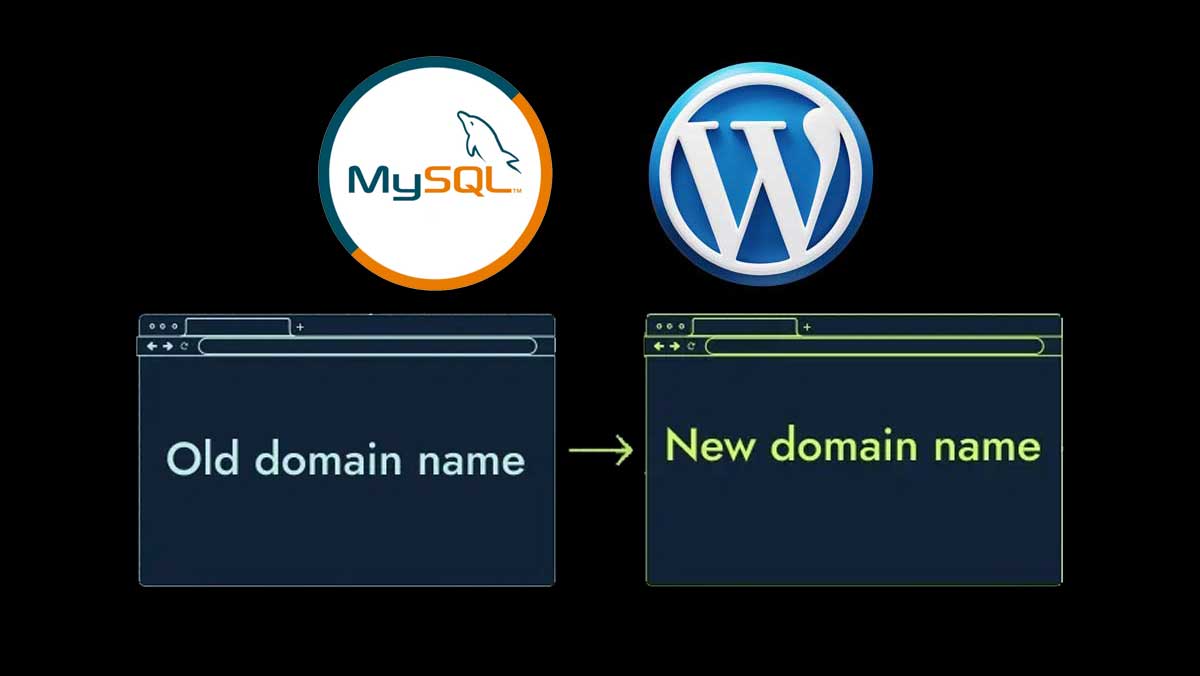
Moving a WordPress site to a new domain or server—whether for development, rebranding, or restructuring—comes with its own set of challenges. One of the trickiest parts is updating all the internal URLs stored in your database so that nothing breaks: links, media files, widgets, plugin settings, or serialized data.
In this post, we’ll walk through why you need to update database URLs, where these URLs are stored, and how to replace them safely (including handling serialized data). We’ll also touch on some special cases (like WidgetKit) and best practices to avoid broken sites.
Why You Can’t Just “Search & Replace” Blindly
At first glance, updating a URL in the database seems as simple as
UPDATE wp_posts
  SET post_content = REPLACE(post_content, 'http://oldsite.com', 'http://newsite.com');
However, that naive approach has pitfalls:
- Many WordPress options, plugin settings, widgets, and themes store values as serialized PHP strings (i.e. with lengths and delimiters). If you change one string length (like making oldsite.com → newsite.com) without adjusting the length metadata, the serialization breaks, and PHP can’t parse it correctly.
- Some data (e.g. GUID fields or certain plugin-specific settings) may not need changing, or might break if changed incorrectly.
- You must also update everywhere — not just post content: the wp_options table, wp_postmeta, and sometimes plugin-specific tables.
This is a well-known issue in the WordPress community. As one answer points out:
“What you’re looking at is serialized data … if I just replace the IP with the domain name, the configuration files will get corrupted.”
So, the task is: replace URLs safely across all relevant tables, without breaking serialization or losing data.
The Gist: Core SQL Commands for URL Replacement
One of the most commonly shared code snippets (also available in the gist you linked) performs replacements in the main WordPress tables
UPDATE wp_options
  SET option_value = REPLACE(option_value, 'http://www.oldurl', 'http://www.newurl')
  WHERE option_name = 'home' OR option_name = 'siteurl';

UPDATE wp_posts
  SET guid = REPLACE(guid, 'http://www.oldurl', 'http://www.newurl');

UPDATE wp_posts
  SET post_content = REPLACE(post_content, 'http://www.oldurl', 'http://www.newurl');

UPDATE wp_postmeta
  SET meta_value = REPLACE(meta_value, 'http://www.oldurl', 'http://www.newurl');
This is exactly the content of the gist (named wordpress-url-change-options.sql) you shared. Gist
These commands cover:
- Changing the site URL and home URL entries in wp_options.
- Updating the guid column in wp_posts.
- Replacing URLs inside post content.
- Replacing URLs inside post metadata.
However—these queries alone are not enough in many cases, especially when serialized data or plugin-specific settings are involved. Many tutorials (for example, from WPBeaches) use these as a baseline and then augment with additional steps.
Safely Handling Serialized Data & Complex Cases
Because many plugins/themes store data as serialized PHP arrays/objects, you can’t blindly run REPLACE() on them. Doing so may break the string length metadata and corrupt the data.
Here are some safer strategies:
- Use a “search-and-replace” tool built for WordPress
A highly recommended one is Search-Replace-DB (by interconnect/IT). It understands serialization and fixes lengths correctly. Many experienced developers rely on it when migrating. (Mentioned in various community answers.) WordPress Development Stack Exchange+1 - WP Migrate / Migration Plugins
Tools like WP Migrate Pro can do a find-and-replace across your database while preserving serialized data. They often include additional safeguards and don’t rely purely on SQL. WP Beaches - Export + Text-based Replacement + Reimport with Care
For very controlled environments, some developers export the SQL, do text-based search/replace with care (ensuring serialized lengths are corrected), and then reimport. This is error-prone and not recommended for complex setups. - Selective Replacement & Post-checking
After bulk operations, always check settings for broken widgets, plugin dashboards, or media library — some plugin tables may need manual updates.
Special Case: WidgetKit & Plugin-Specific Issues
Sometimes, you’ll find that updating the core WordPress tables doesn’t fully fix all broken things. For example, Bowler Hat’s article discusses WidgetKit, a plugin for Joomla/WordPress, and how its internal tables can cause trouble after URL migration. Bowler Hat
In the case of WidgetKit:
- It maintains its own data in its tables, possibly referencing the old domain or file paths.
- You may need to run custom queries on those plugin tables to update URLs.
- Some serialized settings inside WidgetKit may need special care.
The article provides a diagnostic approach: check for broken widgets or missing content, trace which widget/table is failing, and run targeted replacements there.
The broader lesson: don’t assume only core WordPress tables need updating—always audit plugin/theme tables too.
Step-by-Step Workflow (Recommended)
Here’s a suggested step-by-step process you can adopt when migrating a WordPress site to a new URL:
- Backup everything
Export the database, backup the files—just in case. - Copy files to new server or new domain environment.
- Import the database into the target environment.
- Update wp-config.php
Make sure database credentials, host, and table prefix (if changed) are correct. - Run safe search-and-replace
Use a tool like Search-Replace-DB, or WP Migrate, which understands serialized data.
If you must fallback to manual SQL, first run replacements in wp_options, wp_posts, wp_postmeta as shown above, but be aware of risks. - Check plugin and theme tables
Look for plugin or theme tables referencing absolute URLs—run replacement queries there as needed. - Check for broken media, widgets, menus
Visit the site, the admin dashboard, and ensure all pages, menus, images, and widgets load correctly. - Fix any remaining issues
Sometimes GUID updates aren’t recommended (WordPress suggests not altering GUIDs).WP Beaches
Some plugin caches or transient data may store old URLs—clear caches and regenerate if needed. - Test thoroughly
Navigate site, run through front-end and back-end flows, check logs for errors. - Remove migration tools
If you used a search-and-replace script, delete it immediately to avoid security risks.
Pitfalls & Tips from Experience
- Don’t change GUIDs unless necessary. Many guides caution against modifying the guid column because it’s meant to be a permanent identifier, not a navigational link. WP Beaches
- Plugin caches and object-cache may make problems persist even after database changes—flush any caching.
- Large databases may make operations slow; break them into batches or use command-line tools.
- Character set / collation issues sometimes crop up after migration—ensure both old and new database use compatible charsets.
- Test on a staging environment first, so mistakes don’t impact your live site.
- Document everything — which tables were updated, which plugins needed special handling, etc.
Conclusion & Summary
Migrating a WordPress site to a new URL (or domain) is more than moving files and tweaking config. Because WordPress — and many plugins/themes — embed absolute URLs in the database (often in serialized form), a careful and informed strategy is required.
- Start with core tables (wp_options, wp_posts, wp_postmeta), but expect to dig into plugin-specific tables as well.
- Use tools (Search-Replace-DB, WP Migrate Pro) that are serialization-aware.
- Always backup and test before running broad queries.
- After migration, thoroughly test your site—especially widgets, plugins, and custom content.